How to Change Proxy Settings in Edge

Learn how to configure, verify, and troubleshoot proxy settings for Microsoft Edge on Windows and macOS.
To change proxy settings in Edge, open Settings and more (…) > Settings > System and performance, then select Open your computer’s proxy settings. Edge will take you to the proxy controls for your operating system, where you can enable automatic detection, enter a setup script, or configure a manual proxy. The exact labels and options may vary by operating system and version.
Compare Edge proxy options
| Option | Best for | Where to configure | What to enter | Main consideration |
|---|---|---|---|---|
| Automatically detect settings | Networks that provide proxy details automatically | Windows proxy settings | Nothing in Edge | Depends on network configuration |
| Use setup script | Organizations that provide a proxy configuration script | Windows proxy settings | Script address | Requires a valid script URL |
| Use a proxy server | A known proxy server and port | Windows proxy settings | Address and port | May require bypass rules |
| No proxy | Direct connections | Windows proxy settings | Nothing | Won’t use a configured proxy |
| macOS system proxy | Proxy settings managed by macOS | macOS Network settings | Network-specific details | Edge follows system settings |
| Organization-managed proxy | Work or school devices | Contact the administrator | Organization’s instructions | Settings may be controlled by policy |
Compiled November 2026; check the provider's site for current details.
Change proxy settings in Edge on Windows
- Open Microsoft Edge.
- Select Settings and more (…) in the top-right corner, then choose Settings.
- Select System and performance in the sidebar.
- Choose Open your computer’s proxy settings. Windows Settings will open to Network & internet > Proxy.
- Pick the proxy option you need, enter the required details, and save if prompted.
You can also go straight to the Windows controls: open Start > Settings > Network & internet > Proxy. If a Windows update changes the menu layout, search Windows Settings for “proxy.”
Windows typically offers these options:
- Automatically detect settings: Lets Windows look for proxy configuration on the network.
- Use setup script: Applies settings from an automatic configuration (PAC) script URL provided by an administrator or service.
- Use a proxy server: Sends eligible connections through a server address and port you enter.
- Don’t use the proxy server for local addresses: Excludes local network addresses from the manual proxy, when available.
For a manual proxy, switch on Use a proxy server, enter the server address and port, and configure any exceptions shown on the screen. Follow the exact details from your workplace, school, or proxy provider. A proxy address or port cannot be guessed reliably.
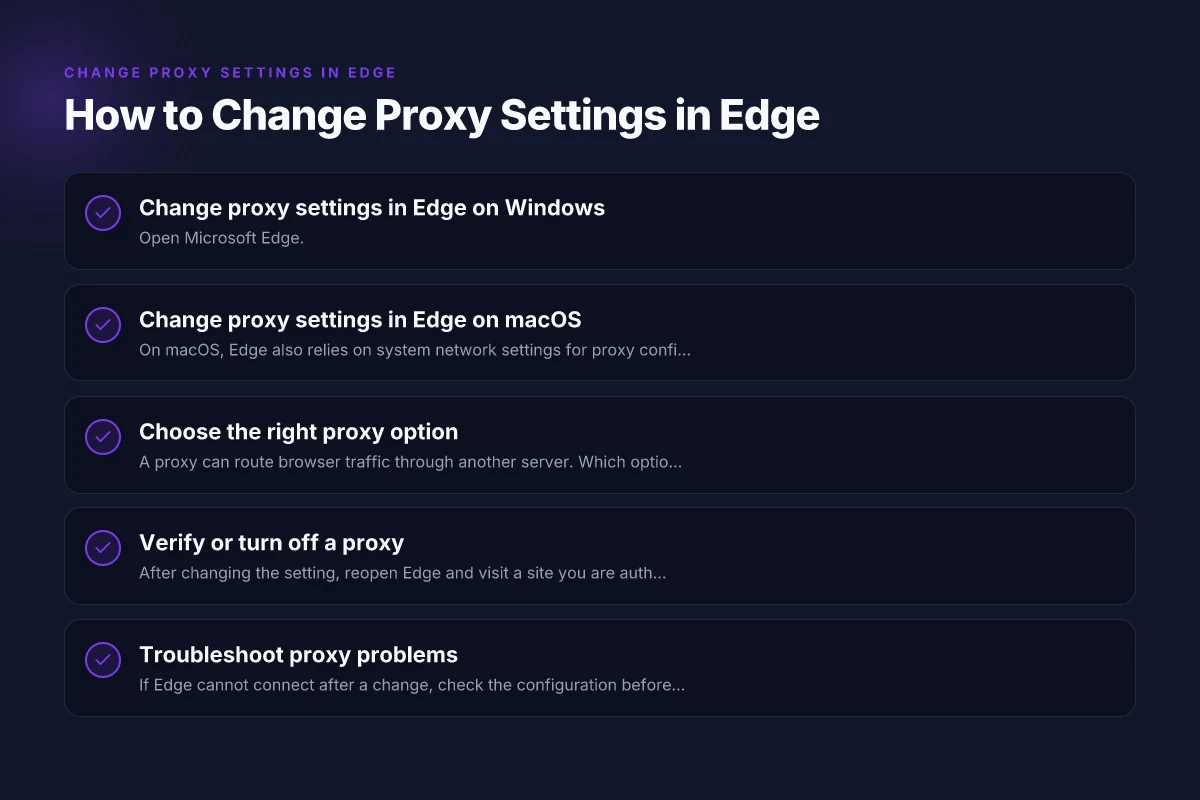
Change proxy settings in Edge on macOS
On macOS, Edge also relies on system network settings for proxy configuration. Microsoft Edge Secure Network VPN: How It Works and How to Turn It On
- Open Edge and go to Settings and more (…) > Settings > System and performance.
- Select Open your computer’s proxy settings.
- In macOS System Settings, open Network and choose the active connection, such as Wi-Fi or Ethernet.
- Select Details (or the equivalent control for your macOS version), then open Proxies.
- Select the proxy protocol or automatic configuration option required by your administrator or provider.
- Enter the server, port, and any other required information, then select OK or Apply.
You may need an administrator password to change these settings. If you use more than one network connection, make sure you configure the one currently in use. macOS labels and layout can differ between releases, so use the system search for “Proxies” if you cannot find the section.
Choose the right proxy option
A proxy can route browser traffic through another server. Which option to use depends on the network or service you need to access.
| Option | What it does | Best suited to |
|---|---|---|
| Automatic detection | Lets the operating system find proxy settings available on the network | Networks that configure proxies automatically |
| Setup script | Uses a PAC file to decide how requests should be routed | Organizations that provide a script URL |
| Manual proxy | Sends traffic through a specified server and port | Services or administrators that supply fixed connection details |
| No proxy | Connects without the configured proxy | Networks where no proxy is required |
A proxy is different from a VPN. A proxy may apply only to certain applications or types of traffic, depending on the system and configuration. A VPN generally creates a broader connection for traffic from the device or selected apps. Check what your organization’s setup is intended to cover before changing either one.
Check proxy settings by operating system NordVPN Edge: What It Is and How to Use NordVPN with Microsoft Edge
| Check | Windows | macOS | What to look for | Next step |
|---|---|---|---|---|
| Open Edge settings | Open Settings | Open Settings | Network or system proxy link | Select the link |
| Find proxy controls | Windows proxy settings | macOS proxy settings | The operating system’s proxy page | Review active settings |
| Check automatic detection | Review Windows option | Review network configuration | Whether detection is enabled | Match the network’s instructions |
| Check setup script | Review script setting | Review network configuration | Whether a script is configured | Confirm the script address |
| Check manual proxy | Review server address and port | Review enabled proxy services | Whether a proxy is active | Verify details with the provider |
| Turn off proxy | Disable the active Windows setting | Disable the active macOS setting | Whether direct access is intended | Follow work or school policy |
| Confirm the change | Reload the affected site | Reload the affected site | Whether the connection works | Test another site if needed |
Compiled November 2026; check the provider's site for current details.
Verify or turn off a proxy
After changing the setting, reopen Edge and visit a site you are authorized to access. If your workplace or provider offers a proxy test page, use that as well. A page loading successfully does not necessarily confirm that every type of traffic is using the proxy, but it can help identify basic connection problems.
To stop using a proxy, return to your operating system’s proxy settings and turn off the option you enabled, such as Use a proxy server or a setup script. On a managed device, don’t disable an organization-required proxy without checking with your IT team. Some settings may be enforced by device policies and may revert after you change them.
If you want to check whether Edge is managed, open edge://policy in the address bar. This page displays policies applied to Edge. It does not provide a way to override them. You can also check Windows or macOS management settings if your device belongs to an organization. Mac VPN: How to Choose, Set Up, and Use One
Troubleshoot proxy problems
If Edge cannot connect after a change, check the configuration before changing other network settings:
- Confirm the address and port. A typo, outdated server, or incorrect port can prevent connections.
- Check the script URL. Make sure the PAC script URL is exact and accessible from your network.
- Verify the selected network. A proxy configured for Wi-Fi may not apply to Ethernet, or vice versa.
- Check exceptions. A site or local address listed as an exception may connect directly instead of through the proxy.
- Restart Edge. Close and reopen the browser after updating system settings.
- Ask whether authentication is required. Some proxies need a username, password, or organization sign-in.
- Check for managed settings. If controls are unavailable or changes do not stick, an administrator may be enforcing the configuration.
- Restore the previous settings. If the problem began immediately after a change, undo it or return to the configuration supplied by your network administrator.
Avoid installing unknown extensions or apps that promise to configure a proxy for you. A malicious or untrusted proxy may be able to observe or interfere with some of your network traffic, especially if the connection is not protected with HTTPS. Use only a proxy you trust and understand.
Troubleshoot proxy problems
| Symptom | Possible cause | What to check | Suggested action | When to ask for help |
|---|---|---|---|---|
| Sites do not load | Incorrect proxy address or port | Manual proxy details | Confirm the values | Details are organization-managed |
| Connection works off-network only | Network requires a proxy | Current network instructions | Configure the required option | Instructions are unavailable |
| Proxy script fails | Invalid or unreachable script URL | Script address and network access | Confirm the URL with its provider | The script is maintained by IT |
| Settings keep changing | Device policy controls settings | Work or school management | Check with the administrator | Settings are locked or revert |
| Some sites fail | Proxy bypass rules may be missing | Bypass list and site requirements | Verify the rules | The proxy provider manages them |
| Turning off proxy fixes access | Active proxy may be misconfigured | Whether a proxy is required | Keep it off only if permitted | You use a managed network |
| Edge still cannot connect | Another network issue may be involved | Whether other sites or apps connect | Check the network connection | The issue persists across networks |
Compiled November 2026; check the provider's site for current details. Urban VPN: Features, Compatibility, and What to Consider
Recommendation
For most people, the safest approach is to open proxy settings from Edge and follow the instructions supplied by their network administrator or trusted proxy provider. If you do not have proxy details and your network does not require one, leave the system’s existing settings unchanged.