Clash for iPad: How to Install and Play
Find out how to play Clash games on iPad, check compatibility, and choose the right setup for your device.
If you’re looking for Clash for iPad, you can usually download the game directly from the Apple App Store. Popular titles such as Clash of Clans and Clash Royale have versions designed for iPad, though availability and compatibility depend on your region, iPad model, and iPadOS version. Search for the exact game title in the App Store, confirm the developer is Supercell, and check the listing before installing.
Compare the main Clash games before downloading
| Game | What it is | iPad install option | Progress account | Best for |
|---|---|---|---|---|
| Clash of Clans | Village-building strategy | App Store | Supercell ID | Base building |
| Clash Royale | Real-time card battles | App Store | Supercell ID | Short competitive matches |
| Clash Mini | Miniature auto-battler | Availability varies | Availability varies | Miniature strategy |
| Clash Quest | Turn-based puzzle strategy | Discontinued | Not available | No longer available to new players |
| Clash Heroes | Action-adventure project | Not released | Not available | Not currently playable |
| Other Clash title | Depends on the game | Check App Store listing | Check game settings | Confirm the exact title first |
Compiled November 2026; check the provider's site for current details.
Which Clash game do you mean?
“Clash” can refer to more than one game. The two best-known options are Clash of Clans, a village-building strategy game, and Clash Royale, a real-time strategy game featuring short battles. They are separate apps, so make sure you select the one you want.
Other games with “Clash” in the name may come from different developers. Check the publisher, app details, reviews, and privacy information to avoid downloading an unrelated app.
Quick comparison
| Game | Main focus | A good fit if you enjoy |
|---|---|---|
| Clash of Clans | Building a village, training troops, and attacking bases | Long-term planning and multiplayer clans |
| Clash Royale | Collectible cards and real-time arena battles | Short, competitive matches |
| Other Clash-named apps | Depends on the developer and game | A different experience with a similar name |
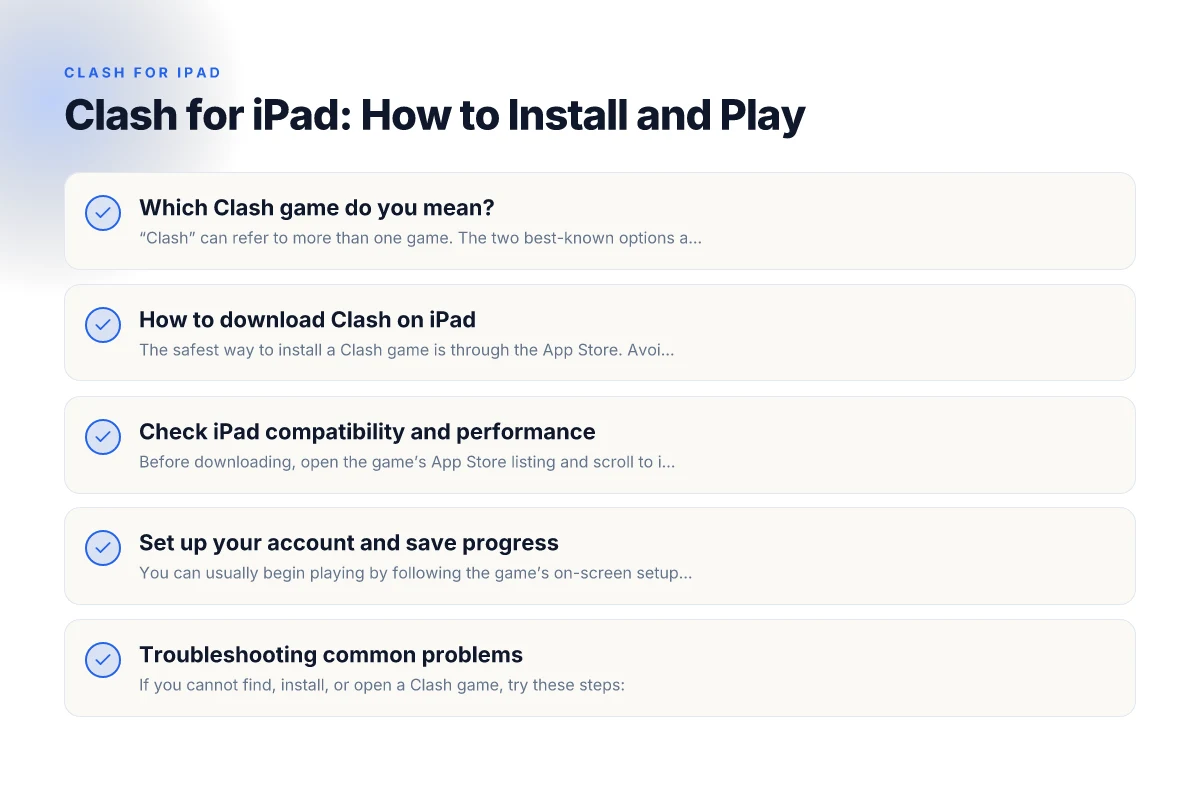
How to download Clash on iPad
The safest way to install a Clash game is through the App Store. Avoid unofficial download pages or configuration profiles that claim to provide a special iPad edition.
- Open the App Store on your iPad.
- Tap Search and enter the full title, such as Clash of Clans or Clash Royale.
- Check that the developer is Supercell for an official Supercell game.
- Review the app’s compatibility, age rating, required iPadOS version, and available storage.
- Tap Get or the download button, then authenticate if prompted.
- Open the game and follow its setup instructions.
If the app does not appear, it may not be available in your App Store region, or your iPad may not meet the current requirements. App Store listings can change, so use the information shown on your device rather than relying on an old compatibility list. FortiClient VPN Setup: A Step-by-Step Guide for Windows and macOS
Choose an iPad installation and compatibility check
| Option or check | Where to look | What to confirm | If it is unavailable | Good choice when |
|---|---|---|---|---|
| App Store download | App Store listing | iPad compatibility and requirements | Check region and device support | The game is listed for your iPad |
| iPhone app on iPad | App Store listing | Whether the iPhone app can run on iPad | The developer may not support iPad | No iPad-specific version is offered |
| iPadOS version | Settings, then General | Your installed iPadOS version | Update if the iPad supports it | The listing requires a newer version |
| Available storage | Settings, then General, then iPad Storage | Room for installation and updates | Remove unused files or apps | Download or update is blocked |
| Device performance | Game listing and in-game play | Smoothness and responsiveness | Close other apps or lower settings | The game runs without disruptive lag |
| Network connection | Wi-Fi settings | Stable internet access | Try another reliable network | Downloading or online play fails |
Compiled November 2026; check the provider's site for current details.
Check iPad compatibility and performance
Before downloading, open the game’s App Store listing and scroll to its information section. The listing shows the minimum operating system requirement and other device details. An older iPad may not support the latest version, even if it once ran the game.
For a smoother experience: VPN for Edge Extension: How to Choose and Use One
- Update iPadOS if your device supports the update.
- Keep enough free storage for the app and future updates.
- Close apps you are not using if the game feels sluggish.
- Use a reliable Wi-Fi connection for downloads and online play.
- Restart the iPad if the game freezes or has trouble opening.
A larger iPad screen can make menus and battlefield details easier to see. However, performance varies by model, and a newer device is not a guarantee of uninterrupted online play. Network quality, game updates, and server availability also matter.
Set up your account and save progress
You can usually begin playing by following the game’s on-screen setup. To help secure your progress, connect the game to a Supercell ID if that option is available. This can make it easier to access your game account on another supported device or recover progress after reinstalling.
Use the account options provided inside the game. Do not share verification codes or passwords with anyone claiming they need them to “restore” your village or account. If you already play on another device, make sure you connect to the correct account before starting a new game on the iPad. This reduces the risk of confusing a fresh game with your existing progress.
Pick an account and troubleshooting next step Tuxler VPN Chrome: How It Works, Setup, and What to Know
| Situation | First step | Account or data check | Next step | Avoid |
|---|---|---|---|---|
| New installation | Download the correct game | Sign in with Supercell ID if available | Complete the in-game setup | Installing an unrelated Clash title |
| Moving to another iPad | Install the same game | Sign in to the same Supercell ID | Check that progress appears | Starting a new account by mistake |
| Progress is missing | Open the game settings | Confirm the account used before | Contact Supercell support if needed | Sharing account credentials |
| Download will not start | Check Wi-Fi and storage | Confirm the correct Apple Account | Restart the iPad and retry | Unofficial download sites |
| Game will not install | Check App Store compatibility | Verify iPadOS requirements | Update iPadOS if supported | Assuming every iPad is compatible |
| Game crashes or lags | Close other apps and reopen it | Confirm progress is linked | Update the app and iPadOS | Deleting the app before checking progress |
| Purchase issue | Check purchase history | Use the purchasing Apple Account | Contact Apple or game support | Repeating a purchase without checking |
Compiled November 2026; check the provider's site for current details.
Troubleshooting common problems
If you cannot find, install, or open a Clash game, try these steps:
- The game is missing from search: Search its full name, check your App Store region, and confirm the app is still listed there.
- The iPad is incompatible: Check the minimum iPadOS requirement. If the device cannot update to that version, the current game release may not install.
- The download is stuck: Check your internet connection and available storage, then pause and restart the download.
- The game crashes: Restart the iPad, install available updates, and try again.
- Progress is missing: Check whether you are signed in to the intended game account or Supercell ID.
- Online features do not work: Confirm that Wi-Fi is available and check whether the game is experiencing a service interruption.
If these steps do not help, consult the game’s official support resources. Never provide account credentials to unofficial support pages or people contacting you through social media.
Recommendation
For most players, the best way to get Clash for iPad is to download the exact game from the App Store, verify that it is published by the expected developer, and check compatibility before installing. If you plan to play on more than one device, connect your game to a Supercell ID and keep your sign-in details private. VPN Change Location Free: How to Switch Your IP Address Safely