Microsoft Edge Free VPN Extension: What to Know Before You Install One
Learn how to find a free VPN extension for Microsoft Edge, compare options, and avoid privacy and security pitfalls.
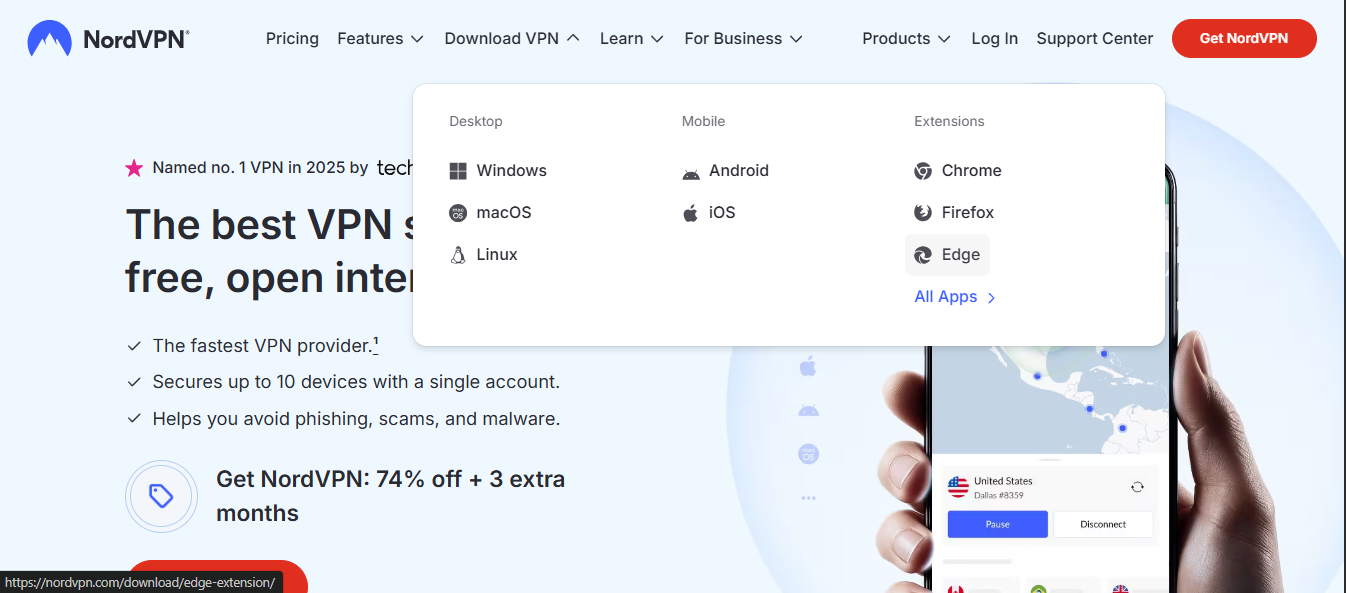
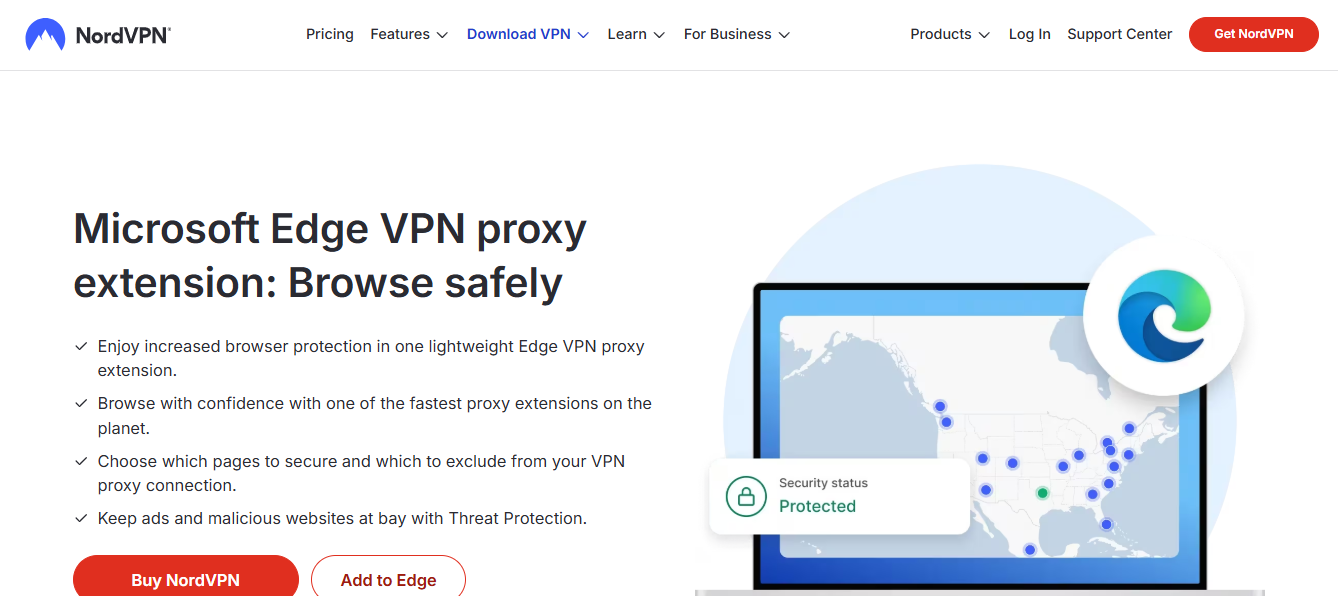
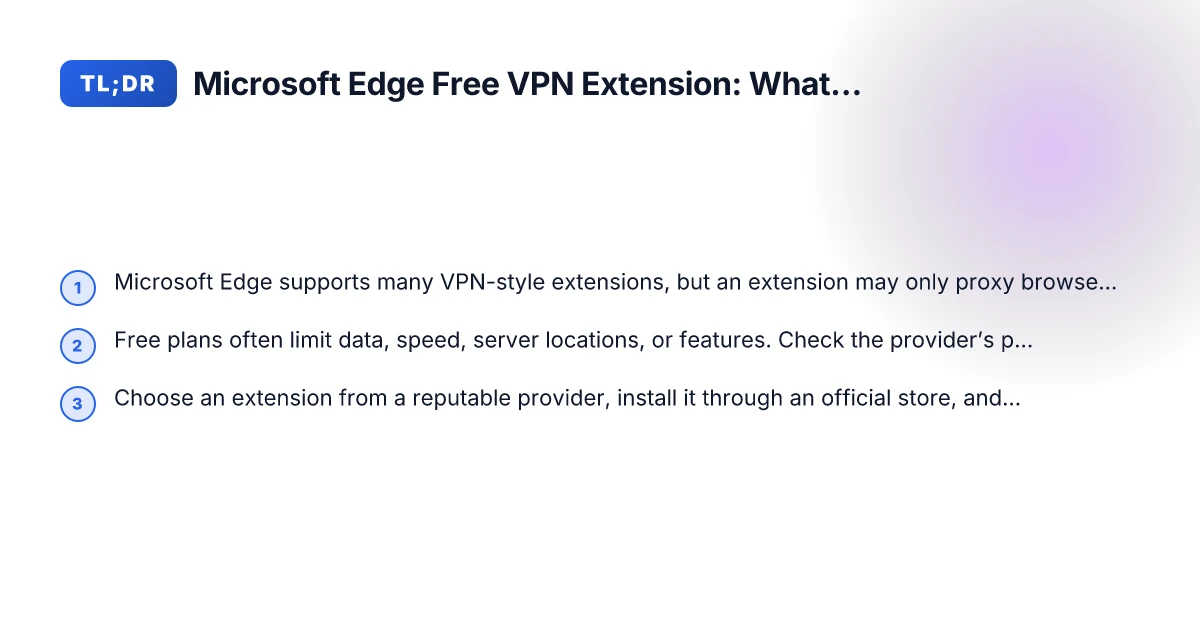
If you’re looking for a Microsoft Edge free VPN extension, you can find browser add-ons that route some or all of your Edge traffic through a VPN or proxy service. The important distinction is that many “VPN extensions” protect only browser activity, not every app on your computer. Free options can also come with data limits, fewer locations, slower speeds, or privacy trade-offs, so check the details before you connect.
Compare free Edge VPN extension types
| Option | Typical access | Data limits | Server choice | Best suited for |
|---|---|---|---|---|
| Free tier from a VPN provider | Browser extension | Often capped | Often limited | Trying a provider |
| Paid VPN provider’s free extension | Browser extension | Varies by provider | May be limited | Basic browsing |
| Proxy-style extension | Browser traffic only | Varies | Often limited | Changing apparent location |
| VPN app with Edge support | Whole device, depending on setup | Varies | Varies | Protecting more than browser traffic |
| Browser built-in privacy feature | Browser only | Not necessarily a VPN | Usually not a VPN server list | Basic privacy controls |
| Unknown or unverified extension | Unclear | Unclear | Unclear | Not recommended |
Compiled November 2026; check the provider's site for current details.
| VPN | Obfuscation | From / month | Plan | Free plan | Refund | Alipay | UnionPay | Crypto | Website opens in China | Trustpilot | |
|---|---|---|---|---|---|---|---|---|---|---|---|
 ZoogVPN | Turn on manually Shadow | $2.49/mo | 27 months: $59.99 | Yes | 7 days | ✓ | ✓ | ✓ | ✓ | Official site blocked; our special link opens (4.4 s) | 4.2/5 (195 reviews) |
 NordVPN | Turn on manually Obfuscated Servers / NordWhisper | $3.49/mo | 27 months: $94.23 | No | 30 days | ? | ✗ | ✓ | ✓ | ✗ Blocked | 4.2/5 (51,628 reviews) |
 ExpressVPN | ✓ On by default all servers | $3.00/mo | 28 months: $84 | No | 30 days | ✗ | ✗ | ✓ | ✗ | ✗ Blocked | 4.4/5 (29,706 reviews) |
 Surfshark | ✓ On by default Camouflage, with OpenVPN | See site | See site | No | 30 days | ✗ | ✗ | ✗ | ✓ | ✗ Blocked | 4.3/5 (31,823 reviews) |
 Proton VPN | Turn on manually Stealth, free plan too | $2.99/mo | 12 months: $35.88 | Yes | 30 days | ✗ | ✗ | ✗ | ✓ | ✗ Blocked | 2.1/5 (1,040 reviews) |
 Astrill VPN | Turn on manually StealthVPN / OpenWeb | $12.50/mo | 24 months: $300 | No | See site | ✗ | ✗ | ✗ | ✓ | ✗ Blocked | 1.3/5 (110 reviews) |
 Private Internet Access | Turn on manually Shadowsocks, OpenVPN only | $2.03/mo | 40 months: $81.2 | No | 30 days | ✗ | ✗ | ✗ | ✗ | ✗ Blocked | 4.2/5 (11,033 reviews) |
 CyberGhost | Turn on manually selected servers | $2.19/mo | 28 months: $61.32 | No | 45 days | ✗ | ✗ | ✗ | ✓ | ✗ Blocked | 4.0/5 (24,178 reviews) |
 PureVPN | Turn on manually switch to OpenVPN | $1.69/mo | 60 months: $101.55 | No | 31 days | ? | ? | ✗ | ✓ | ✗ Blocked | 4.4/5 (17,994 reviews) |
 AdGuard VPN | ✓ On by default TrustTunnel | $2.99/mo | 24 months: $71.76 | Yes | 30 days | ✓ | ✗ | ✓ | ✓ | Official site blocked; our special link opens (3.7 s) | 4.3/5 (290 reviews) |
 Mullvad | Turn on manually QUIC / Shadowsocks / LWO | $5.61/mo | €5/mo | No | 14 days | ✗ | ✗ | ✗ | ✓ | ✗ Blocked | 3.2/5 (192 reviews) |
 Windscribe | Turn on manually Stealth / WStunnel | $5.75/mo | 12 months: $69 | Yes | See site | ✗ | ✗ | ✗ | ✓ | ✗ Blocked | 4.7/5 (13,355 reviews) |
 StrongVPN | Turn on manually Scramble, OpenVPN TCP | See site | See site | No | 30 days | ✓ | ✗ | ✗ | ✗ | ✗ Blocked | 4.4/5 (2,695 reviews) |
 LightXtreme 闪连 | Not listed | $7.08/mo | 12 months: $84.99 | Yes | 30 days | ✓ | ✓ | ✓ | ✓ | ✓ Yes (3.5 s) | No page |
Prices checked 2026-11-10 on each vendor's pricing page (cheapest long plan, USD). Check the vendor's checkout for the final price.
Obfuscation checked 2026-11-14 on each vendor's site and help center: "on by default" = nothing to set; "turn on manually" = switch protocol or mode in settings; "not listed" = the vendor describes no obfuscation.
Payment methods checked 2026-11-10 on each vendor's payment pages: all 14 take cards and PayPal; ✗ = not listed, ? = the vendor's own pages disagree.
China access: whether the official website opens from mainland China networks (tests the website only, not the VPN connection). Last checked 2026-11-18 01:02 Beijing time.
Trustpilot score and review count checked 2026-11-10.
What a VPN extension for Edge does
A VPN extension adds a control to Edge’s toolbar so you can connect to a provider’s server without opening a separate desktop app. Depending on the service, it may encrypt traffic between your browser and the provider, change the apparent IP address of browser requests, or simply configure a web proxy.
That last point matters: not every add-on marketed as a VPN provides the same protection as a full VPN application. A browser proxy may change your browser’s apparent location but offer different encryption and privacy protections. Read the provider’s description to understand how its service works.
Browser extension or full VPN app?
A browser extension usually covers traffic from Edge only. Other software, such as a messaging app, game, or system update, may continue using your regular internet connection. A desktop VPN app is generally designed to route more of your device’s network traffic through the VPN, although coverage depends on the app and its settings.
| Feature | Edge VPN extension | Desktop VPN app |
|---|---|---|
| Typical coverage | Browser traffic | Often traffic from the whole device |
| Setup | Install an Edge add-on | Install and configure an application |
| Free-plan limits | May include data or location limits | Varies by provider and plan |
| Best suited to | Browser-focused use | Broader device protection |
How to find and install a free Edge VPN extension
Start in the Microsoft Edge Add-ons store. Search for “VPN,” then open a listing and review its publisher, permissions, update history, user feedback, and privacy information. You can also use a provider’s official website to find its listing, but make sure the link leads to a legitimate store page. Free VPN for Edge Extension: How to Choose One Safely
To install an extension:
- Open the Edge Add-ons store and search for the provider or “VPN.”
- Select the listing and review what data the extension handles.
- Choose Get, then confirm the requested permissions.
- Open the extension from Edge’s toolbar and follow its setup instructions.
- Connect to a server and check the provider’s settings and limits.
Be cautious if an extension requests permissions that seem unrelated to its function. Browser permissions can allow an add-on to read or change information on websites you visit. A legitimate service should explain why it needs access and how it uses data.
Safety and privacy checks before installing
| Check | What to look for | Warning sign | Why it matters |
|---|---|---|---|
| Publisher | Recognizable provider | Unclear identity | Helps assess accountability |
| Permissions | Relevant to stated features | Broad access without explanation | Limits unnecessary access |
| Privacy policy | Clear data handling | Missing or vague policy | Shows what may be collected |
| Logging | Plain explanation of activity data | No details on logs | Helps judge privacy claims |
| Business model | Clear free-tier terms | Unexplained “free” service | Reveals possible trade-offs |
| Reviews | Recent, consistent feedback | Repeated reports of problems | Offers clues, not proof |
| Updates | Maintained extension | No recent maintenance details | Helps assess ongoing support |
| Claims | Specific, realistic wording | Guaranteed anonymity or total protection | VPNs have limits |
Compiled November 2026; check the provider's site for current details. Free VPN Edge Extension: What to Choose and How to Use It
What “free” usually means
Free VPN extensions vary widely. Some are limited versions of paid services. Others offer a small amount of data or a short list of server locations. Some may display ads or encourage users to upgrade. Those restrictions are not automatically a sign of a bad service, but they can make an extension unsuitable for video streaming, large downloads, or frequent use.
Check these points before relying on a free plan:
- Data allowance: Is there a monthly cap, daily limit, or no stated limit?
- Speed and congestion: Can the provider restrict speeds or prioritize paid users?
- Server locations: Are the locations you need available on the free tier?
- Privacy policy: Does it explain what connection or browsing data is collected?
- Logging claims: Are claims about logs clear, specific, and supported by independent audits?
- Business model: Does the provider explain how it funds the free service?
- Support and updates: Is the extension maintained and compatible with current Edge versions?
Avoid assuming that “free” means anonymous or risk-free. A VPN provider can potentially observe information about traffic passing through its service. The service’s policies and technical design are therefore central to whether it is a suitable choice.
Safety and privacy checks
A VPN does not make you invisible online. Websites may still identify you through account sign-ins, cookies, browser fingerprinting, or information you choose to share. A VPN also cannot guarantee that every connection is protected, especially if an extension disconnects or does not cover the type of traffic you expect. VPN Extension Edge Free: How to Choose a Free VPN for Microsoft Edge
Before using an extension regularly, verify that it comes from the provider you intended to choose. Look for a consistent publisher name, a clear website, and a privacy policy that matches the product. Be wary of copied branding, vague claims such as “100% anonymous,” or requests to install additional software from unfamiliar sources.
After connecting, you can check whether your public IP address appears to change using a reputable IP-checking website. This only confirms what that site sees. It does not prove that all browser traffic is encrypted or that other applications are protected. If the extension offers connection protection or DNS options, read its documentation and test those features rather than assuming they are enabled.
Choose an option for your needs
| Your need | Option to consider | Check before choosing | Limitation to remember |
|---|---|---|---|
| Protect traffic in Edge only | Browser VPN extension | Coverage and permissions | May not cover other apps |
| Protect the whole device | VPN app | Device support and terms | An extension alone may not do this |
| Occasional location changes | Free extension with clear terms | Available locations | Free choices may be limited |
| Frequent streaming | Provider with suitable plan | Service compatibility | Access is not guaranteed |
| Avoid data caps | Paid plan or another suitable service | Usage limits | “Free” may include restrictions |
| Keep browsing data private | Reputable provider | Logging and privacy policy | A VPN does not make you anonymous |
| Avoid unknown publishers | Established provider | Publisher identity and official listing | Popularity alone is not proof |
| Unsure whether to install | Wait and compare options | Permissions, policy, and reviews | Do not install under pressure |
Compiled November 2026; check the provider's site for current details. Nord VPN for PC: How to Download, Install, and Use It
Choosing the right option for your needs
For occasional browsing on public Wi-Fi, a reputable browser extension may be convenient, but it should not be treated as a substitute for good security habits. Use HTTPS websites, keep Edge updated, and avoid entering sensitive information into unfamiliar pages.
For streaming, large downloads, or regular use, a free plan’s limits may quickly become frustrating. A paid plan from a provider with transparent policies may offer more locations, higher limits, and clearer support. If your goal is to protect all internet activity on a laptop, look for a full VPN application rather than relying solely on an Edge add-on.
For access to a work or school network, use the VPN service approved by that organization. A consumer extension may not provide the access controls or security requirements needed for workplace systems.
Recommendation
A Microsoft Edge free VPN extension can be useful for browser-focused, occasional use, but compare its coverage, limits, permissions, and privacy policy before installing it. Choose a well-established provider from an official store, and remember that an extension may not protect traffic outside Edge. If you need consistent protection for your whole device, consider a reputable desktop VPN app instead. Free VPN for Microsoft Edge Browser Extension: What to Know Before You Install