my VPN is blocking websites(2026)
Learn why your VPN blocks websites and how to restore access without sacrificing your privacy.
If my VPN is blocking websites, the most common cause is that a site has flagged the VPN’s IP address, restricted access by location, or mistaken the connection for suspicious traffic. Try connecting to another server, changing the VPN protocol, or checking the site in a private browser window. If that does not work, temporarily disconnect only if you trust the website and understand the privacy risk.
A VPN encrypts your connection and routes it through a server, so websites may see the server’s IP address instead of your own. Some websites block known VPN addresses to limit fraud, enforce regional rules, or manage automated traffic. The VPN itself may also be blocking a domain through a security or filtering feature.
| VPN | Obfuscation | From / month | Plan | Free plan | Refund | Alipay | UnionPay | Crypto | Website opens in China | Trustpilot | |
|---|---|---|---|---|---|---|---|---|---|---|---|
 ZoogVPN | Turn on manually Shadow | $2.49/mo | 27 months: $59.99 | Yes | 7 days | ✓ | ✓ | ✓ | ✓ | Official site blocked; our special link opens (4.4 s) | 4.2/5 (195 reviews) |
 NordVPN | Turn on manually Obfuscated Servers / NordWhisper | $3.49/mo | 27 months: $94.23 | No | 30 days | ? | ✗ | ✓ | ✓ | ✗ Blocked | 4.2/5 (51,628 reviews) |
 ExpressVPN | ✓ On by default all servers | $3.00/mo | 28 months: $84 | No | 30 days | ✗ | ✗ | ✓ | ✗ | ✗ Blocked | 4.4/5 (29,706 reviews) |
 Surfshark | ✓ On by default Camouflage, with OpenVPN | See site | See site | No | 30 days | ✗ | ✗ | ✗ | ✓ | ✗ Blocked | 4.3/5 (31,823 reviews) |
 Proton VPN | Turn on manually Stealth, free plan too | $2.99/mo | 12 months: $35.88 | Yes | 30 days | ✗ | ✗ | ✗ | ✓ | ✗ Blocked | 2.1/5 (1,040 reviews) |
 Astrill VPN | Turn on manually StealthVPN / OpenWeb | $12.50/mo | 24 months: $300 | No | See site | ✗ | ✗ | ✗ | ✓ | ✗ Blocked | 1.3/5 (110 reviews) |
 Private Internet Access | Turn on manually Shadowsocks, OpenVPN only | $2.03/mo | 40 months: $81.2 | No | 30 days | ✗ | ✗ | ✗ | ✗ | ✗ Blocked | 4.2/5 (11,033 reviews) |
 CyberGhost | Turn on manually selected servers | $2.19/mo | 28 months: $61.32 | No | 45 days | ✗ | ✗ | ✗ | ✓ | ✗ Blocked | 4.0/5 (24,178 reviews) |
 PureVPN | Turn on manually switch to OpenVPN | $1.69/mo | 60 months: $101.55 | No | 31 days | ? | ? | ✗ | ✓ | ✗ Blocked | 4.4/5 (17,994 reviews) |
 AdGuard VPN | ✓ On by default TrustTunnel | $2.99/mo | 24 months: $71.76 | Yes | 30 days | ✓ | ✗ | ✓ | ✓ | Official site blocked; our special link opens (3.7 s) | 4.3/5 (290 reviews) |
 Mullvad | Turn on manually QUIC / Shadowsocks / LWO | $5.61/mo | €5/mo | No | 14 days | ✗ | ✗ | ✗ | ✓ | ✗ Blocked | 3.2/5 (192 reviews) |
 Windscribe | Turn on manually Stealth / WStunnel | $5.75/mo | 12 months: $69 | Yes | See site | ✗ | ✗ | ✗ | ✓ | ✗ Blocked | 4.7/5 (13,355 reviews) |
 StrongVPN | Turn on manually Scramble, OpenVPN TCP | See site | See site | No | 30 days | ✓ | ✗ | ✗ | ✗ | ✗ Blocked | 4.4/5 (2,695 reviews) |
 LightXtreme 闪连 | Not listed | $7.08/mo | 12 months: $84.99 | Yes | 30 days | ✓ | ✓ | ✓ | ✓ | ✓ Yes (3.5 s) | No page |
Prices checked 2026-11-10 on each vendor's pricing page (cheapest long plan, USD). Check the vendor's checkout for the final price.
Obfuscation checked 2026-11-14 on each vendor's site and help center: "on by default" = nothing to set; "turn on manually" = switch protocol or mode in settings; "not listed" = the vendor describes no obfuscation.
Payment methods checked 2026-11-10 on each vendor's payment pages: all 14 take cards and PayPal; ✗ = not listed, ? = the vendor's own pages disagree.
China access: whether the official website opens from mainland China networks (tests the website only, not the VPN connection). Last checked 2026-11-18 01:02 Beijing time.
Trustpilot score and review count checked 2026-11-10.
Common reasons a VPN blocks a website
| Cause | Why it happens | Typical sign | First check | Possible fix |
|---|---|---|---|---|
| IP address blocked | Site flags a shared VPN IP | Access denied | Try another site | Change VPN server |
| Region restriction | Site limits access by location | Region message | Check site availability | Choose an allowed region |
| CAPTCHA or security check | VPN traffic looks unusual | Repeated CAPTCHA | Test without extensions | Switch server |
| DNS issue | DNS requests fail or conflict | Site does not resolve | Check other websites | Change DNS settings |
| VPN protocol issue | Connection method is incompatible | Pages stall or fail | Check VPN connection | Try another protocol |
| Browser cookies | Saved location or session conflicts | Redirect loop | Open a private window | Clear cookies |
| VPN filtering feature | Security tools block site content | Page loads partly | Review VPN settings | Adjust filtering |
| Network restrictions | Local network blocks VPN traffic | VPN or site fails on Wi-Fi | Try another network | Contact network admin |
Compiled November 2026; check the provider's site for current details.
Why a VPN may stop a website from loading
A website can fail in several ways: it may show an access-denied message, keep asking you to verify that you are human, display the wrong regional version, or refuse to load altogether. The cause is not always the same.
Common reasons include:
- Blocked or overused IP address: Many VPN customers may share one server IP. If other users generated suspicious traffic, a site may restrict that address.
- Location restrictions: The website may be unavailable in the country associated with your VPN server, or it may reject mismatches between your IP location and account details.
- Security checks: A VPN can make your traffic appear unusual to anti-bot systems, especially if you switch locations frequently.
- VPN filtering features: Some providers offer ad, malware, or content blocking. These features may mistakenly block a legitimate website or one of its supporting domains.
- Browser data conflicts: Cookies or cached location information can conflict with the VPN’s new IP address.
- Network or DNS problems: The VPN may be connected but unable to resolve the website’s domain correctly.
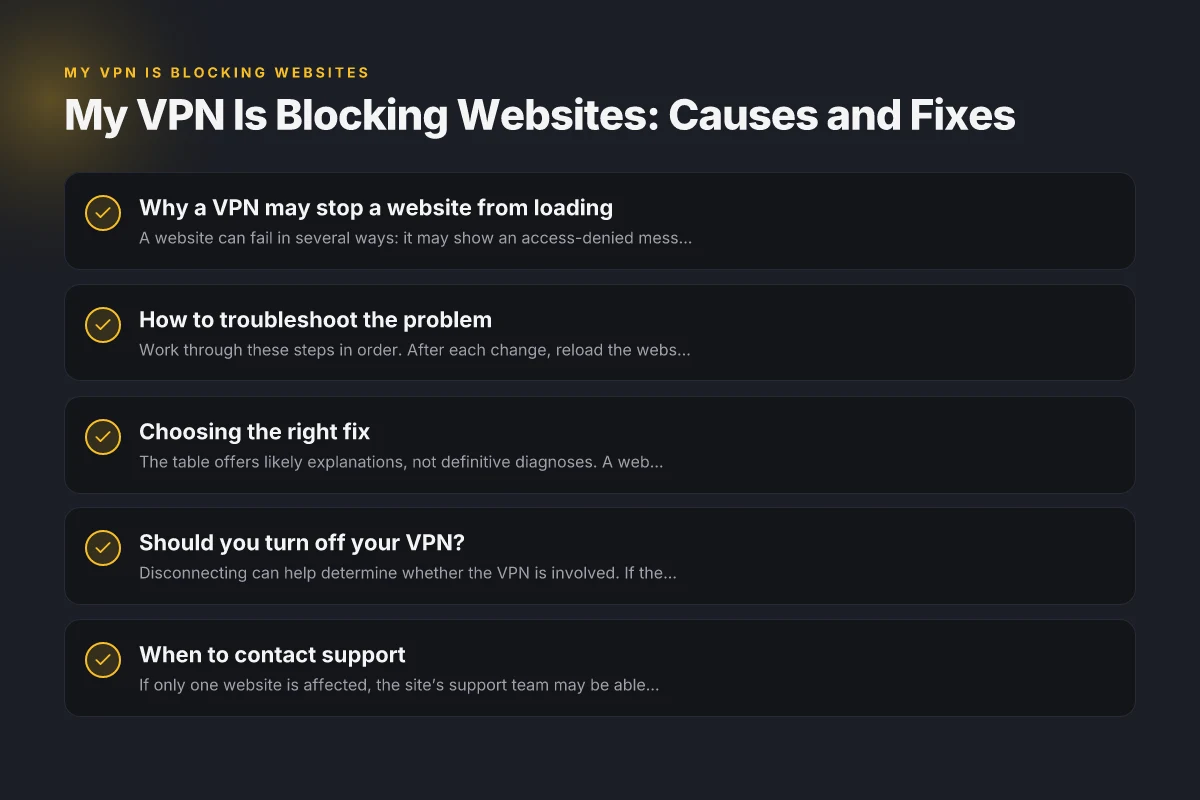
How to troubleshoot the problem
Work through these steps in order. After each change, reload the website so you can tell what fixed the issue.
- Check the error message. An access-denied page often points to an IP or security restriction. A browser message saying the server cannot be found may suggest a DNS or connection issue.
- Try a different VPN server. Choose another server in the same country first. This gives you a different IP address without changing your apparent location.
- Switch VPN protocols. If your app offers protocol options, try a different one. Protocols can behave differently on certain networks, although this will not necessarily bypass a website’s IP block.
- Clear the site’s cookies or use a private window. This helps rule out stale login, region, or session data. You can also try another browser.
- Turn off optional filtering temporarily. If your VPN has an ad blocker, tracker blocker, or threat-protection setting, disable it briefly and test the site. Turn it back on afterward if it is not the cause.
- Restart the VPN app and device. Reconnecting can resolve a temporary routing or DNS issue.
- Check the VPN provider’s status and support pages. There may be a known service issue or advice for that particular website.
Avoid changing several settings at once. A controlled test makes it easier to identify the cause and restore your preferred protections. free VPN for changing location(2026)
Choosing the right fix
| What you see | Likely cause | What to try |
|---|---|---|
| “Access denied” or a blocked-IP notice | The website rejects the server’s IP | Connect to another server in the same region |
| CAPTCHA appears repeatedly | Shared IP reputation or unusual traffic | Try another server and avoid frequent location changes |
| Wrong country version of a site | VPN server location or stored cookies | Select the intended country and clear site cookies |
| Website does not load, but other sites work | Filtering, DNS, or a site-specific issue | Test another browser and review VPN filtering settings |
| Site works when the VPN is off | VPN IP, location, or routing is involved | Try another server or contact the VPN provider |
The table offers likely explanations, not definitive diagnoses. A website’s own service outage, account restriction, or browser extension can produce similar symptoms.
Troubleshooting steps compared
| Step | What to do | What it checks | Risk to privacy | If it works |
|---|---|---|---|---|
| Reload the page | Refresh or reopen the site | Temporary page error | Low | Continue browsing |
| Try another site | Open a familiar website | General connection status | Low | Focus on the affected site |
| Change VPN server | Select another server | Server IP or location issue | Low | Keep the working server |
| Change protocol | Select another VPN protocol | Protocol compatibility | Low | Keep the compatible protocol |
| Clear site cookies | Remove cookies for that site | Session or location conflict | Low | Sign in again if needed |
| Check VPN settings | Review DNS and filtering options | VPN feature conflict | Low | Keep useful protections enabled |
| Test another network | Switch between Wi-Fi and mobile data | Network restriction | Low | Troubleshoot the restricted network |
| Temporarily disconnect | Test the site without the VPN | Whether VPN is involved | Higher | Reconnect and try another fix |
Compiled November 2026; check the provider's site for current details.
Should you turn off your VPN?
Disconnecting can help determine whether the VPN is involved. If the website loads with the VPN off, the issue is likely related to the VPN’s IP address, location, routing, or filtering. This test does not prove that the VPN is faulty. The website may simply block VPN traffic. VPN free change location(2026)
Use caution before disconnecting. Without the VPN, your internet provider and the network you are using may be able to see more about your connection. Avoid turning it off for banking, private accounts, sensitive searches, or activity on public Wi-Fi unless you are confident the connection is safe.
You can also check whether your VPN app supports split tunneling, which lets you choose which apps use the VPN. Availability and behavior vary by provider. Do not use this feature to work around a website’s regional rules, workplace policies, or other access restrictions.
When to contact support
If only one website is affected, the site’s support team may be able to explain why it rejected the connection. If multiple unrelated websites stop working, the VPN connection, DNS settings, or a provider-side issue is more likely.
Contact your VPN provider if: free VPN that can change location(2026)
- The problem continues across several servers and browsers.
- Websites fail to load even though the VPN says it is connected.
- A filtering setting appears to block sites you need.
- You see repeated connection drops or unexpected DNS warnings.
Share the website name, your device and operating system, the VPN server location, and the exact error message. Do not send your password or other sensitive account information.
Choosing a fix or contacting support
| Situation | Best next step | Keep VPN on? | Contact support when | Useful details to provide |
|---|---|---|---|---|
| One site fails | Change server | Yes | Several servers fail | Site and server location |
| Many sites fail | Check VPN connection and settings | Yes | Connection remains unstable | Device and VPN app version |
| Site shows a region error | Check the site’s regional availability | Yes | Access should be available | Error message and region |
| CAPTCHA repeats | Try another server or browser session | Yes | The issue persists across servers | CAPTCHA behavior |
| DNS error appears | Review VPN DNS settings | Yes | DNS errors continue | Error text and network |
| Work or school network blocks access | Ask the network administrator | Usually | Policy is unclear | Network type and restriction |
| Site works only with VPN off | Reconnect and try another server | Preferably | No server works | Site, server, and test results |
| VPN app will not connect | Check service status and app updates | No, until connected | Connection still fails | App version and connection logs |
Compiled November 2026; check the provider's site for current details.
Recommendation
If my VPN is blocking websites, start by trying another server in the same country, then test a private browser window and review optional VPN filtering. Disconnect only as a brief diagnostic step on a trusted network. If the problem persists across servers or affects many sites, contact your VPN provider. If it affects one site, ask that website whether it blocks VPN connections. free VPN with location changer(2026)