Proton VPN Download: How to Get the App Safely
Find the official Proton VPN download, choose the right app for your device, and follow simple installation and setup steps.
If you’re looking for a Proton VPN download, get the app from the official Proton VPN website or your device’s official app store. Choose the version for Windows, macOS, Linux, Android, or iPhone and iPad, then install it and sign in. Using an official source helps you avoid modified installers and ensures you receive legitimate updates.
Proton VPN download options by device
| Device or platform | Where to get the app | What to check | Typical next step |
|---|---|---|---|
| Windows PC | Official Proton VPN website | Choose the Windows app | Run the installer |
| Mac | Official Proton VPN website | Choose the macOS app | Open the downloaded file |
| Android phone or tablet | Google Play or official Proton VPN website | Confirm the publisher is Proton AG | Install and open the app |
| iPhone or iPad | Apple App Store | Confirm the app is Proton VPN | Install and open the app |
| Linux computer | Official Proton VPN website | Follow the instructions for your distribution | Install using the recommended method |
| Chromebook | Google Play, if supported | Check that the Play Store is available | Install the Android app |
| Other or unsupported device | Proton VPN’s official support pages | Check platform compatibility | Use a supported device |
Compiled November 2026; check the provider's site for current details.
| VPN | Obfuscation | From / month | Plan | Free plan | Refund | Alipay | UnionPay | Crypto | Website opens in China | Trustpilot | |
|---|---|---|---|---|---|---|---|---|---|---|---|
 Proton VPN | Turn on manually Stealth, free plan too | $2.99/mo | 12 months: $35.88 | Yes | 30 days | ✗ | ✗ | ✗ | ✓ | ✗ Blocked | 2.1/5 (1,040 reviews) |
 ZoogVPN | Turn on manually Shadow | $2.49/mo | 27 months: $59.99 | Yes | 7 days | ✓ | ✓ | ✓ | ✓ | Official site blocked; our special link opens (4.4 s) | 4.2/5 (195 reviews) |
 NordVPN | Turn on manually Obfuscated Servers / NordWhisper | $3.49/mo | 27 months: $94.23 | No | 30 days | ? | ✗ | ✓ | ✓ | ✗ Blocked | 4.2/5 (51,628 reviews) |
 ExpressVPN | ✓ On by default all servers | $3.00/mo | 28 months: $84 | No | 30 days | ✗ | ✗ | ✓ | ✗ | ✗ Blocked | 4.4/5 (29,706 reviews) |
 Surfshark | ✓ On by default Camouflage, with OpenVPN | See site | See site | No | 30 days | ✗ | ✗ | ✗ | ✓ | ✗ Blocked | 4.3/5 (31,823 reviews) |
 Astrill VPN | Turn on manually StealthVPN / OpenWeb | $12.50/mo | 24 months: $300 | No | See site | ✗ | ✗ | ✗ | ✓ | ✗ Blocked | 1.3/5 (110 reviews) |
 Private Internet Access | Turn on manually Shadowsocks, OpenVPN only | $2.03/mo | 40 months: $81.2 | No | 30 days | ✗ | ✗ | ✗ | ✗ | ✗ Blocked | 4.2/5 (11,033 reviews) |
 CyberGhost | Turn on manually selected servers | $2.19/mo | 28 months: $61.32 | No | 45 days | ✗ | ✗ | ✗ | ✓ | ✗ Blocked | 4.0/5 (24,178 reviews) |
 PureVPN | Turn on manually switch to OpenVPN | $1.69/mo | 60 months: $101.55 | No | 31 days | ? | ? | ✗ | ✓ | ✗ Blocked | 4.4/5 (17,994 reviews) |
 AdGuard VPN | ✓ On by default TrustTunnel | $2.99/mo | 24 months: $71.76 | Yes | 30 days | ✓ | ✗ | ✓ | ✓ | Official site blocked; our special link opens (3.7 s) | 4.3/5 (290 reviews) |
 Mullvad | Turn on manually QUIC / Shadowsocks / LWO | $5.61/mo | €5/mo | No | 14 days | ✗ | ✗ | ✗ | ✓ | ✗ Blocked | 3.2/5 (192 reviews) |
 Windscribe | Turn on manually Stealth / WStunnel | $5.75/mo | 12 months: $69 | Yes | See site | ✗ | ✗ | ✗ | ✓ | ✗ Blocked | 4.7/5 (13,355 reviews) |
 StrongVPN | Turn on manually Scramble, OpenVPN TCP | See site | See site | No | 30 days | ✓ | ✗ | ✗ | ✗ | ✗ Blocked | 4.4/5 (2,695 reviews) |
 LightXtreme 闪连 | Not listed | $7.08/mo | 12 months: $84.99 | Yes | 30 days | ✓ | ✓ | ✓ | ✓ | ✓ Yes (3.5 s) | No page |
Prices checked 2026-11-10 on each vendor's pricing page (cheapest long plan, USD). Check the vendor's checkout for the final price.
Obfuscation checked 2026-11-14 on each vendor's site and help center: "on by default" = nothing to set; "turn on manually" = switch protocol or mode in settings; "not listed" = the vendor describes no obfuscation.
Payment methods checked 2026-11-10 on each vendor's payment pages: all 14 take cards and PayPal; ✗ = not listed, ? = the vendor's own pages disagree.
China access: whether the official website opens from mainland China networks (tests the website only, not the VPN connection). Last checked 2026-11-18 01:02 Beijing time.
Trustpilot score and review count checked 2026-11-10.
Choose the right Proton VPN download
Proton VPN supports several major platforms. The best option depends on the device you want to protect and how you prefer to install software.
| Device | Where to look | What to consider |
|---|---|---|
| Windows PC | Proton VPN’s official website | Check that the installer matches your Windows system |
| Mac | Proton VPN’s official website | Choose the macOS version offered for your device |
| Linux computer | Proton VPN’s official website or Proton’s Linux instructions | Follow the package and setup steps for your distribution |
| Android phone or tablet | Google Play or Proton VPN’s official website | Confirm the publisher before installing |
| iPhone or iPad | Apple App Store | Check the app listing and publisher |
Availability and installation steps may vary by operating system, country, and device. If you’re unsure which download to use, start at Proton VPN’s official website and follow its platform-specific instructions.
How to download Proton VPN safely
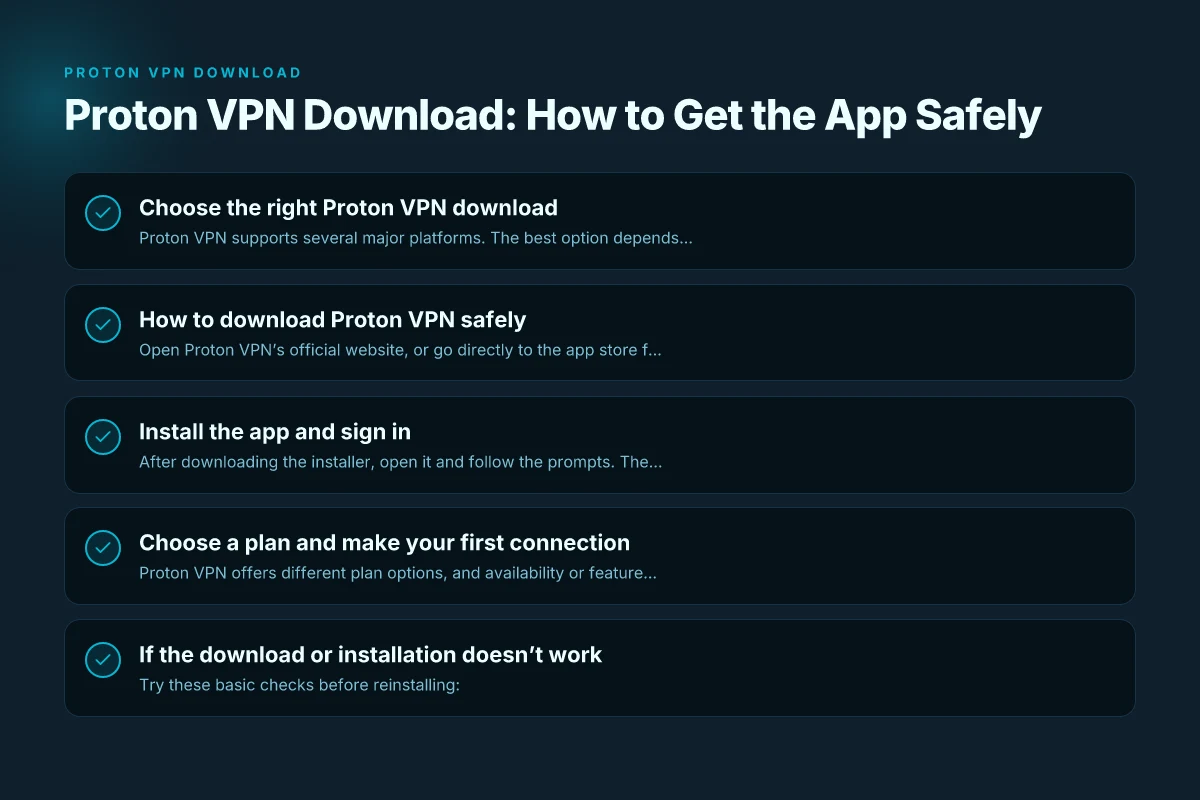
- Open Proton VPN’s official website, or go directly to the app store for your device.
- Select your operating system or device.
- Download the installer or tap the app’s install button.
- Check the app name and publisher before proceeding.
- Open the downloaded file or app and follow the instructions on screen.
Avoid third-party download sites, unfamiliar file-sharing links, and advertisements that imitate official download buttons. These sources may offer outdated, altered, or potentially harmful files. On a computer, make sure the website address is Proton’s official domain before downloading an installer.
If your device displays a security warning, pause and verify where the file came from. Don’t disable security features just to install a file from a source you can’t confirm. Free VPN Extension for Edge Browser: What to Know Before You Install
Install the app and sign in
On a computer
After downloading the installer, open it and follow the prompts. The exact steps differ between Windows, macOS, and Linux. Once installation is complete, launch Proton VPN and sign in with your Proton account. If you don’t have one, follow the account-creation option in the app or on Proton’s website.
Linux installation may involve commands or packages specific to your distribution. Use Proton’s current instructions for your version of Linux rather than copying commands from an unrelated guide.
On a phone or tablet
Install the app from the official app store, open it, and sign in or create an account. Your device may ask you to approve a VPN connection request. Review the prompt and allow it if you want the app to establish a VPN connection.
Keep the app and your operating system up to date. Updates can include security fixes, compatibility improvements, and new features. FortiClient VPN Only: What It Is, How to Install It, and When to Use It
Safe download and installation checks
| Stage | Safer choice | Check before continuing | If something looks wrong |
|---|---|---|---|
| Find the download | Use Proton VPN’s official website or an official app store | Check the web address or store listing | Leave the page |
| Choose a platform | Select the app for your device | Confirm operating system compatibility | Check Proton VPN support |
| Download the file | Use the official download link | Avoid unexpected redirects | Cancel the download |
| Open an installer | Use the file you just downloaded | Check its name and source | Delete an unfamiliar file |
| Install the app | Follow the installer prompts | Review any requested permissions | Stop if a prompt seems unrelated |
| Open Proton VPN | Launch the installed app | Confirm the app name and publisher | Remove a suspicious copy |
| Sign in | Enter credentials in the app | Make sure you are in the official app | Don’t enter details on an unfamiliar page |
Compiled November 2026; check the provider's site for current details.
Choose a plan and make your first connection
Proton VPN offers different plan options, and availability or features may change over time. Check Proton’s current plan page for details before choosing. A free option may suit basic use, while paid plans can include additional features or server choices. Compare the terms and limits that matter to you rather than relying on old reviews or outdated feature lists.
After signing in: How to Add or Change a VPN Connection in Windows 10
- Open the server list or map in the app.
- Choose a location or use the app’s quick-connect option.
- Approve any device permission request.
- Check the app’s connection status to confirm that it is connected.
A VPN routes your internet traffic through a VPN server, but it doesn’t make you completely anonymous or protect against every online threat. Continue using strong, unique passwords, keep software updated, and be careful with suspicious links and downloads.
If the download or installation doesn’t work
Try these basic checks before reinstalling:
- Confirm that your device meets the app’s current system requirements.
- Make sure you downloaded the correct version for your operating system.
- Check your internet connection and available storage.
- Restart your device, then try the installer again.
- Remove an incomplete or older installation if Proton’s support instructions recommend it.
- Consult Proton’s official troubleshooting and support pages for platform-specific steps.
If an app-store listing isn’t available in your region, check Proton’s official website for the supported download method. Don’t install a package from an unofficial source simply because it appears in a search result.
Choosing a plan and making a first connection Microsoft Edge Free VPN: What You Need to Know
| Decision point | Free plan | Paid plan | What to consider |
|---|---|---|---|
| Getting started | Available as a starting option | Requires choosing a subscription | Pick the option that fits your needs |
| Account access | Sign in with a Proton account | Sign in with a Proton account | Keep your sign-in details private |
| Server choice | Available locations may be limited | More server options may be available | Check current plan details |
| Features | Includes features listed for the free plan | May include additional features | Compare the current feature lists |
| Payment | No paid subscription required | Payment details may be needed | Review price and renewal terms |
| First connection | Open the app and choose a server | Open the app and choose a server | Follow the app’s connection prompts |
| Connection trouble | Try another available server | Try another available server | Check your internet and app settings |
| Not sure which to pick | Start with the free option | Upgrade if you need paid features | Confirm current terms before deciding |
Compiled November 2026; check the provider's site for current details.
Recommendation
For a safe Proton VPN download, use Proton’s official website or your device’s trusted app store, then follow the installation instructions for your platform. Confirm the publisher, review current plan details, and keep the app updated.