Surfshark Won’t Connect? Try These Fixes

Fix a Surfshark connection that won’t work with practical steps for your device, network, and VPN settings.
If Surfshark won’t connect, first make sure your internet works without the VPN, then restart the Surfshark app and try a different server. If that doesn’t help, change the VPN protocol, check for app or network restrictions, and update the app. These steps resolve many connection problems without requiring advanced technical changes.
Troubleshooting options by symptom and effort
| Check | When to try it | What to do | Effort | If it works |
|---|---|---|---|---|
| Internet connection | Other apps or sites also fail | Test another site or app | Low | Internet access may be the issue |
| Restart Surfshark | Connection seems stuck | Close and reopen the app | Low | Retry the connection |
| Try another server | One location will not connect | Choose a different server | Low | The original server may be the issue |
| Change VPN protocol | Server changes do not help | Select another available protocol | Low | The current protocol may be incompatible |
| Update Surfshark | The app may be outdated | Install an available app update | Low | Retest with the updated app |
| Check for interference | Security or network tools may conflict | Temporarily check relevant settings | Medium | A conflicting setting may be involved |
| Device-specific checks | The issue persists on one device | Follow steps for that device | Medium | The cause may be device-specific |
| Reset the app | Basic fixes have failed | Reset only as a later step | Higher | App settings may return to defaults |
Compiled November 2026; check the provider's site for current details.
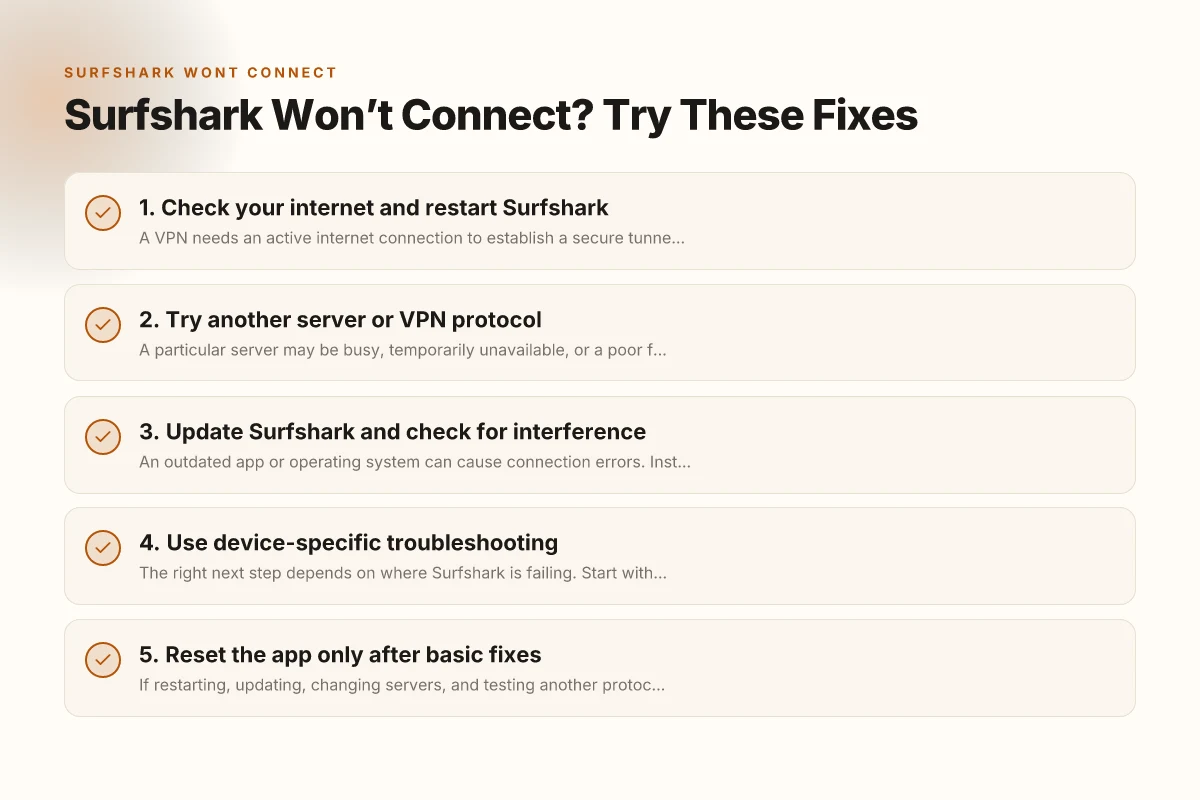
1. Check your internet and restart Surfshark
A VPN needs an active internet connection to establish a secure tunnel. Disconnect from Surfshark and open a website or app that needs internet access. If nothing loads, the issue is probably your Wi-Fi, mobile data, router, or internet provider, not Surfshark.
Try these basic checks:
- Toggle Wi-Fi or mobile data off and on.
- Restart your router if other devices also have trouble.
- Switch between Wi-Fi and mobile data, if available.
- Restart your device.
- Close Surfshark completely, reopen it, and try connecting again.
If your connection works normally without Surfshark but fails as soon as you connect, continue with the app and VPN settings below.
2. Try another server or VPN protocol
A particular server may be busy, temporarily unavailable, or a poor fit for your network. Disconnect, select a different location, and reconnect. If you’re using a specific city or country, test a nearby location as well. Find My VPN Location: How to Check Where Your VPN Connects
You can also change the connection protocol in Surfshark’s settings. Protocol names and menu locations may vary by device and app version. Open the app’s settings, find the VPN or connection settings, and select another available protocol. Try one option at a time so you can tell which change helped.
| What to try | When it may help |
|---|---|
| Different server | The selected server is busy or unavailable |
| Nearby location | The current route is slow or unreliable |
| Different protocol | Your network blocks or struggles with the current protocol |
| Automatic protocol selection | You’re unsure which option works best |
Some networks, such as workplace, school, hotel, or public Wi-Fi, restrict VPN traffic. If Surfshark connects on mobile data but not on that Wi-Fi, the network may be blocking VPN connections. Don’t try to bypass restrictions if you aren’t authorized to use a VPN on that network. Ask its administrator for help.
Choosing what to try next
| Situation | First option | Next option | Consider | Avoid doing first |
|---|---|---|---|---|
| Other internet services fail | Check internet access | Restart Surfshark | Resolve general connectivity | Resetting the app |
| Surfshark alone will not connect | Restart Surfshark | Try another server | Test an available protocol | Assuming the internet is down |
| One server fails | Choose another server | Try another protocol | Whether the issue is server-specific | Repeating the same attempt |
| Connection fails after an update | Check app version | Check for interference | Device-specific troubleshooting | Resetting before basic checks |
| Security software is active | Check for interference | Retest Surfshark | Whether a setting is blocking VPN traffic | Leaving protections disabled |
| Only one device has the problem | Use device-specific steps | Update the app | Device settings or compatibility | Applying unrelated device fixes |
| Basic fixes have not helped | Follow device-specific steps | Consider an app reset | Reset as a last resort | Resetting before simpler checks |
Compiled November 2026; check the provider's site for current details. VPN for Edge: How to Choose and Use One Safely
3. Update Surfshark and check for interference
An outdated app or operating system can cause connection errors. Install available updates for Surfshark and your device, then restart the device and test the connection again. Make sure you’re using the official Surfshark app for your platform.
Security and network tools can also interfere with VPN connections. Temporarily check whether a firewall, antivirus app, parental-control setting, proxy, or another VPN is preventing Surfshark from connecting. Don’t leave security protections disabled. If a tool is responsible, add an appropriate exception using that tool’s instructions or contact its provider.
Other useful checks include:
- Turn off any other VPN before opening Surfshark.
- Check whether a manually configured proxy is active.
- Confirm your device’s date and time are set correctly.
- On a managed work or school device, ask the administrator whether VPN use is allowed.
Avoid changing several security or network settings at once. If the connection starts working, restore any temporary changes that weren’t needed. FortiClient VPN 7.2: Download, Install, and Connect Securely
4. Use device-specific troubleshooting
The right next step depends on where Surfshark is failing. Start with the simplest option for your device, and check the app’s current support instructions before changing system settings.
Windows and Mac
Quit Surfshark completely and reopen it. If the app still won’t connect, restart your computer, install updates, and test another network. If you use a firewall or antivirus program, check its settings for a rule that may be blocking Surfshark.
Android and iPhone or iPad
Force-close the app, reopen it, and check for updates in the relevant app store. Restart the device and test a different server or network. If you use a battery-saving feature or security app that restricts background activity, check whether it is interfering with Surfshark.
Smart TVs, routers, and other devices
VPN support and settings differ across platforms and router models. Confirm that your device or router is set up according to Surfshark’s current instructions. If a router-level VPN won’t connect, check its internet connection and configuration before changing any settings. A mistake in router settings can affect every device on your home network. Clash for Window: How to Download, Install, and Use It Safely
Fixes compared by scope and trade-off
| Fix | Scope | Reversible | May affect settings | Best used |
|---|---|---|---|---|
| Check internet | Network connection | Yes | No | At the start |
| Restart Surfshark | App session | Yes | No | When the app seems stuck |
| Change server | VPN location | Yes | No | When a server will not connect |
| Change protocol | VPN connection method | Yes | No | After trying another server |
| Update Surfshark | App version | Usually | No | When an update is available |
| Check interference | Security or network settings | Yes | Possibly | When another tool may conflict |
| Device-specific troubleshooting | One device | Depends on the step | Possibly | When the issue is device-specific |
| Reset the app | App configuration | Not always | Yes | Only after basic fixes fail |
Compiled November 2026; check the provider's site for current details.
5. Reset the app only after basic fixes
If restarting, updating, changing servers, and testing another protocol haven’t helped, sign out of Surfshark and sign back in. You can also clear the app’s cache where your device supports it, or uninstall and reinstall the official app.
Before reinstalling, make sure you know your login details. A clean installation may remove app preferences, so you may need to set them up again. On a router or a device with a manual VPN configuration, don’t delete settings unless you have the instructions needed to restore them. Chrome Urban VPN: How to Use It and What to Check First
If Surfshark still won’t connect, note the exact error message, your device and operating system, the app version, and whether the problem happens on every network or only one. Contact Surfshark Support with those details. This can help narrow down whether the cause is your account, the app, a particular server, or a network restriction.
Recommendation
Start by confirming your internet works without the VPN. Then restart Surfshark, try another server, and switch protocols. Update the app and check for network or security software interference before reinstalling. If the issue persists, contact Surfshark Support with the error message and the troubleshooting steps you’ve already tried.