Best Free VPN Extension Edge: Top Options and How to Choose
Compare free VPN extensions for Microsoft Edge, understand their limits, and choose a safer option for everyday browsing.
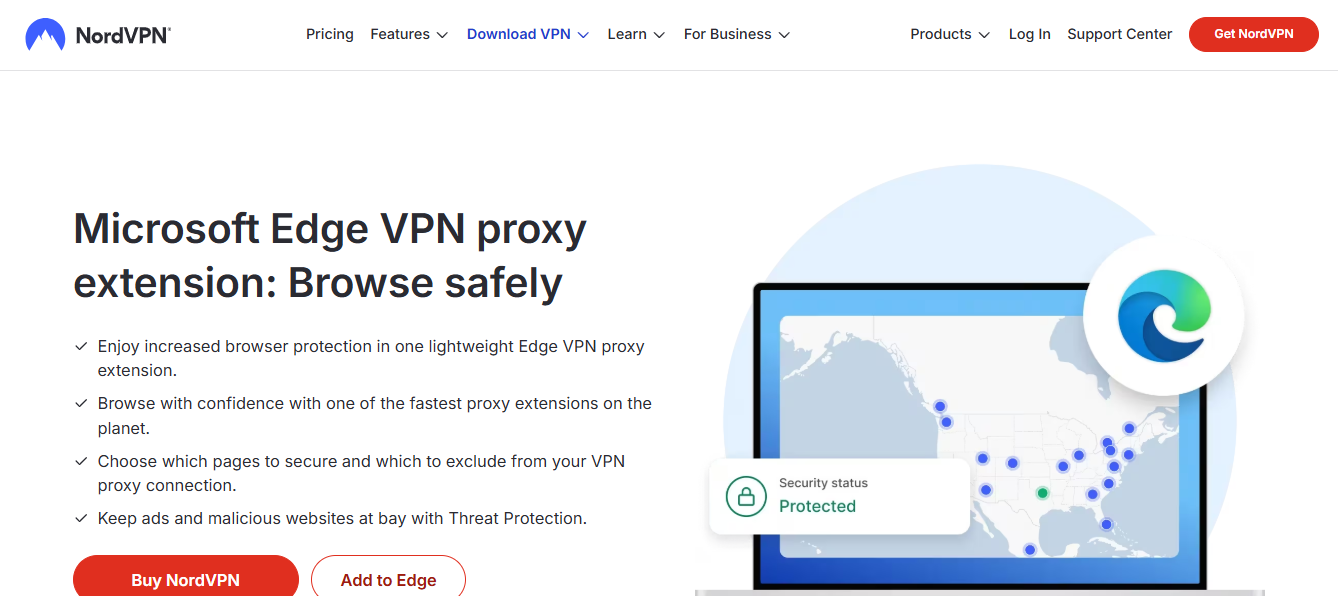
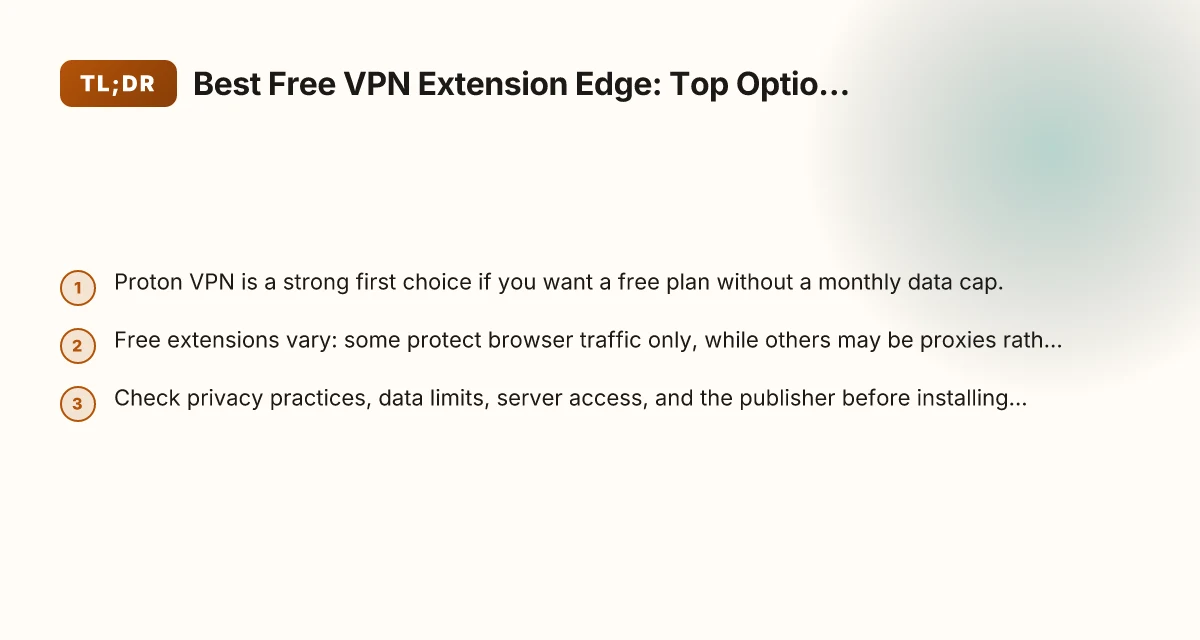
If you’re looking for the best free VPN extension for Edge, start with Proton VPN: its free plan is known for unlimited data and a privacy-focused approach. Windscribe is another option, particularly if you want more control over browser locations, but its free plan has a data limit. Before choosing either, check the current plan details in the official Edge Add-ons store, since features and availability can change.
A VPN extension can help protect browser traffic and make it appear to come from another location. But an extension may work differently from a full VPN app: some secure only traffic from the browser, and some are proxy services rather than complete VPN connections. The right choice depends on what you need to protect.
| VPN | Obfuscation | From / month | Plan | Free plan | Refund | Alipay | UnionPay | Crypto | Website opens in China | Trustpilot | |
|---|---|---|---|---|---|---|---|---|---|---|---|
 Proton VPN | Turn on manually Stealth, free plan too | $2.99/mo | 12 months: $35.88 | Yes | 30 days | ✗ | ✗ | ✗ | ✓ | ✗ Blocked | 2.1/5 (1,040 reviews) |
 Windscribe | Turn on manually Stealth / WStunnel | $5.75/mo | 12 months: $69 | Yes | See site | ✗ | ✗ | ✗ | ✓ | ✗ Blocked | 4.7/5 (13,355 reviews) |
 ZoogVPN | Turn on manually Shadow | $2.49/mo | 27 months: $59.99 | Yes | 7 days | ✓ | ✓ | ✓ | ✓ | Official site blocked; our special link opens (4.4 s) | 4.2/5 (195 reviews) |
 NordVPN | Turn on manually Obfuscated Servers / NordWhisper | $3.49/mo | 27 months: $94.23 | No | 30 days | ? | ✗ | ✓ | ✓ | ✗ Blocked | 4.2/5 (51,628 reviews) |
 ExpressVPN | ✓ On by default all servers | $3.00/mo | 28 months: $84 | No | 30 days | ✗ | ✗ | ✓ | ✗ | ✗ Blocked | 4.4/5 (29,706 reviews) |
 Surfshark | ✓ On by default Camouflage, with OpenVPN | See site | See site | No | 30 days | ✗ | ✗ | ✗ | ✓ | ✗ Blocked | 4.3/5 (31,823 reviews) |
 Astrill VPN | Turn on manually StealthVPN / OpenWeb | $12.50/mo | 24 months: $300 | No | See site | ✗ | ✗ | ✗ | ✓ | ✗ Blocked | 1.3/5 (110 reviews) |
 Private Internet Access | Turn on manually Shadowsocks, OpenVPN only | $2.03/mo | 40 months: $81.2 | No | 30 days | ✗ | ✗ | ✗ | ✗ | ✗ Blocked | 4.2/5 (11,033 reviews) |
 CyberGhost | Turn on manually selected servers | $2.19/mo | 28 months: $61.32 | No | 45 days | ✗ | ✗ | ✗ | ✓ | ✗ Blocked | 4.0/5 (24,178 reviews) |
 PureVPN | Turn on manually switch to OpenVPN | $1.69/mo | 60 months: $101.55 | No | 31 days | ? | ? | ✗ | ✓ | ✗ Blocked | 4.4/5 (17,994 reviews) |
 AdGuard VPN | ✓ On by default TrustTunnel | $2.99/mo | 24 months: $71.76 | Yes | 30 days | ✓ | ✗ | ✓ | ✓ | Official site blocked; our special link opens (3.7 s) | 4.3/5 (290 reviews) |
 Mullvad | Turn on manually QUIC / Shadowsocks / LWO | $5.61/mo | €5/mo | No | 14 days | ✗ | ✗ | ✗ | ✓ | ✗ Blocked | 3.2/5 (192 reviews) |
 StrongVPN | Turn on manually Scramble, OpenVPN TCP | See site | See site | No | 30 days | ✓ | ✗ | ✗ | ✗ | ✗ Blocked | 4.4/5 (2,695 reviews) |
 LightXtreme 闪连 | Not listed | $7.08/mo | 12 months: $84.99 | Yes | 30 days | ✓ | ✓ | ✓ | ✓ | ✓ Yes (3.5 s) | No page |
Prices checked 2026-11-10 on each vendor's pricing page (cheapest long plan, USD). Check the vendor's checkout for the final price.
Obfuscation checked 2026-11-14 on each vendor's site and help center: "on by default" = nothing to set; "turn on manually" = switch protocol or mode in settings; "not listed" = the vendor describes no obfuscation.
Payment methods checked 2026-11-10 on each vendor's payment pages: all 14 take cards and PayPal; ✗ = not listed, ? = the vendor's own pages disagree.
China access: whether the official website opens from mainland China networks (tests the website only, not the VPN connection). Last checked 2026-11-18 01:02 Beijing time.
Trustpilot score and review count checked 2026-11-10.
Comparison of free VPN extensions for Edge
| Extension | Free-plan limits | Data policy to check | Edge support | Best for |
|---|---|---|---|---|
| Microsoft Edge built-in VPN | Availability and limits vary | Check Microsoft’s terms | Built into supported Edge versions | Simple browser protection |
| Proton VPN | Free features may differ by platform | Review its privacy policy | Check current Edge availability | Users seeking a broader VPN service |
| Windscribe | Free allowance and features may change | Review logging and data terms | Check current Edge availability | Flexible settings |
| Browsec | Free locations and speeds may be limited | Check data collection terms | Check current Edge availability | Quick location switching |
| SetupVPN | Free performance may vary | Review privacy and logging terms | Check current Edge availability | Basic browser access |
| Urban VPN | Free features may vary | Review data-sharing terms carefully | Check current Edge availability | Users comparing free options |
Compiled November 2026; check the provider's site for current details.
Best free VPN extensions for Edge
These options are worth comparing, but no free service is unlimited in every respect. Free plans may restrict locations, speed, simultaneous connections, or access to streaming services.
| Option | What stands out | Free-plan limitation to check | Best for |
|---|---|---|---|
| Proton VPN | Free plan with no monthly data cap | Server selection and access to some features may be limited | Regular browsing without a data allowance |
| Windscribe | Browser extension with location and privacy controls | Monthly data allowance may apply | Users who want more settings |
| Other established VPN providers | May offer Edge extensions or browser tools | Some are trials, proxies, or paid-plan add-ons | Comparing a provider you already trust |
Proton VPN is a sensible starting point if you want to browse regularly without tracking a monthly data quota. Its free plan can still limit which servers or features are available. Confirm that the extension you install is published by Proton AG and review the permissions before use.
Windscribe may suit users who want a browser-focused tool with additional controls. Its free plan typically comes with a data allowance, so check the current limit and whether any account or verification steps are required. If you use video or download large files, you may reach that allowance quickly.
Treat unfamiliar “free VPN” listings cautiously. A large number of downloads or a polished icon does not, by itself, establish that an extension is trustworthy. Check the developer’s name, privacy policy, update history, and reviews, and compare the listing with the provider’s official website. Does NordVPN Work in China? What to Know Before You Travel
What a VPN extension does, and what it may not do
A VPN routes network traffic through a provider’s servers. A browser extension may route only traffic from Edge, leaving other apps on your computer outside the connection. Some extensions instead act as encrypted browser proxies, which can provide a narrower set of protections than a full VPN app.
That distinction matters:
- Browser-only protection: Other programs, such as email or gaming apps, may use your regular connection.
- Proxy rather than full VPN: The extension may change the apparent location of browser traffic without protecting all device traffic.
- Location changes are not guaranteed: Websites can use cookies, account details, or other signals to infer your location.
- A VPN is not complete anonymity: It does not automatically prevent tracking, malware, phishing, or account-based identification.
Read the provider’s description to find out exactly what the Edge extension covers. If you need protection for all internet traffic on your computer, consider the provider’s full desktop VPN app instead.
What a browser VPN extension covers SoftEther VPN Server: What It Is and How to Set It Up
| Capability | VPN extension | Full-device VPN app | What to verify |
|---|---|---|---|
| Browser traffic | Usually supported | Supported | Which browser traffic is routed |
| Other apps | Usually not covered | Usually covered | Whether protection extends beyond Edge |
| IP address visibility | Can change for browser traffic | Can change for device traffic | Confirm the selected location |
| Encryption | Depends on provider and setup | Depends on provider and setup | Check connection security details |
| Public Wi-Fi use | Browser traffic may be protected | Device traffic may be protected | Avoid assuming all traffic is covered |
| Location choice | May be limited on free plans | May be limited on free plans | Check available free locations |
| Streaming access | Not guaranteed | Not guaranteed | Services may block VPN connections |
Compiled November 2026; check the provider's site for current details.
How to choose a safe free extension
Free VPNs have to fund their service somehow. A reputable provider may use its free plan to introduce users to paid products, while less transparent services may rely on advertising or collect more data than you expect. Review the privacy policy rather than assuming “free” means private.
Use this checklist before installing:
- Verify the publisher. Find the extension through the provider’s official website or confirm that the Edge Add-ons listing names the correct company.
- Read the privacy policy. Look for clear information about connection logs, browsing activity, advertising, and data sharing.
- Review permissions. Be wary of permissions that seem unrelated to the extension’s stated function.
- Check the limits. Note any data cap, server restrictions, speed limits, or account requirements.
- Look at recent reviews and updates. A long gap in updates or repeated reports of problems may be a reason to choose another service.
- Test the connection. After installation, check whether it connects reliably and whether the provider explains how to confirm that traffic is routed as intended.
Avoid installing multiple VPN extensions at once. They can conflict, make troubleshooting harder, or leave you unsure which service is handling your traffic. Best VPN Extensions for Edge: Top Picks for Privacy, Speed, and Streaming
Installation and everyday use in Edge
To install an extension, open the Microsoft Edge Add-ons store, search for the provider’s official listing, and inspect the publisher and permissions. Select Get, then follow the prompts. If the provider requires an account, create it through the official site or app rather than through an unexpected link.
After installation:
- Open the extension from Edge’s toolbar.
- Sign in or create an account if required.
- Choose an available server and connect.
- Confirm that the extension shows an active connection before browsing.
- Disconnect when you no longer need it, especially if the free plan has a data limit.
Keep Edge and the extension updated. An extension’s security and privacy also depend on its continued maintenance, so periodically revisit its listing and the provider’s policy.
Common mistakes to avoid
A free VPN extension is not a shortcut to every online service or a guarantee of unrestricted access. Streaming platforms and websites may block VPN connections, and a free plan may not offer the locations or speed you need. Do not assume that changing the displayed country will make a service available. FortiClient IPsec VPN: Setup, Configuration, and Troubleshooting
Also avoid choosing solely by download count or promises of “unlimited” access. Check what unlimited refers to: a provider might offer unlimited data while limiting server choice or speed. Finally, don’t enter sensitive information into a site just because a VPN is connected. A VPN can protect a connection in some situations, but it cannot make a fraudulent site safe.
Free VPN extension safety and setup checklist
| Decision point | Safer choice | Warning sign | Before using it |
|---|---|---|---|
| Publisher | Recognized provider | Unclear developer identity | Verify the publisher |
| Permissions | Only necessary access | Broad access without explanation | Review Edge’s permission prompt |
| Privacy policy | Clear collection and retention terms | Vague or missing policy | Check logging and sharing practices |
| Free-plan terms | Limits explained clearly | Hidden caps or unclear conditions | Confirm data and location limits |
| Installation | Official Edge Add-ons listing | Unofficial download link | Install from the official store |
| Connection status | Extension clearly shows connected state | No clear status or server details | Test before sensitive browsing |
| Everyday use | Keep extension updated | Ignore updates or alerts | Review settings periodically |
| Troubleshooting | Disconnect when not needed | Assume it protects every app | Use a full-device VPN when needed |
Compiled November 2026; check the provider's site for current details.
Recommendation
For most people seeking the best free VPN extension Edge offers, try the official Proton VPN extension first if its current free-plan limits fit your needs. Choose Windscribe if its controls and data allowance suit your browsing habits. In either case, verify the publisher, read the privacy policy, and confirm whether the extension protects only Edge or your entire device. BIG-IP Edge Client VPN: What It Is and How to Connect