FortiGate IPsec Debug: How to Find and Fix VPN Problems
Learn how to troubleshoot FortiGate IPsec VPNs with IKE debug, tunnel checks, packet captures, and safe cleanup steps.
FortiGate IPsec debug helps identify why a VPN tunnel will not establish or pass traffic. Begin with basic status checks, then capture filtered IKE negotiation output while reproducing the problem. Compare the messages against your Phase 1 and Phase 2 configuration, and check routing and firewall policies before changing settings. Debug output can reveal the failure point, but it does not replace checking the complete traffic path.
Compare FortiGate IPsec diagnostic checks
| Check | What to inspect | Useful clue | Likely issue | Next action |
|---|---|---|---|---|
| Tunnel status | VPN monitor | Tunnel is down | IKE or connectivity failure | Check reachability and logs |
| Peer reachability | Peer IP | No response | Routing or upstream block | Verify the route and path |
| Interface status | WAN interface | Interface is down | Local connectivity failure | Restore interface connectivity |
| IKE version | Both peers | Versions differ | Phase 1 mismatch | Align IKE versions |
| Authentication | Credentials and IDs | Authentication fails | Secret or identity mismatch | Compare peer settings |
| Encryption settings | Phase 1 proposals | No shared proposal | Proposal mismatch | Align encryption settings |
Compiled November 2026; check the provider's site for current details.
| VPN | Obfuscation | From / month | Plan | Free plan | Refund | Alipay | UnionPay | Crypto | Website opens in China | Trustpilot | |
|---|---|---|---|---|---|---|---|---|---|---|---|
 ZoogVPN | Turn on manually Shadow | $2.49/mo | 27 months: $59.99 | Yes | 7 days | ✓ | ✓ | ✓ | ✓ | Official site blocked; our special link opens (4.4 s) | 4.2/5 (195 reviews) |
 NordVPN | Turn on manually Obfuscated Servers / NordWhisper | $3.49/mo | 27 months: $94.23 | No | 30 days | ? | ✗ | ✓ | ✓ | ✗ Blocked | 4.2/5 (51,628 reviews) |
 ExpressVPN | ✓ On by default all servers | $3.00/mo | 28 months: $84 | No | 30 days | ✗ | ✗ | ✓ | ✗ | ✗ Blocked | 4.4/5 (29,706 reviews) |
 Surfshark | ✓ On by default Camouflage, with OpenVPN | See site | See site | No | 30 days | ✗ | ✗ | ✗ | ✓ | ✗ Blocked | 4.3/5 (31,823 reviews) |
 Proton VPN | Turn on manually Stealth, free plan too | $2.99/mo | 12 months: $35.88 | Yes | 30 days | ✗ | ✗ | ✗ | ✓ | ✗ Blocked | 2.1/5 (1,040 reviews) |
 Astrill VPN | Turn on manually StealthVPN / OpenWeb | $12.50/mo | 24 months: $300 | No | See site | ✗ | ✗ | ✗ | ✓ | ✗ Blocked | 1.3/5 (110 reviews) |
 Private Internet Access | Turn on manually Shadowsocks, OpenVPN only | $2.03/mo | 40 months: $81.2 | No | 30 days | ✗ | ✗ | ✗ | ✗ | ✗ Blocked | 4.2/5 (11,033 reviews) |
 CyberGhost | Turn on manually selected servers | $2.19/mo | 28 months: $61.32 | No | 45 days | ✗ | ✗ | ✗ | ✓ | ✗ Blocked | 4.0/5 (24,178 reviews) |
 PureVPN | Turn on manually switch to OpenVPN | $1.69/mo | 60 months: $101.55 | No | 31 days | ? | ? | ✗ | ✓ | ✗ Blocked | 4.4/5 (17,994 reviews) |
 AdGuard VPN | ✓ On by default TrustTunnel | $2.99/mo | 24 months: $71.76 | Yes | 30 days | ✓ | ✗ | ✓ | ✓ | Official site blocked; our special link opens (3.7 s) | 4.3/5 (290 reviews) |
 Mullvad | Turn on manually QUIC / Shadowsocks / LWO | $5.61/mo | €5/mo | No | 14 days | ✗ | ✗ | ✗ | ✓ | ✗ Blocked | 3.2/5 (192 reviews) |
 Windscribe | Turn on manually Stealth / WStunnel | $5.75/mo | 12 months: $69 | Yes | See site | ✗ | ✗ | ✗ | ✓ | ✗ Blocked | 4.7/5 (13,355 reviews) |
 StrongVPN | Turn on manually Scramble, OpenVPN TCP | See site | See site | No | 30 days | ✓ | ✗ | ✗ | ✗ | ✗ Blocked | 4.4/5 (2,695 reviews) |
 LightXtreme 闪连 | Not listed | $7.08/mo | 12 months: $84.99 | Yes | 30 days | ✓ | ✓ | ✓ | ✓ | ✓ Yes (3.5 s) | No page |
Prices checked 2026-11-10 on each vendor's pricing page (cheapest long plan, USD). Check the vendor's checkout for the final price.
Obfuscation checked 2026-11-14 on each vendor's site and help center: "on by default" = nothing to set; "turn on manually" = switch protocol or mode in settings; "not listed" = the vendor describes no obfuscation.
Payment methods checked 2026-11-10 on each vendor's payment pages: all 14 take cards and PayPal; ✗ = not listed, ? = the vendor's own pages disagree.
China access: whether the official website opens from mainland China networks (tests the website only, not the VPN connection). Last checked 2026-11-18 01:02 Beijing time.
Trustpilot score and review count checked 2026-11-10.
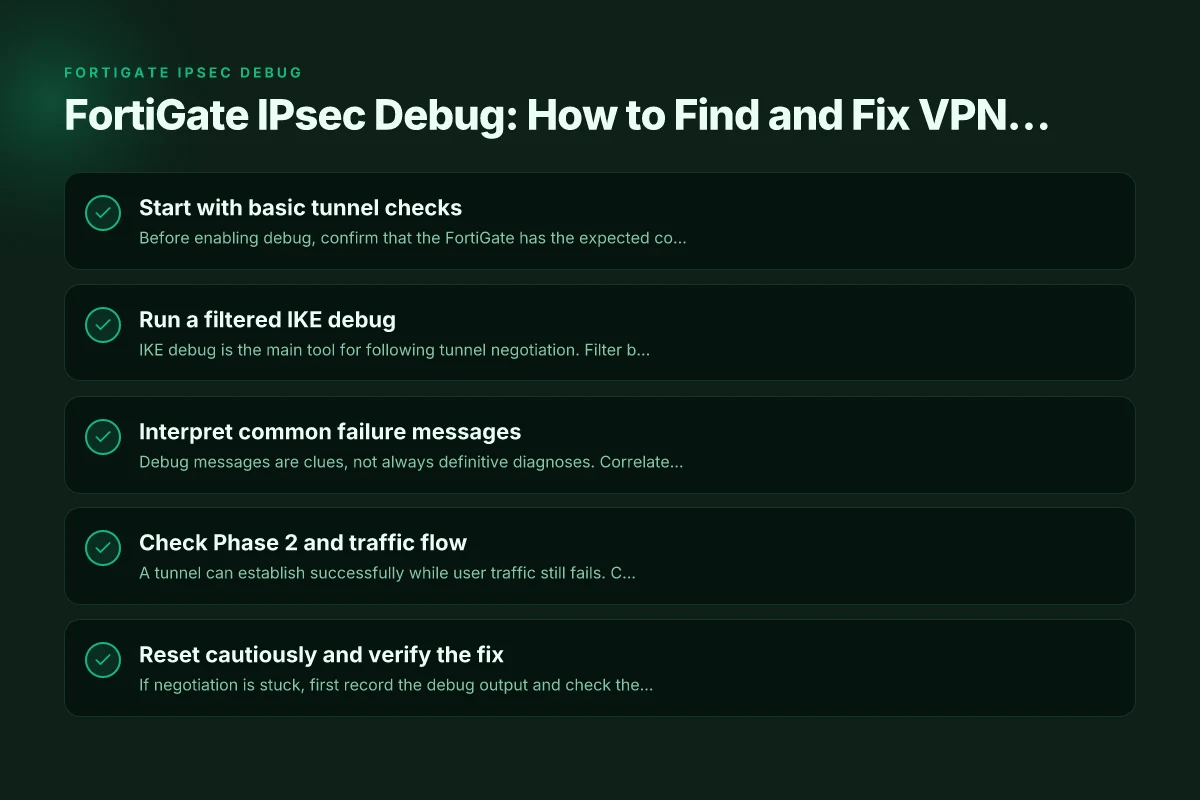
Start with basic tunnel checks
Before enabling debug, confirm that the FortiGate has the expected configuration and can reach the remote VPN peer. In the CLI, check the tunnel and IKE gateway status:
get vpn ipsec tunnel summary
diagnose vpn ike gateway list
Command availability and output can vary by FortiOS version. Use show to inspect the relevant configuration, for example:
show vpn ipsec phase1-interface
show vpn ipsec phase2-interface
For policy-based VPNs, check the corresponding Phase 1 and Phase 2 configuration instead. Confirm that both peers agree on the peer address, authentication method, pre-shared key or certificate, IKE version, encryption and integrity algorithms, Diffie-Hellman group, and Phase 2 selectors.
Also verify that the FortiGate can reach the peer over the intended interface. Check the route to the peer and confirm that upstream devices are not blocking UDP 500, UDP 4500, or ESP when applicable. NAT-T typically uses UDP 4500. Forticlientvpninstaller.exe: Download, Install, and Verify FortiClient VPN
Run a filtered IKE debug
IKE debug is the main tool for following tunnel negotiation. Filter by the peer’s public IP to keep unrelated VPN activity out of the output:
diagnose vpn ike log-filter clear
diagnose vpn ike log-filter rem-addr4 <peer-public-ip>
diagnose debug reset
diagnose debug console timestamp enable
diagnose debug application ike -1
diagnose debug enable
Replace <peer-public-ip> with the actual address. On some FortiOS releases, the filter syntax differs. Check the command options supported by the device with CLI help if a command is rejected.
After enabling debug, reproduce the issue. For example, bring the tunnel up from the FortiGate or generate traffic that should trigger negotiation. Read the output as a sequence: peer discovery, IKE Phase 1 authentication, and then Phase 2 negotiation and child security association setup.
When you have enough output, stop debugging immediately: VPN to Change Location Free: What to Know Before You Connect
diagnose debug disable
diagnose debug reset
Debug can generate substantial output and affect device responsiveness, especially on a busy system. Use a narrow filter, collect only what you need, and avoid leaving it enabled.
Choose an IKE debug approach
| Approach | Best for | Filter | Output focus | Caution |
|---|---|---|---|---|
| Short filtered debug | One peer | Peer IP | Relevant IKE events | Confirm the IP is correct |
| IKE application debug | Phase 1 negotiation | IKE process | Negotiation and errors | Output can be verbose |
| VPN event logs | Recent failures | Time or peer | Recorded failure events | May not show full exchange |
| Broad debug | Unclear peer or scope | No narrow filter | All matching activity | Can produce excessive output |
| Debug during reproduction | Intermittent issue | Peer IP | Fresh negotiation events | Coordinate a test window |
| Debug after a change | Verify a fix | Peer IP | Successful negotiation | Confirm traffic too |
Compiled November 2026; check the provider's site for current details.
Interpret common failure messages
Debug messages are clues, not always definitive diagnoses. Correlate them with both peers’ configurations and the point where negotiation stops. V2Ray Free: What It Is, How to Choose a Safe Option, and What to Expect
| Observed symptom | Common causes | What to check |
|---|---|---|
| No IKE response from peer | Wrong peer IP, routing issue, blocked traffic, peer offline | Route, interface, upstream filtering, UDP 500/4500 |
| Authentication fails | Incorrect pre-shared key, certificate, ID, or authentication settings | Credentials, local and peer IDs, certificate validity |
| No proposal chosen | No matching Phase 1 algorithms or IKE version | Encryption, integrity, DH group, IKE version |
| Phase 1 succeeds, Phase 2 fails | Selectors or Phase 2 proposals do not match | Local and remote subnets, protocols, encryption, PFS |
| Tunnel is up but traffic fails | Missing route or policy, wrong selectors, asymmetric path | Routes, firewall policies, NAT, counters, return path |
A message such as “no proposal chosen” usually means the peers have no compatible set of algorithms. “Peer SA proposal not match local policy” points toward a Phase 2 mismatch. Authentication errors often involve a wrong key or a mismatch between the ID each peer expects and the ID the other sends.
Do not assume every negotiation failure is a cryptographic mismatch. A peer that never responds may indicate a reachability or filtering problem rather than an incorrect proposal.
Check Phase 2 and traffic flow
A tunnel can establish successfully while user traffic still fails. Confirm that the local and remote subnet selectors match the networks that should communicate. Route-based configurations also need a route through the IPsec interface and policies that permit traffic in both directions.
Inspect the relevant firewall policies for: How Can I Tell If a VPN Is Blocking My Internet?
- Correct incoming and outgoing interfaces
- Source and destination address objects
- Appropriate services and schedules
- NAT behavior, which is generally disabled for VPN traffic unless the design requires it
- Return-path routing and any competing routes
Generate test traffic from a host in the protected network, not only from the FortiGate itself. Then inspect tunnel counters and, if needed, use a packet capture to see whether packets reach the expected interface:
diagnose sniffer packet any 'host <test-host-ip> or host <peer-public-ip>' 4 0 l
Replace the placeholder with a real address. Stop the capture with Ctrl+C. Packet-capture syntax and interface selection may differ depending on the FortiOS version and topology. A capture can help distinguish packets that never arrive from packets that arrive but are not forwarded or encrypted.
Map common symptoms to checks and fixes
| Symptom | Check | Likely cause | Practical response | Verify with |
|---|---|---|---|---|
| No IKE response | Peer reachability | Path or peer unavailable | Check routing and upstream access | Fresh IKE debug |
| Authentication failure | IDs and secret | Credentials or identity differ | Align peer authentication settings | Successful Phase 1 |
| No proposal chosen | Phase 1 proposals | No matching settings | Align encryption proposals | IKE negotiation |
| Phase 1 up, Phase 2 down | Phase 2 selectors | Selector or proposal mismatch | Compare both peers’ Phase 2 settings | Child SA status |
| Tunnel up, no traffic | Routes and policies | Traffic not permitted or routed | Check policy, route, and selectors | Traffic counters |
| Fix appears complete | Tunnel and traffic | Stale state or unverified change | Reset cautiously if needed | Tunnel status and traffic flow |
Compiled November 2026; check the provider's site for current details. NordVPN Windows: How to Download, Install, and Use the App
Reset cautiously and verify the fix
If negotiation is stuck, first record the debug output and check the peer configuration. Clearing an active tunnel can interrupt service, so coordinate before doing so on a production device. Where appropriate, bring down and re-establish only the affected tunnel using the supported command for your FortiOS version, or wait for renegotiation.
After making a change, verify all of the following:
- Phase 1 and Phase 2 are established.
- The expected routes and policies are active.
- Traffic counters increase in both directions.
- Hosts on both sides can reach the intended services.
- The tunnel remains stable after renegotiation.
Avoid broad configuration changes based on a single log line. Change one setting at a time, then test again so you can identify which change resolved the issue.
Recommendation
For reliable FortiGate IPsec debug, start with status and configuration checks, run a peer-filtered IKE debug only while reproducing the failure, and disable it as soon as you have useful output. Match the log’s failure point to Phase 1, Phase 2, reachability, or traffic-flow checks, then verify the fix with real end-to-end traffic. Microsoft Edge Secure Network VPN Reviews: Is It Safe and Worth Using?