how to change proxy settings in edge(2026)

Learn how to configure, disable, and troubleshoot proxy settings in Microsoft Edge on Windows and macOS.
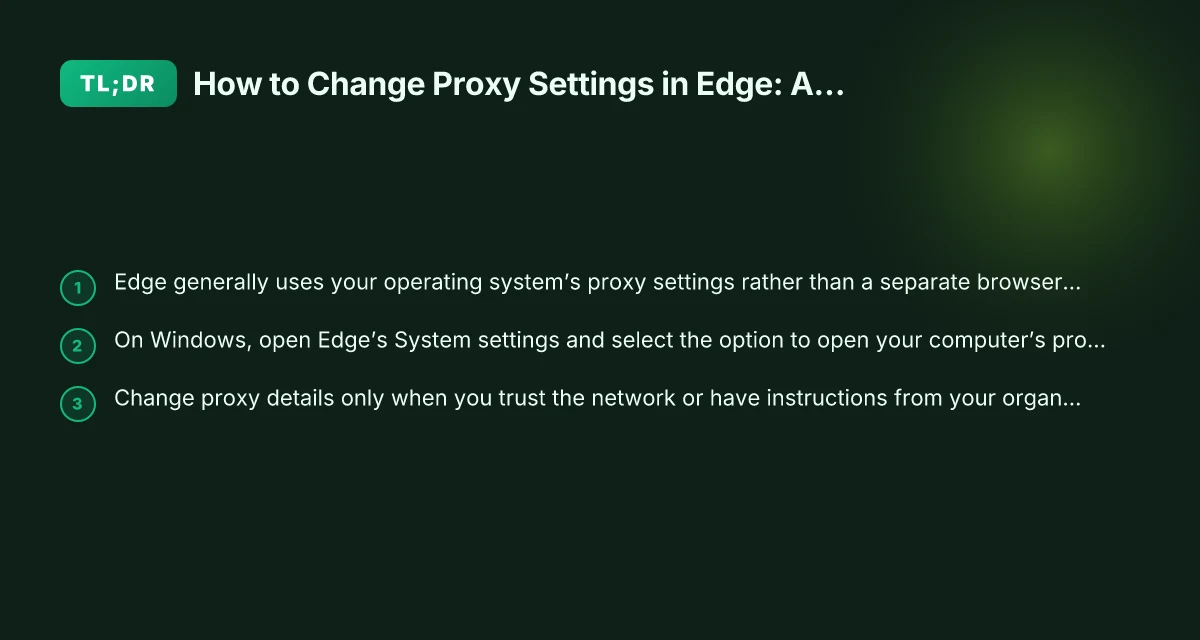
To change proxy settings in Edge, open the browser’s settings, go to System and performance, and select the option to open your computer’s proxy settings. Edge typically relies on the proxy configuration in Windows or macOS, so you’ll make the actual change in your device’s network settings. The exact options vary by operating system and network.
Compare proxy settings on Windows and macOS
| Option | Windows | macOS | Where to change it |
|---|---|---|---|
| Open settings from Edge | Supported | Supported | Edge Settings |
| Edge setting path | System and performance | System | Edge settings page |
| Open operating system settings | Windows proxy settings | macOS network settings | From Edge |
| Configure a setup script | Supported | Supported | Operating system settings |
| Configure a manual proxy | Supported | Supported | Operating system settings |
| Set a proxy address and port | Supported | Supported | Manual proxy settings |
| Bypass proxy for selected addresses | Supported | Supported | Proxy settings |
| Turn off proxy use | Supported | Supported | Operating system settings |
Compiled November 2026; check the provider's site for current details.
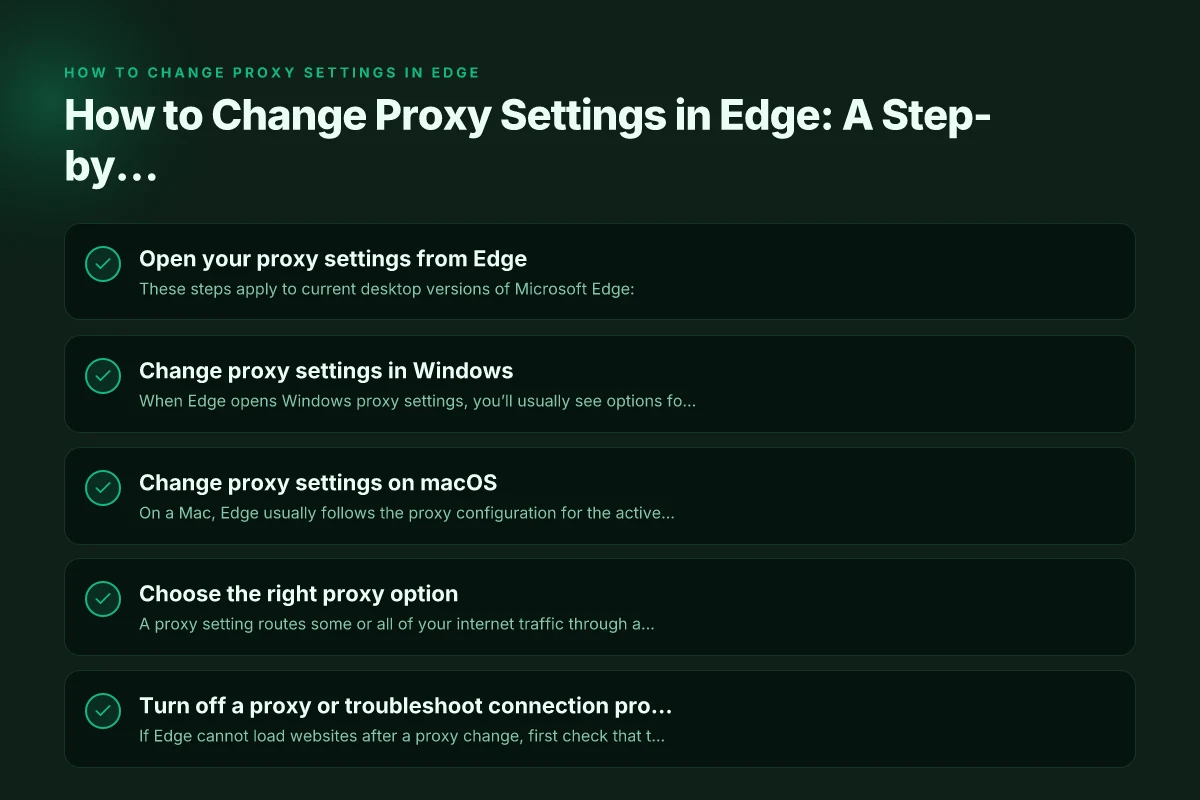
Open your proxy settings from Edge
These steps apply to current desktop versions of Microsoft Edge:
- Open Edge.
- Select the three-dot menu in the top-right corner, then choose Settings.
- Select System and performance in the sidebar.
- Find the system or network settings section and select Open your computer’s proxy settings.
You can also enter edge://settings/system in the address bar and press Enter. If Edge’s settings page looks different, use the settings search box to search for “proxy.”
Selecting the link opens your device’s proxy controls. You may need administrator permission to change some settings, particularly on a work or school computer.
Change proxy settings in Windows
When Edge opens Windows proxy settings, you’ll usually see options for automatic detection, a setup script, and a manual proxy. The labels can differ slightly by Windows version. why does VPN keep turning on iphone(2026)
Set a proxy manually
If you have proxy information from your network administrator or provider:
- In Windows, open Settings and go to Network & internet > Proxy.
- Under Manual proxy setup, select Set up or turn on Use a proxy server.
- Enter the proxy address and port you were given.
- Save the changes.
Some versions of Windows let you specify addresses that should bypass the proxy. Add only the exceptions you need and have been instructed to use.
Use automatic configuration
If your organization provides a setup script, look for Use setup script in the Proxy settings page. Turn it on and enter the script address provided by your administrator. Alternatively, Automatically detect settings may configure a proxy based on the network.
Do not guess a proxy address or script URL. An incorrect configuration can prevent websites from loading, while an untrusted proxy may be able to observe or interfere with your web traffic. my VPN is blocking websites(2026)
Change proxy settings on macOS
On a Mac, Edge usually follows the proxy configuration for the active network service.
- Open System Settings.
- Select Network, then choose the connected network service, such as Wi-Fi or Ethernet.
- Select Details or Advanced, then open the Proxies tab or section.
- Choose the proxy type you were instructed to use.
- Enter the server address and port, or configure the automatic proxy URL if applicable.
- Select OK or Done, then apply the changes.
The names and layout may vary between macOS versions. If your Mac is managed by an employer or school, proxy options may be controlled by a configuration profile.
Choose a proxy option
| Option | How it works | Best suited for | Setup location | Main consideration |
|---|---|---|---|---|
| No proxy | Connects directly | Direct connections | Operating system settings | Does not use a proxy |
| Automatic detection | Detects proxy settings automatically | Networks that provide automatic configuration | Operating system settings | Depends on network support |
| Setup script | Uses a script to configure the proxy | Networks with a proxy configuration script | Operating system settings | Requires a script address |
| Manual proxy | Uses specified proxy details | Networks with known proxy settings | Operating system settings | Requires proxy details |
| Proxy server | Routes traffic through a specified server | Proxy-based connections | Manual proxy settings | Requires a server address |
| Bypass list | Connects directly to selected addresses | Sites that should avoid the proxy | Proxy settings | Applies only to listed addresses |
Compiled November 2026; check the provider's site for current details. free VPN for changing location(2026)
Choose the right proxy option
A proxy setting routes some or all of your internet traffic through another server. The appropriate configuration depends on the network and the instructions you received.
| Option | What it does | When it may be appropriate |
|---|---|---|
| Automatically detect settings | Lets the device look for proxy configuration on the network | A network administrator recommends it |
| Setup script or automatic configuration URL | Uses a provided script to determine proxy settings | Your workplace or school supplies a script URL |
| Manual proxy | Sends traffic through a specified server and port | You have verified proxy details from a trusted source |
| No proxy or disabled settings | Connects without the configured proxy | You are instructed to disable it or need to test connectivity |
A proxy is not the same thing as a VPN. A proxy may apply only to certain traffic or applications, while a VPN typically creates a connection for broader device or network traffic. Neither option automatically guarantees privacy or security.
Turn off a proxy or troubleshoot connection problems
If Edge cannot load websites after a proxy change, first check that the server address, port, and script URL are correct. If you’re on a managed network, contact the administrator before changing settings.
To test whether the proxy is causing the problem, return to your operating system’s Proxy settings and temporarily disable the manual proxy or setup script, if you’re allowed to do so. On Windows, you can also check whether Automatically detect settings should be enabled. On macOS, review the proxy options for the network service you’re currently using. VPN free change location(2026)
After making a change:
- Close and reopen Edge, then try a trusted website.
- Check whether the issue affects other browsers or apps.
- Reconnect to the network if the device does not appear to use the updated configuration.
- Restore the original settings if disabling the proxy makes access worse.
If only Edge has trouble, update the browser and check for extensions that manage traffic. Avoid entering credentials into unfamiliar proxy prompts or using servers advertised by unverified sources.
Troubleshoot proxy connection problems
| Check | What to do | When it may help | Where to check |
|---|---|---|---|
| Proxy setting | Confirm the intended option is selected | Proxy is not being used | Operating system settings |
| Setup script | Check the script address | Automatic configuration fails | Proxy settings |
| Server address | Verify the address | Proxy server cannot be reached | Manual proxy settings |
| Port | Verify the port | Connection is refused | Manual proxy settings |
| Bypass list | Review listed addresses | Some sites connect differently | Proxy settings |
| Proxy off | Turn off the proxy if it is not needed | Direct connection is intended | Operating system settings |
| Edge settings | Open the system proxy settings from Edge | You cannot find proxy controls | Edge Settings |
| Network settings | Check the active network’s proxy configuration | Settings appear incorrect | Windows or macOS settings |
Compiled November 2026; check the provider's site for current details. free VPN that can change location(2026)
Recommendation
Use Edge’s System and performance settings to reach the proxy controls, then make changes in Windows or macOS. Follow configuration details from your network administrator or another source you trust, and keep a record of the original settings so you can restore them if needed.