Microsoft Edge Menu > Settings > Show Advanced Settings > Change Proxy Settings > LAN Settings: A Guide
Find LAN proxy settings from Microsoft Edge and learn how to configure, troubleshoot, and reset them safely.
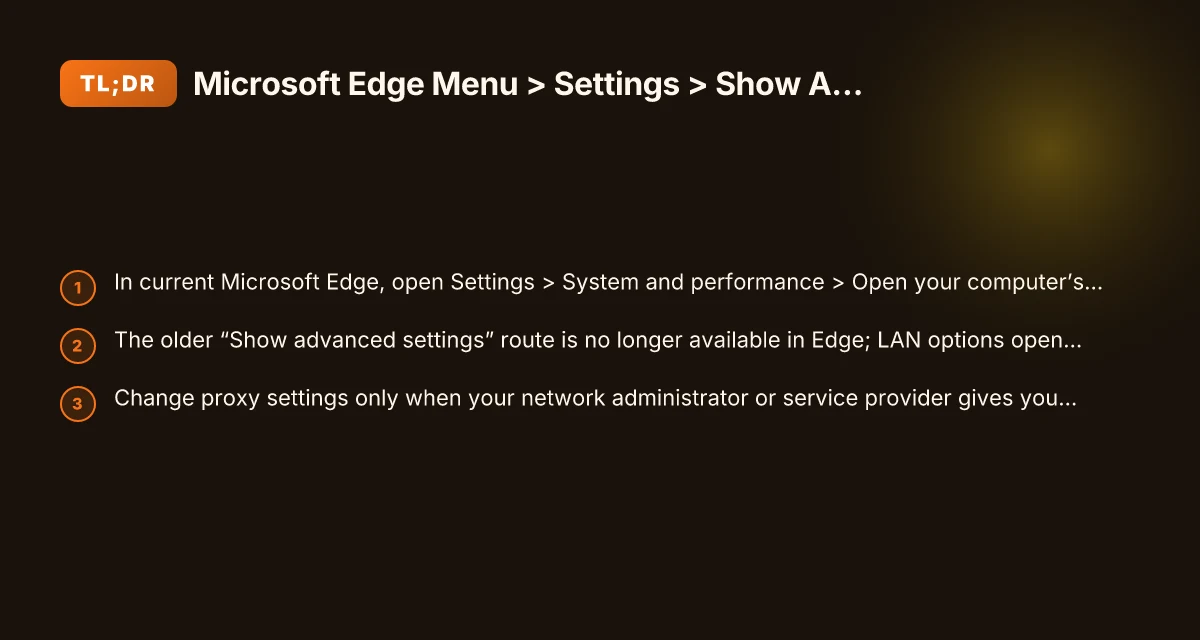
The path “Microsoft Edge menu > Settings > Show advanced settings > Change proxy settings > LAN settings” refers to an older version of Edge. In today’s Edge, there is no “Show advanced settings” link. To reach the equivalent proxy controls, open Edge’s menu, choose Settings > System and performance, then select Open your computer’s proxy settings. On Windows, this opens the system proxy page, where you can configure automatic detection, a setup script, or a manual proxy. The exact screens can vary slightly by Windows version.
Compare the Windows proxy options
| Option | What it does | When to use it | Main caution |
|---|---|---|---|
| Automatically detect settings | Lets Windows detect proxy settings | Use when the network provides automatic configuration | Detection may not work on every network |
| Use setup script | Applies settings from a script address | Use when your organization provides a script URL | Verify the address with your administrator |
| Use a proxy server | Sends traffic through a specified proxy | Use when you have approved server details | Incorrect entries can prevent connections |
| Address | Names the proxy server | Enter the address supplied by your provider | Do not guess the value |
| Port | Identifies the proxy service on that server | Enter the port supplied by your provider | A wrong port can block access |
| Bypass for local addresses | Excludes local addresses from the proxy | Enable if your network requires direct local access | Follow your organization’s guidance |
| Save changes | Applies the configured options | Select after reviewing your entries | Recheck settings if connections fail |
Compiled November 2026; check the provider's site for current details.
Open LAN proxy settings from Microsoft Edge
Microsoft Edge generally uses the proxy configuration set for your operating system rather than maintaining a separate LAN proxy screen. On Windows, follow these steps:
- Open Microsoft Edge.
- Select the three-dot Settings and more menu in the top-right corner.
- Choose Settings.
- Open System and performance.
- Select Open your computer’s proxy settings.
- In Windows Settings, review the available proxy options.
If you do not see System and performance, use the search box in Edge Settings and search for “proxy.” You can also open Windows Settings directly and search for Proxy settings.
The older route used the Internet Properties window. In some Windows versions, the same LAN dialog is still available through Windows proxy controls or Internet Properties, but it is not an Edge-specific setting.
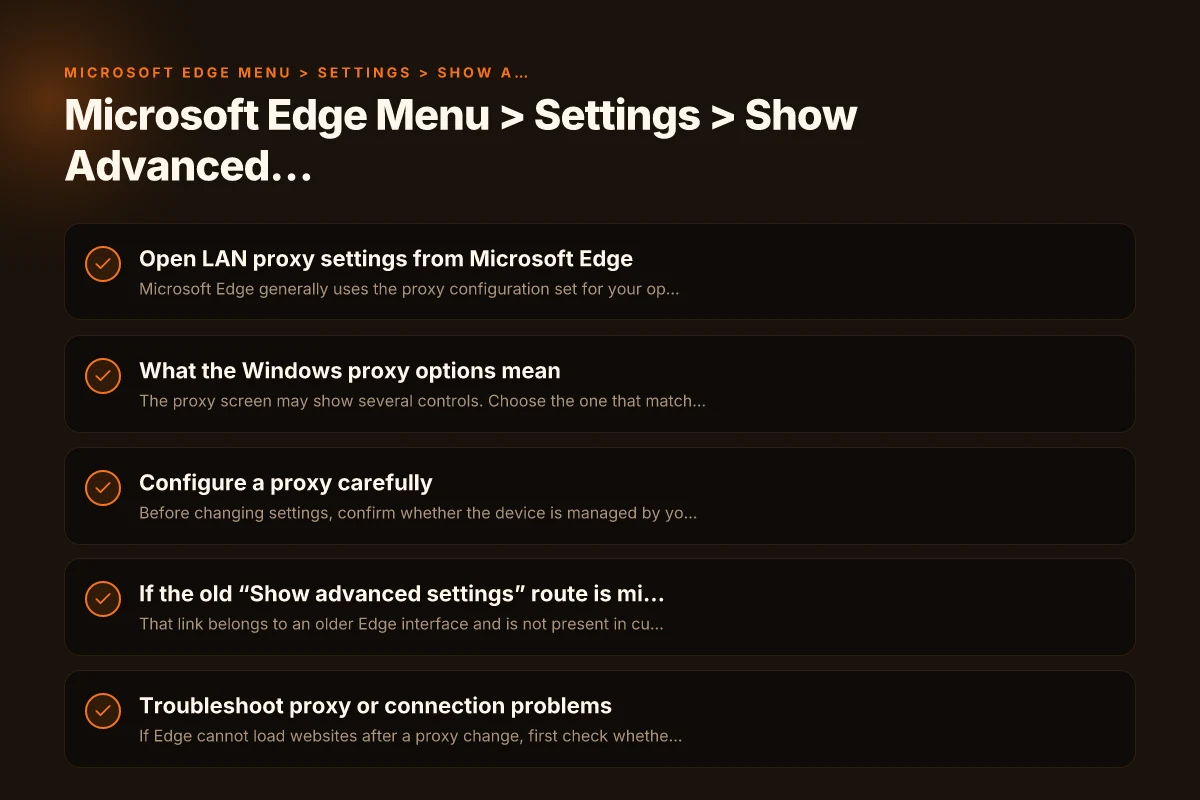
What the Windows proxy options mean
The proxy screen may show several controls. Choose the one that matches the instructions from your organization or network provider. Free VPN That Changes Location: What Works and What to Check
| Option | What it does | Use it when |
|---|---|---|
| Automatically detect settings | Lets Windows try to discover proxy settings on the network | Your workplace or school network configures proxy discovery |
| Use setup script | Applies settings from a supplied configuration script address | Your administrator gives you a script URL |
| Use a proxy server | Sends eligible web traffic through a specified server and port | You are given a proxy address and port |
| Don’t use a proxy server for local addresses | Excludes certain local network addresses from the proxy | Your organization’s instructions recommend it |
A proxy server address and port are not interchangeable: the address identifies the server, while the port specifies the connection endpoint. Enter them exactly as provided. If a setup script or sign-in is required, follow your administrator’s instructions rather than guessing at values.
Choose a safe configuration approach
| Situation | Recommended approach | Avoid | Check before applying |
|---|---|---|---|
| Work or school device | Follow administrator instructions | Changing managed settings without approval | Whether settings are centrally managed |
| Home network with no proxy details | Leave proxy options unchanged | Entering guessed server details | Whether your provider requires a proxy |
| Network provides a setup script | Use the supplied script address | Using an unverified URL | Confirm the address with the provider |
| Provider supplies server and port | Enter the exact values | Reusing details from another network | Check address and port spelling |
| Only local access is affected | Review the local-address bypass option | Broad changes without testing | Confirm expected behavior with support |
| Unsure which option applies | Ask the network administrator or provider | Enabling multiple options at random | Identify the required configuration first |
Compiled November 2026; check the provider's site for current details.
Configure a proxy carefully
Before changing settings, confirm whether the device is managed by your employer, school, or another organization. Managed devices may apply proxy settings automatically, and manual changes can interfere with access to internal websites or services. Clash iPhone: How to Play Clash Games on Your iPhone
For a manual proxy, Windows typically asks you to enter a server address and port. It may also offer an exceptions field for addresses that should bypass the proxy. Use only values supplied by a trusted administrator or service provider. A proxy is not a substitute for secure browsing, and sending traffic through an unknown proxy can expose information about your browsing activity.
If you are on a home network and no one has asked you to use a proxy, you usually do not need to enter one. Automatic detection may be enabled by default. Whether to leave it on depends on your network setup.
If the old “Show advanced settings” route is missing
That link belongs to an older Edge interface and is not present in current releases. You may find instructions online that say to select Show advanced settings and then Change proxy settings. Those steps will not match the modern Edge menus.
Try these alternatives: Free VPN Choose Country: How to Pick a Location Safely
- Search Edge Settings for proxy and select the option to open your computer’s proxy settings.
- In Windows, open Settings and search for Proxy settings.
- If you need the traditional LAN dialog, search Windows for Internet Options or Internet Properties, open the Connections tab, and select LAN settings, if that control is available.
- If the computer is managed, contact its administrator before changing any proxy or LAN options.
The traditional LAN settings dialog may contain automatic configuration and proxy controls. Windows versions differ, so you may instead see the newer Proxy page without a separate LAN dialog.
Troubleshoot proxy or connection problems
If Edge cannot load websites after a proxy change, first check whether the setting was entered correctly. A typo in the server, port, or setup script address can prevent connections.
Useful checks include:
- Turn off a manually configured proxy only if you are authorized to do so and know the network does not require it.
- Check whether Automatically detect settings or a setup script is required on your network.
- Confirm that the proxy server is reachable and that you are connected to the correct network.
- Review any proxy authentication prompt and use credentials provided by your organization.
- Restart Edge after changing system proxy settings.
- If other apps also cannot connect, the issue is likely at the Windows or network level, not just inside Edge.
Avoid disabling security software or entering credentials into an unfamiliar proxy prompt. If the settings keep returning after you change them, they may be controlled by device management or network policy. Nord VPN Account Generator: What It Is and Safer Alternatives
Troubleshoot proxy and connection problems
| Symptom | First check | Possible next step | Seek help when |
|---|---|---|---|
| No internet after enabling a proxy | Recheck address and port | Turn off the proxy if it was not required | The connection remains unavailable |
| Proxy server cannot be reached | Confirm network access and server details | Check whether the proxy is online | The server details are managed |
| Setup script does not apply | Verify the script address | Ask the provider to confirm the script | The script is organization-managed |
| Local sites fail to open | Review the local-address bypass setting | Restore the required network configuration | Local access remains blocked |
| Settings are missing in Edge | Open Windows proxy settings | Use the current Windows Settings route | The device is managed or options are restricted |
| Settings revert after changes | Check for organization management | Contact the administrator | Changes are repeatedly overwritten |
| Connection works after reverting | Keep the unnecessary proxy disabled | Confirm the correct setup with the provider | A proxy is required by policy |
Compiled November 2026; check the provider's site for current details.
Recommendation
For current Microsoft Edge, use Settings > System and performance > Open your computer’s proxy settings rather than looking for the obsolete Show advanced settings link. Change LAN or proxy options only with verified network instructions, and ask your administrator or internet provider for help if you are unsure which configuration to use.