total VPN on fire stick(2026)
Learn how to install Total VPN on a Fire Stick, connect securely, troubleshoot issues, and check compatibility.
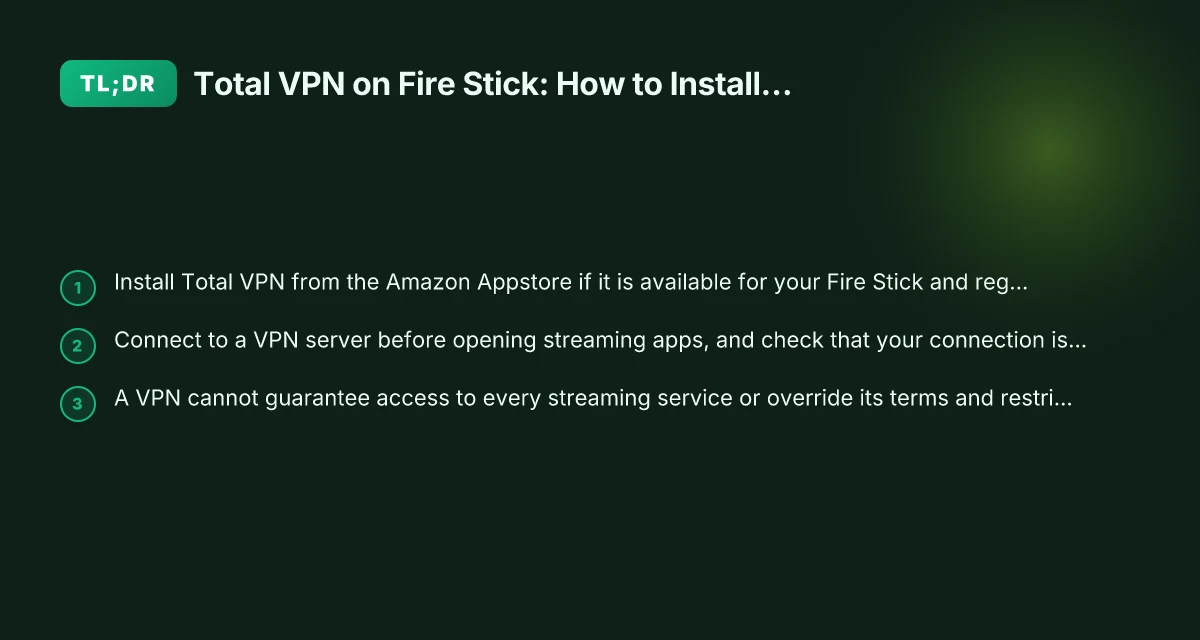
If you want to use Total VPN on a Fire Stick, first check whether its app is available in the Amazon Appstore for your device and location. If it is, install it, sign in with your Total VPN account, and connect to a server before launching an app. If you cannot find the app, do not assume that an unofficial download will work. Check Total VPN’s current support guidance or contact its support team for compatible options.
Check these requirements before installing Total VPN on Fire Stick
| Check | What to look for | If it’s supported | If it’s not supported |
|---|---|---|---|
| Fire Stick compatibility | Total VPN app listed for your device | Install the app | Use another compatible device |
| Fire OS version | App requirements match your Fire OS | Continue setup | Check for a Fire OS update |
| Amazon account | Account can access the app store | Search for Total VPN | Check account or store access |
| Internet connection | Fire Stick is online | Download the app | Reconnect to Wi-Fi |
| App availability | Total VPN appears in the store | Install from the store | Check for another installation method |
| Storage space | Enough room for the app | Proceed with installation | Free up storage |
| VPN account | Valid Total VPN sign-in details | Sign in after installation | Confirm account access |
| Streaming app access | The desired app is available in your region | Test it after connecting | Check the service’s availability |
Compiled November 2026; check the provider's site for current details.
| VPN | Obfuscation | From / month | Plan | Free plan | Refund | Alipay | UnionPay | Crypto | Website opens in China | Trustpilot | |
|---|---|---|---|---|---|---|---|---|---|---|---|
 ZoogVPN | Turn on manually Shadow | $2.49/mo | 27 months: $59.99 | Yes | 7 days | ✓ | ✓ | ✓ | ✓ | Official site blocked; our special link opens (4.4 s) | 4.2/5 (195 reviews) |
 NordVPN | Turn on manually Obfuscated Servers / NordWhisper | $3.49/mo | 27 months: $94.23 | No | 30 days | ? | ✗ | ✓ | ✓ | ✗ Blocked | 4.2/5 (51,628 reviews) |
 ExpressVPN | ✓ On by default all servers | $3.00/mo | 28 months: $84 | No | 30 days | ✗ | ✗ | ✓ | ✗ | ✗ Blocked | 4.4/5 (29,706 reviews) |
 Surfshark | ✓ On by default Camouflage, with OpenVPN | See site | See site | No | 30 days | ✗ | ✗ | ✗ | ✓ | ✗ Blocked | 4.3/5 (31,823 reviews) |
 Proton VPN | Turn on manually Stealth, free plan too | $2.99/mo | 12 months: $35.88 | Yes | 30 days | ✗ | ✗ | ✗ | ✓ | ✗ Blocked | 2.1/5 (1,040 reviews) |
 Astrill VPN | Turn on manually StealthVPN / OpenWeb | $12.50/mo | 24 months: $300 | No | See site | ✗ | ✗ | ✗ | ✓ | ✗ Blocked | 1.3/5 (110 reviews) |
 Private Internet Access | Turn on manually Shadowsocks, OpenVPN only | $2.03/mo | 40 months: $81.2 | No | 30 days | ✗ | ✗ | ✗ | ✗ | ✗ Blocked | 4.2/5 (11,033 reviews) |
 CyberGhost | Turn on manually selected servers | $2.19/mo | 28 months: $61.32 | No | 45 days | ✗ | ✗ | ✗ | ✓ | ✗ Blocked | 4.0/5 (24,178 reviews) |
 PureVPN | Turn on manually switch to OpenVPN | $1.69/mo | 60 months: $101.55 | No | 31 days | ? | ? | ✗ | ✓ | ✗ Blocked | 4.4/5 (17,994 reviews) |
 AdGuard VPN | ✓ On by default TrustTunnel | $2.99/mo | 24 months: $71.76 | Yes | 30 days | ✓ | ✗ | ✓ | ✓ | Official site blocked; our special link opens (3.7 s) | 4.3/5 (290 reviews) |
 Mullvad | Turn on manually QUIC / Shadowsocks / LWO | $5.61/mo | €5/mo | No | 14 days | ✗ | ✗ | ✗ | ✓ | ✗ Blocked | 3.2/5 (192 reviews) |
 Windscribe | Turn on manually Stealth / WStunnel | $5.75/mo | 12 months: $69 | Yes | See site | ✗ | ✗ | ✗ | ✓ | ✗ Blocked | 4.7/5 (13,355 reviews) |
 StrongVPN | Turn on manually Scramble, OpenVPN TCP | See site | See site | No | 30 days | ✓ | ✗ | ✗ | ✗ | ✗ Blocked | 4.4/5 (2,695 reviews) |
 LightXtreme 闪连 | Not listed | $7.08/mo | 12 months: $84.99 | Yes | 30 days | ✓ | ✓ | ✓ | ✓ | ✓ Yes (3.5 s) | No page |
Prices checked 2026-11-10 on each vendor's pricing page (cheapest long plan, USD). Check the vendor's checkout for the final price.
Obfuscation checked 2026-11-14 on each vendor's site and help center: "on by default" = nothing to set; "turn on manually" = switch protocol or mode in settings; "not listed" = the vendor describes no obfuscation.
Payment methods checked 2026-11-10 on each vendor's payment pages: all 14 take cards and PayPal; ✗ = not listed, ? = the vendor's own pages disagree.
China access: whether the official website opens from mainland China networks (tests the website only, not the VPN connection). Last checked 2026-11-18 01:02 Beijing time.
Trustpilot score and review count checked 2026-11-10.
Check compatibility before installing
Fire TV devices run Fire OS, which is based on Android but is not identical to every Android phone or tablet. VPN apps need to support Fire TV’s interface and the specific device model. Availability can also differ by country, software version, and account settings.
Before you begin, check:
- Your Fire Stick model and Fire OS version.
- Whether Total VPN appears in the Amazon Appstore on your device.
- Whether your Total VPN subscription includes the service and features you need.
- Whether your streaming apps permit VPN use under their terms.
An app designed for touchscreens may be difficult to control with a Fire Stick remote, even if it can technically be installed. A native Fire TV app is generally the simplest option because it is designed for the device and receives updates through the app store.
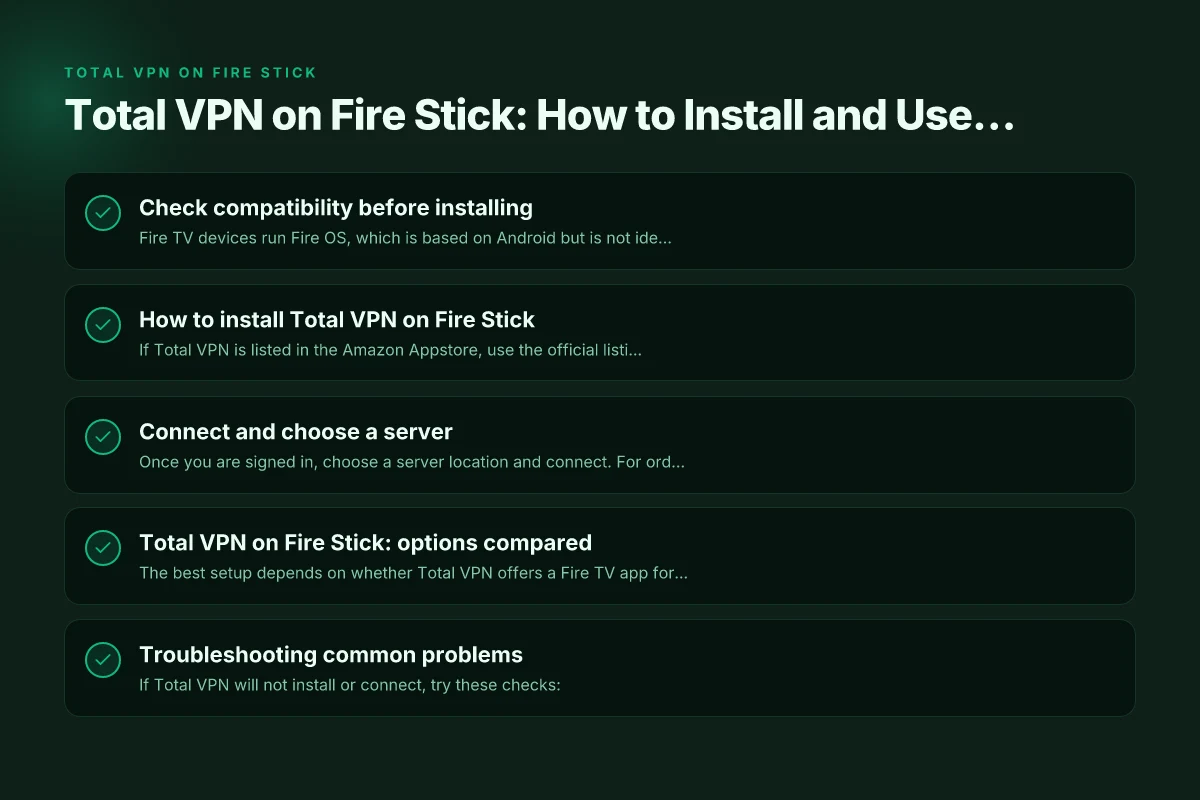
How to install Total VPN on Fire Stick
If Total VPN is listed in the Amazon Appstore, use the official listing rather than a third-party download. axgate VPN client download(2026)
- Turn on your Fire Stick and connect it to the internet.
- Open Find or the search function from the Home screen.
- Search for Total VPN.
- Select the official app, confirm the publisher, and choose Get or Download.
- Open the app once installation is complete.
- Sign in using your Total VPN account details.
- Choose a server and select Connect.
The wording and menu layout may vary slightly between Fire TV versions. If the app does not appear, check the Appstore on the device and Total VPN’s official compatibility information. An app missing from the store may not be supported for your device or region.
If the app is unavailable
Avoid downloading VPN installation files from sites you do not trust. Unofficial files can be outdated, altered, or incompatible with Fire OS, and sideloaded apps may not work properly with the remote.
If Total VPN’s support team confirms that it offers a safe installation method for your particular Fire Stick, follow its instructions carefully. Otherwise, ask about supported alternatives, such as a compatible device or a supported router setup. Router configuration can affect every device on your network, so only use instructions intended for your router model.
Connect and choose a server
Once you are signed in, choose a server location and connect. For ordinary browsing or added privacy on a shared network, a nearby server is often a practical starting point because it may provide a faster, more stable connection. A distant server can increase latency and reduce streaming quality. best free VPN for edge(2026)
A simple routine is:
- Open Total VPN and connect before launching a streaming app.
- Wait for the app to show that the VPN is connected.
- Open your streaming service and test playback.
- Disconnect or try another server if the connection is slow or the app reports an error.
A VPN routes your internet traffic through a VPN server, but it does not make you anonymous or guarantee that a service will work. Streaming platforms may use their own location checks, restrict VPN connections, or change their policies. Use services according to their terms and the laws that apply where you are.
Compare ways to install Total VPN on Fire Stick
| Installation option | Uses Fire Stick store | Setup effort | Best for | Main consideration |
|---|---|---|---|---|
| Search the app store | Yes | Low | A straightforward install | App must be available |
| Install from the app’s store listing | Yes | Low | Installing the official listing | Confirm the publisher |
| Use an alternative installation method | No | Higher | When the app is not listed | Requires careful source checks |
| Install on another device | No | Medium | When Fire Stick is incompatible | Does not install the app on Fire Stick |
| Update Fire OS first | Yes | Medium | Devices with an outdated system | Recheck app availability afterward |
| Reinstall the app | Yes | Medium | Fixing a faulty installation | Sign in again after reinstalling |
Compiled November 2026; check the provider's site for current details. microsoft edge VPN extension(2026)
Total VPN on Fire Stick: options compared
The best setup depends on whether Total VPN offers a Fire TV app for your model and region. These common options differ in convenience and complexity:
| Option | Ease of setup | What to check |
|---|---|---|
| Official Fire TV app | Usually easiest | Confirm it is the genuine app and is available in your Appstore |
| Supported router setup | More technical | Verify router compatibility and follow Total VPN’s official instructions |
| Unofficial sideloading | Uncertain | Use only if Total VPN confirms the method is safe and supported |
An official app is usually the most straightforward choice. A router setup may be useful when the VPN provider supports it, but it requires careful configuration and may affect devices throughout the home. Sideloading is not a dependable substitute for official support.
Troubleshooting common problems
If Total VPN will not install or connect, try these checks:
- App not found: Check your Fire Stick’s Appstore, region, and model. Confirm current compatibility with Total VPN.
- Sign-in fails: Recheck your credentials and subscription status. If needed, reset your password through Total VPN’s official account page.
- Connection will not start: Restart the Fire Stick and router, then try another available server.
- Streaming is slow: Choose a closer server, test your normal connection, and close apps or downloads using bandwidth.
- A streaming app shows an error: Disconnect and reconnect, try another server if available, and check the streaming service’s terms. Some services may block VPN connections.
- The app freezes: Update Fire OS and the VPN app if updates are available, then restart the device.
Do not share your password or account details with someone offering unofficial installation help. If the problem continues, contact Total VPN support with your Fire Stick model, Fire OS version, and a description of the error. urban VPN extension for chrome(2026)
Compare connection choices and troubleshooting steps
| Situation | First step | Next step | What to check |
|---|---|---|---|
| App will not open | Restart the Fire Stick | Reopen Total VPN | Fire OS and app updates |
| Sign-in fails | Recheck account details | Try signing in again | Account access |
| Server will not connect | Choose another server | Retry the connection | Internet connection |
| Connection is slow | Test another server | Recheck the connection | Wi-Fi strength |
| Streaming app will not load | Reconnect the VPN | Try another server | Streaming app availability |
| VPN disconnects | Reconnect to Wi-Fi | Connect to a server again | Network stability |
| App is missing from the store | Check device compatibility | Check for app availability | Fire OS version |
| Problems continue | Restart the device | Reinstall the app | Account and network access |
Compiled November 2026; check the provider's site for current details.
Recommendation
Use Total VPN on a Fire Stick only through an official, supported option. Start by checking the Amazon Appstore and Total VPN’s current compatibility information. If the app is available, install it, sign in, and connect before opening your streaming apps. If it is not available, ask Total VPN about supported alternatives rather than relying on unverified downloads.