use proxy(2026)

Learn how to use a proxy, choose the right type, configure it, and understand its privacy and security limits.
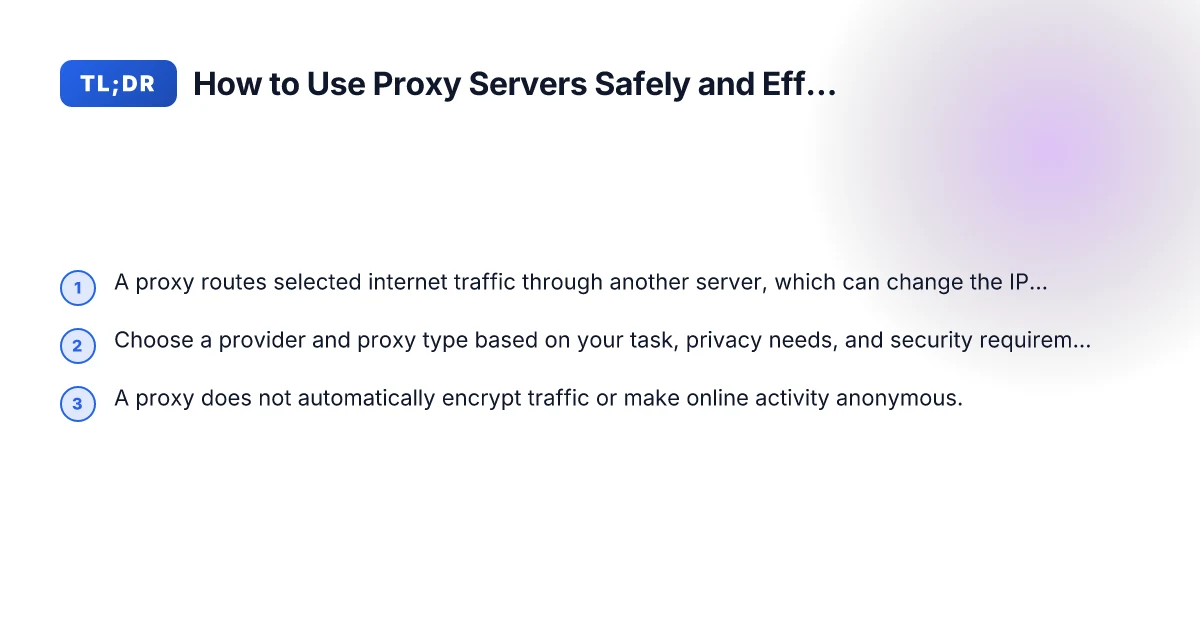
To use a proxy, choose a trustworthy proxy service, enter its server details in your device, browser, or application, and test that your traffic is routed correctly. A proxy sits between your device and the websites or services you access. It can help manage network access, route requests through a different location, or separate traffic for specific tasks. However, its protections depend on the proxy type and provider: a proxy is not automatically a VPN, an encryption tool, or a guarantee of anonymity.
Compare proxy types for common needs
| Proxy type | Best suited for | Speed | IP consistency | Main limitation |
|---|---|---|---|---|
| Datacenter | General browsing and testing | Usually fast | Often shared or rotating | Easier for sites to identify |
| Residential | Accessing sites that expect home-user traffic | Varies | Shared or rotating | Provider practices vary |
| ISP | A steady residential-style address | Usually steady | Often static | Availability varies |
| Mobile | Testing mobile-specific services | Varies | Often rotating | Can be costly |
| Transparent | Basic network filtering or caching | Often fast | User IP may be exposed | Limited privacy |
| Anonymous | Hiding the user IP from the destination | Varies | Depends on provider | Does not guarantee anonymity |
| SOCKS5 | Apps and traffic beyond web browsing | Varies | Depends on provider | Requires app support |
| HTTP/HTTPS | Web browsing through a browser or app | Varies | Depends on provider | Usually limited to compatible traffic |
Compiled November 2026; check the provider's site for current details.
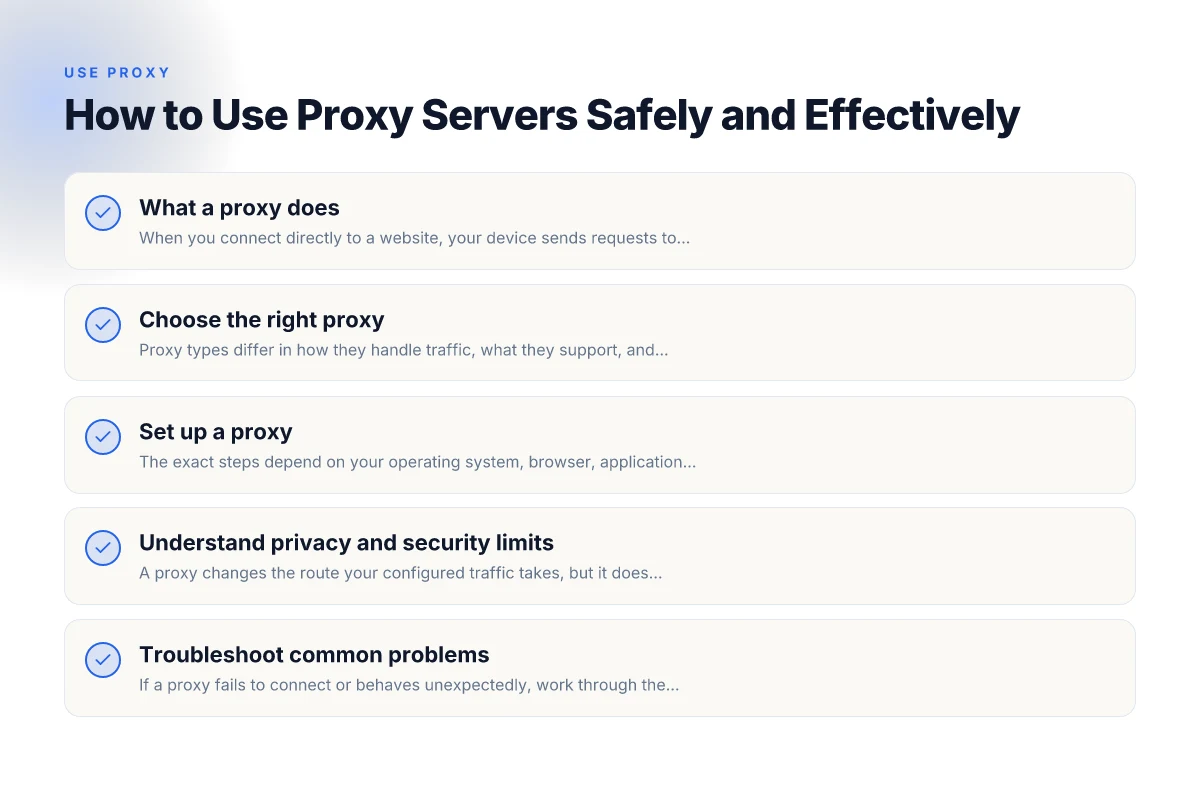
What a proxy does
When you connect directly to a website, your device sends requests to that website. With a proxy, your request first goes to the proxy server, which then forwards it. The destination may see the proxy’s IP address instead of your device’s public IP address.
Proxies are commonly used to:
- Route traffic through a particular network or location.
- Apply workplace or school access rules.
- Manage how an application connects to online services.
- Test websites or services from different network environments.
- Add a layer between a device and the destination server.
A proxy usually handles only the traffic configured to use it. If you set one up in a browser, other applications may still connect directly. This differs from a VPN, which typically routes more of a device’s network traffic through an encrypted connection.
Choose the right proxy
Proxy types differ in how they handle traffic, what they support, and how they affect privacy. Before choosing one, check whether it supports encryption, authentication, the apps you use, and the locations you need. fortigate VPN pfs(2026)
| Proxy type | Common use | Important consideration |
|---|---|---|
| HTTP | Web traffic using HTTP | Usually limited to web traffic; unencrypted connections can expose data in transit |
| HTTPS or TLS-enabled proxy | Web traffic with an encrypted connection to the proxy | Confirm exactly what is encrypted and whether the provider can inspect traffic |
| SOCKS5 | Traffic from compatible browsers and applications | Flexible, but encryption depends on the app or connection protocol |
| Residential proxy | Requests routed through IP addresses associated with residential networks | Can raise privacy, consent, and compliance concerns; vet the provider carefully |
| Data center proxy | High-volume or managed network tasks | May be easier for websites to identify as proxy traffic |
Free proxies can be tempting, but they may have unreliable performance, unclear ownership, intrusive advertising, or weak privacy practices. A proxy operator can potentially observe traffic that is not encrypted between your device and the destination. Choose a provider with clear ownership, transparent policies, reliable support, and appropriate security controls.
Check these points before choosing a proxy
| Decision point | What to check | Safer choice | Warning sign |
|---|---|---|---|
| Provider | Ownership and reputation | Clear, verifiable operator | Unknown operator |
| Logging | Data collected and retention | Plain-language logging policy | Vague or missing policy |
| Encryption | HTTPS support and app settings | Encrypted connection where available | Treating the proxy as encryption |
| IP source | Where addresses come from | Consent-based, documented sourcing | Unclear sourcing |
| Authentication | Account and access controls | Strong credentials | Open or shared access |
| Location | Available regions and accuracy | Region that fits the task | Location claims without detail |
| Terms | Use restrictions and compliance | Terms that match your intended use | Prohibited or unclear use |
| Support | Setup and incident help | Responsive documentation or support | No clear support channel |
Compiled November 2026; check the provider's site for current details.
Set up a proxy
The exact steps depend on your operating system, browser, application, and proxy provider. You will generally need the server address, port, proxy type, and, if required, a username and password. forticlient VPN 7.2 download(2026)
A typical setup looks like this:
- Get the connection details from a provider or network administrator.
- Open your device’s network settings, browser settings, or the application’s connection settings.
- Select the option to configure a proxy.
- Enter the proxy type, server address, and port.
- Add authentication details only in the official settings field, if the proxy requires them.
- Save the settings and visit a trusted IP-checking service or your organization’s approved test page.
- Confirm the connection works, then check that the applications you intended to route are using it.
If you only need a proxy for one browser or application, configure it there where possible. This helps avoid routing unrelated traffic through the proxy. On a work or school network, follow the administrator’s instructions. Using an unauthorized proxy may violate network rules or compromise security.
Remove or change a proxy
If your connection stops working, first check the server address, port, authentication details, and provider status. A proxy that is unavailable may prevent configured apps from reaching the internet.
To stop using it, turn off the proxy setting or restore the previous network configuration. If you entered credentials on an untrusted device or shared them accidentally, change them through the provider’s official account page. catVPN(2026)
Understand privacy and security limits
A proxy changes the route your configured traffic takes, but it does not make you invisible. Websites may still identify you through account logins, cookies, browser settings, device information, or other signals. The proxy provider may also be able to see connection details, depending on the setup.
Keep these points in mind:
- Encryption is not automatic. HTTPS protects data between your browser and an HTTPS website, while a proxy’s own connection may or may not be encrypted.
- The provider becomes part of your trust boundary. Review its privacy policy, logging practices, jurisdiction, and security history.
- Coverage may be limited. Apps not configured to use the proxy can connect directly.
- Location can be inaccurate. A proxy’s apparent location depends on its IP address and how websites interpret it.
- A proxy is not a security cure-all. Keep your software updated, use strong authentication, and avoid sharing sensitive information with untrusted services.
Use a proxy only for lawful, authorized purposes and follow the terms of the websites and networks involved. Do not use it to bypass access controls, evade restrictions, or perform activity that would otherwise be prohibited.
Troubleshoot common problems
If a proxy fails to connect or behaves unexpectedly, work through the basics before changing advanced settings: extension VPN free edge(2026)
- Confirm that the proxy address and port match the provider’s instructions.
- Check whether the provider requires authentication and whether your credentials are current.
- Try a different approved server if the selected one is unavailable.
- Disable the proxy briefly to determine whether it is causing the connection problem, then restore the setting if needed.
- Check whether a firewall, antivirus tool, or network administrator is blocking the connection.
- Verify the result in the specific browser or application you configured. Other apps may use a different route.
If you are using a managed device, contact its administrator rather than changing settings that may be centrally controlled.
Troubleshoot common proxy problems
| Symptom | Likely cause | What to check | Practical next step |
|---|---|---|---|
| Connection fails | Wrong address or port | Host, port, and protocol | Re-enter provider details |
| Authentication error | Incorrect credentials | Username and password | Reset credentials securely |
| Websites will not load | Unsupported proxy type | App and protocol compatibility | Try a supported configuration |
| Slow browsing | Congestion or distant server | Server location and load | Choose a nearer server |
| Some sites block access | IP reputation or site rules | Whether the site permits proxies | Try an allowed alternative |
| IP appears unchanged | Proxy not applied | Browser or app proxy settings | Verify settings and retest |
| DNS leaks | DNS requests bypass the proxy | DNS configuration | Enable protected DNS routing |
| Frequent disconnects | Unstable server or network | Provider status and connection | Switch server or contact support |
Compiled November 2026; check the provider's site for current details.
Recommendation
Use a proxy when you have a clear reason to route specific traffic through another server, and choose a reputable provider that explains its security and privacy practices. Configure the proxy only in the applications that need it, test the connection, and remember that a proxy does not replace encryption or responsible security habits. free VPN extension for microsoft edge browser(2026)