V2Ray for iOS: How to Choose and Set Up a Client
Learn how V2Ray works on iPhone and iPad, how to choose a client, and how to import a configuration safely.
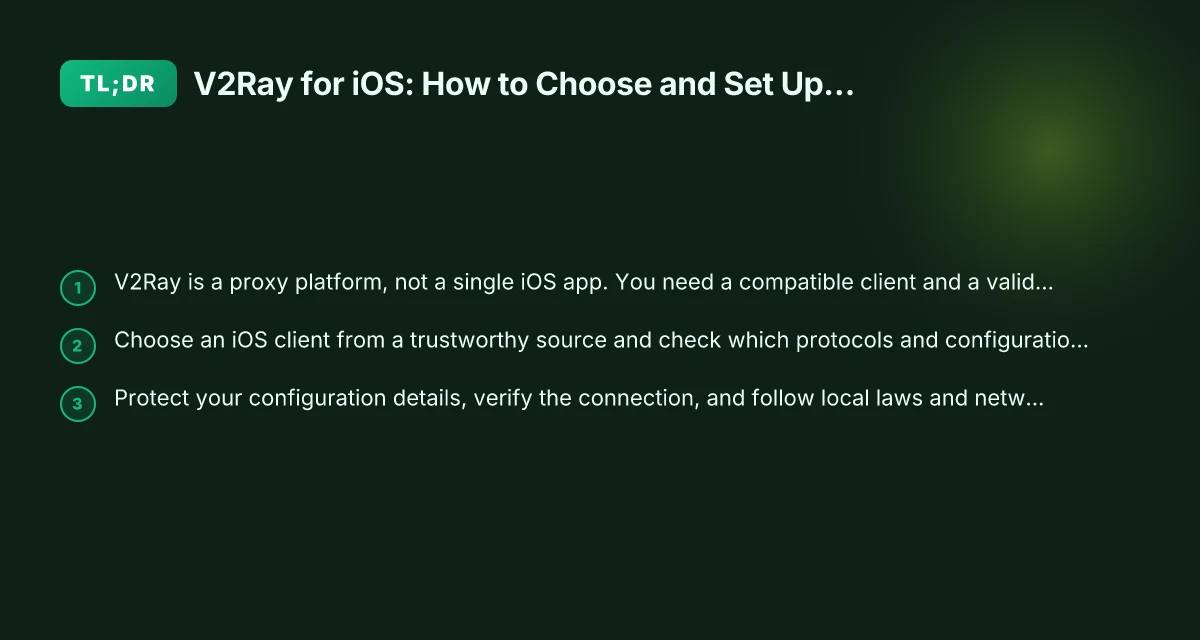
If you’re looking for V2Ray for iOS, install a compatible iPhone or iPad client and add a configuration from a V2Ray-compatible server provider or your own server. V2Ray itself is not one specific app. It is commonly used to describe software in the V2Ray ecosystem, including Xray, that can route network traffic through proxy protocols such as VMess and VLESS. The client connects your device to a server using the settings or subscription details you provide.
Compare iOS client options by setup needs and compatibility
| Option | Best for | Setup input | Protocol support | Main trade-off |
|---|---|---|---|---|
| App Store client | Most iPhone users | Server details or link | Depends on app | Availability varies by region |
| TestFlight client | Trying a beta app | Invitation and server details | Depends on app | Beta access may be limited |
| Manual configuration | Users with provider instructions | Enter settings in the app | Depends on app | More steps and room for errors |
| Subscription link | Providers offering config links | Paste or open link | Depends on provider | Requires trust in the link source |
| QR code import | Quick setup from a provider | Scan code | Depends on app | Needs a valid, current code |
| Existing profile import | Moving settings to another device | Import a saved profile | Depends on profile | Profile may expose connection details |
Compiled November 2026; check the provider's site for current details.
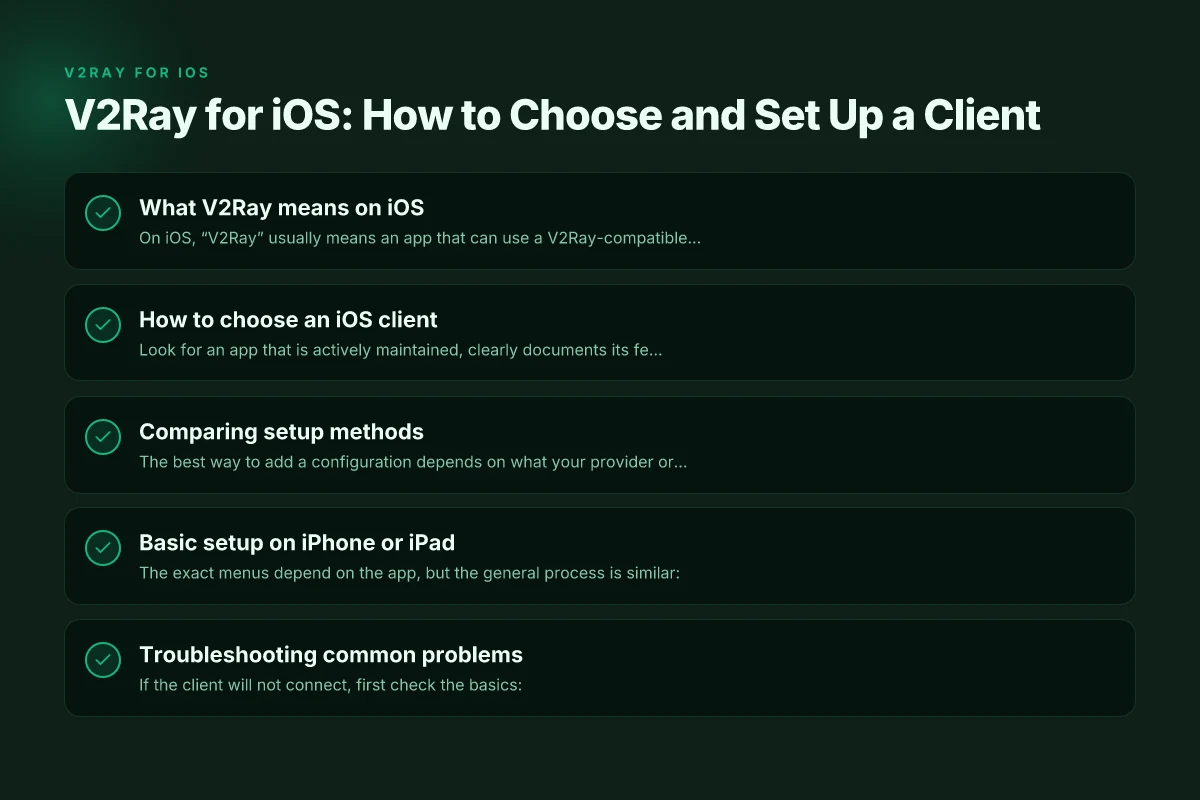
What V2Ray means on iOS
On iOS, “V2Ray” usually means an app that can use a V2Ray-compatible configuration. Depending on the app, it may support protocols such as VMess, VLESS, or Shadowsocks, as well as different transport and security options. Support varies, so confirm that an app handles the protocol and configuration format your server requires.
A client may use Apple’s VPN framework to route traffic from other apps through a proxy. This does not make the app a VPN provider: the server and its operator still determine where your traffic goes and what protections are in place. A proxy connection also does not automatically encrypt every link between your device and the websites or services you use. Check the app and server documentation to understand what is protected.
How to choose an iOS client
Look for an app that is actively maintained, clearly documents its features, and is distributed through a source you trust. App availability and names can change by region and over time, so check the current App Store listing rather than relying on an old download link.
Before installing, compare the app’s capabilities with your configuration: Clash Verge on iPhone: What Works and What to Use Instead
- Protocol support: Does it support VMess, VLESS, or the protocol specified by your provider?
- Import options: Can you add a configuration by scanning a QR code, opening a link, entering details manually, or importing a subscription?
- iOS compatibility: Does it support your version of iOS and the device you use?
- Privacy and permissions: Review the privacy information and understand why the app requests VPN access.
- Maintenance and support: Check for recent updates, documentation, and a way to report issues.
Avoid unofficial profiles or configuration links from strangers. A configuration can direct your traffic through a server controlled by someone else, so trust in the server operator matters just as much as trust in the app.
Comparing setup methods
The best way to add a configuration depends on what your provider or server administrator gives you. These common options differ in convenience and control:
| Setup method | What you need | Main consideration |
|---|---|---|
| QR code | A QR code from a trusted provider or administrator | Convenient, but verify its source before scanning |
| Configuration link | A supported link, often shared directly or through a subscription | Treat it as sensitive; it may reveal access details |
| Manual entry | Server address, port, protocol, and other required fields | Offers control but is easier to mistype |
Some subscription links can retrieve updated server configurations. Ask the provider what information is collected and how often the app refreshes the subscription. Do not post configuration links or QR codes publicly: they may contain credentials or grant access to a server.
Compare common V2Ray setup methods on iPhone or iPad Clash Verge for iOS: What iPhone Users Need to Know
| Method | What you need | Effort | Good fit | Common issue |
|---|---|---|---|---|
| Enter details manually | Server address and connection settings | Higher | One server or custom setup | A mistyped field |
| Import a subscription link | Provider’s subscription URL | Low | Multiple provider-managed servers | Expired or invalid link |
| Scan a QR code | QR code from a trusted source | Low | Fast one-time import | Blurry or outdated code |
| Open a configuration link | Compatible iOS client | Low | Setup from a message or webpage | Link opens the wrong app |
| Import a saved profile | Exported configuration file | Medium | Device migration or backup | Incompatible profile format |
| Ask provider for setup help | Provider’s support instructions | Varies | Unclear or missing settings | Instructions may target another app |
Compiled November 2026; check the provider's site for current details.
Basic setup on iPhone or iPad
The exact menus depend on the app, but the general process is similar:
- Choose a client. Find a compatible app through a trusted distribution channel and read its current feature list.
- Get a configuration. Use details from your own server, workplace administrator, or a provider you have independently decided to trust.
- Add the configuration. Import the QR code or link, or enter the required server details in the app. Follow the provider’s instructions for any protocol-specific settings.
- Allow the VPN configuration. iOS may show a system prompt asking permission to add or use a VPN configuration. Read the prompt and approve it only if you trust the app.
- Connect and test. Start the connection, then check that the app reports an active connection. Open a few trusted websites or services to confirm that traffic works as expected.
If you use a subscription, check whether the app needs permission to refresh it and whether the provider recommends a particular refresh schedule. Keep your app and iOS version updated, but avoid changing advanced transport or security settings unless your provider’s instructions call for it.
Troubleshooting common problems
If the client will not connect, first check the basics: Sites Blocked When Using VPN: Causes and Fixes
- Review the configuration: Confirm the server address, port, protocol, and any required identifier or transport settings.
- Check the server: A correct client setup cannot connect if the server is offline or the credentials have expired.
- Refresh carefully: If you use a subscription, update it through the app’s normal controls. Do not replace it with a link from an unverified source.
- Test another network: A network may restrict proxy traffic. Try a permitted connection, such as your mobile data, and follow the network owner’s rules.
- Check iOS permissions: Make sure the app is allowed to create its VPN configuration and that another VPN or filtering app is not interfering.
- Look for updates: An iOS update or an app update may affect compatibility. Consult the client’s release notes or support documentation.
If the connection starts but some apps or websites fail, the issue may involve routing rules, DNS settings, server availability, or app-specific behavior. Use the client’s documentation and ask the server administrator for help rather than guessing at settings that could weaken security.
Troubleshoot connection problems and choose a safe next step
| Symptom | Check first | Possible cause | Safe next step | Avoid |
|---|---|---|---|---|
| App cannot connect | Server address and port | Typo or outdated details | Recheck provider settings | Guessing new values |
| Profile will not import | Link or file format | Unsupported format | Request a compatible profile | Untrusted converter sites |
| Subscription shows no servers | Link validity and network access | Expired link or fetch failure | Refresh using provider instructions | Sharing the URL publicly |
| Connection drops | Network and app status | Unstable Wi-Fi or mobile signal | Test a trusted network | Disabling device protections |
| Sites do not load | Routing and DNS settings | Misconfigured profile | Compare with provider guidance | Installing unknown profiles |
| Unexpected privacy prompt | App permissions and source | Unclear app behavior | Review permissions and developer | Entering credentials into unknown apps |
Compiled November 2026; check the provider's site for current details.
Privacy and safe use
A proxy changes the route your traffic takes. It does not make you anonymous. The server operator may be able to observe connection metadata, and the services you visit may still identify you through accounts, cookies, or other signals. Use HTTPS websites and services, and do not assume that a V2Ray-compatible setup protects information beyond what the app and server actually provide. Axgate VPN Download: Safe Installation and Setup Guide
Keep configuration links and access credentials private. Remove configurations you no longer use, and review active VPN profiles in iOS settings if you are unsure which apps have permission to route traffic. Use the service only where it is lawful and permitted by your school, workplace, network provider, or local regulations.
Recommendation
For V2Ray on iOS, choose a maintained client that explicitly supports your server’s protocol, then import a configuration only from a source you trust. Test the connection, keep credentials private, and remember that the server operator, not the app name alone, plays a central role in your privacy and security.