Check My VPN Location: A Simple Guide to Testing Your Connection
Learn how to check your VPN location, spot DNS or browser leaks, and troubleshoot mismatches between your VPN and online location.
To check your VPN location, connect to a VPN server, then use a reputable IP-checking website to see the public IP address and approximate location other sites can detect. The result should generally match the country or city of your selected VPN server, though location databases are not always precise. If it shows your usual location instead, or a different country, check your connection and look for leaks.
How to verify your VPN location and check for leaks
| Check | What to do | What to look for | If it does not match |
|---|---|---|---|
| Public IP location | Visit an IP-checking site | VPN server’s country or city | Reconnect to a server |
| Second IP check | Compare with another IP-checking site | Same VPN location on both | Try a different site |
| DNS leak | Run a DNS leak test | DNS servers linked to the VPN | Enable VPN DNS protection |
| WebRTC leak | Run a WebRTC leak test | No exposure of your real IP | Disable or restrict WebRTC |
| GPS location | Check location access in your browser or app | GPS may show your device location | Deny location permission |
| VPN connection | Check the VPN app | Connected to the intended server | Disconnect and reconnect |
| Browser location | Review site or browser location settings | Sites may use more than your IP | Check permissions and settings |
Compiled November 2026; check the provider's site for current details.
| VPN | Obfuscation | From / month | Plan | Free plan | Refund | Alipay | UnionPay | Crypto | Website opens in China | Trustpilot | |
|---|---|---|---|---|---|---|---|---|---|---|---|
 ZoogVPN | Turn on manually Shadow | $2.49/mo | 27 months: $59.99 | Yes | 7 days | ✓ | ✓ | ✓ | ✓ | Official site blocked; our special link opens (4.4 s) | 4.2/5 (195 reviews) |
 NordVPN | Turn on manually Obfuscated Servers / NordWhisper | $3.49/mo | 27 months: $94.23 | No | 30 days | ? | ✗ | ✓ | ✓ | ✗ Blocked | 4.2/5 (51,628 reviews) |
 ExpressVPN | ✓ On by default all servers | $3.00/mo | 28 months: $84 | No | 30 days | ✗ | ✗ | ✓ | ✗ | ✗ Blocked | 4.4/5 (29,706 reviews) |
 Surfshark | ✓ On by default Camouflage, with OpenVPN | See site | See site | No | 30 days | ✗ | ✗ | ✗ | ✓ | ✗ Blocked | 4.3/5 (31,823 reviews) |
 Proton VPN | Turn on manually Stealth, free plan too | $2.99/mo | 12 months: $35.88 | Yes | 30 days | ✗ | ✗ | ✗ | ✓ | ✗ Blocked | 2.1/5 (1,040 reviews) |
 Astrill VPN | Turn on manually StealthVPN / OpenWeb | $12.50/mo | 24 months: $300 | No | See site | ✗ | ✗ | ✗ | ✓ | ✗ Blocked | 1.3/5 (110 reviews) |
 Private Internet Access | Turn on manually Shadowsocks, OpenVPN only | $2.03/mo | 40 months: $81.2 | No | 30 days | ✗ | ✗ | ✗ | ✗ | ✗ Blocked | 4.2/5 (11,033 reviews) |
 CyberGhost | Turn on manually selected servers | $2.19/mo | 28 months: $61.32 | No | 45 days | ✗ | ✗ | ✗ | ✓ | ✗ Blocked | 4.0/5 (24,178 reviews) |
 PureVPN | Turn on manually switch to OpenVPN | $1.69/mo | 60 months: $101.55 | No | 31 days | ? | ? | ✗ | ✓ | ✗ Blocked | 4.4/5 (17,994 reviews) |
 AdGuard VPN | ✓ On by default TrustTunnel | $2.99/mo | 24 months: $71.76 | Yes | 30 days | ✓ | ✗ | ✓ | ✓ | Official site blocked; our special link opens (3.7 s) | 4.3/5 (290 reviews) |
 Mullvad | Turn on manually QUIC / Shadowsocks / LWO | $5.61/mo | €5/mo | No | 14 days | ✗ | ✗ | ✗ | ✓ | ✗ Blocked | 3.2/5 (192 reviews) |
 Windscribe | Turn on manually Stealth / WStunnel | $5.75/mo | 12 months: $69 | Yes | See site | ✗ | ✗ | ✗ | ✓ | ✗ Blocked | 4.7/5 (13,355 reviews) |
 StrongVPN | Turn on manually Scramble, OpenVPN TCP | See site | See site | No | 30 days | ✓ | ✗ | ✗ | ✗ | ✗ Blocked | 4.4/5 (2,695 reviews) |
 LightXtreme 闪连 | Not listed | $7.08/mo | 12 months: $84.99 | Yes | 30 days | ✓ | ✓ | ✓ | ✓ | ✓ Yes (3.5 s) | No page |
Prices checked 2026-11-10 on each vendor's pricing page (cheapest long plan, USD). Check the vendor's checkout for the final price.
Obfuscation checked 2026-11-14 on each vendor's site and help center: "on by default" = nothing to set; "turn on manually" = switch protocol or mode in settings; "not listed" = the vendor describes no obfuscation.
Payment methods checked 2026-11-10 on each vendor's payment pages: all 14 take cards and PayPal; ✗ = not listed, ? = the vendor's own pages disagree.
China access: whether the official website opens from mainland China networks (tests the website only, not the VPN connection). Last checked 2026-11-18 01:02 Beijing time.
Trustpilot score and review count checked 2026-11-10.
How to check your VPN location
First, make sure the VPN app says it is connected. Note the server location shown in the app, then open an IP-checking website in your browser. These sites report the public IP address and an estimated location associated with it.
For a useful comparison, test twice:
- Disconnect from the VPN and check your IP. This gives you a baseline for your regular connection.
- Reconnect to the VPN, select a server, and check your IP again.
- Compare the second result with the VPN server you chose.
Your IP address should change when the VPN connects. The displayed location should usually correspond to the VPN server’s region, not your home internet provider’s location. Avoid relying on a single test if the result looks surprising. Try another reputable IP-checking service.
| What the test shows | What it may mean | What to do |
|---|---|---|
| A new IP in the selected country | The VPN is probably routing your public traffic correctly | Check for DNS or browser leaks if privacy matters |
| Your usual public IP | The VPN may be disconnected or not covering that traffic | Reconnect and check the VPN settings |
| A different country or city | The IP database may be inaccurate, or you chose a different server | Confirm the server and compare another lookup |
| Different locations across tests | Services may use different location databases or detect different signals | Test for leaks and review browser permissions |
Why a VPN location may look different
A VPN changes the public IP address that websites see, but an IP address does not provide a perfectly reliable physical location. Online services estimate location using commercial databases, and those databases can be outdated or disagree. A server in one city might therefore appear to be in another city or even a neighboring region. FortiClient IPsec VPN Connection Is Down: How to Fix It
VPN providers may also use virtual locations. In that case, the server’s advertised country can differ from the physical place where the hardware is located. This does not necessarily mean the VPN has failed: the important question is whether your public traffic uses the VPN address and whether that address matches the location the provider represents.
Other settings can affect the result. Split tunneling may send some apps or websites through your normal connection instead of the VPN. A browser extension may cover only browser traffic, while other apps continue to use your regular internet connection. Check the VPN app’s settings if results vary between browsers or applications.
Why your VPN location may look different
| Possible cause | What you may see | Why it happens | What to check |
|---|---|---|---|
| IP geolocation database | An unexpected city | Databases can differ or be outdated | Compare multiple IP-checking sites |
| Server location | A nearby or different city | The provider may label servers by region | Check the server name in the VPN app |
| DNS routing | A location that differs from your IP | DNS requests may use another route | Run a DNS leak test |
| WebRTC | Your real or local IP appears | Browser features can reveal IP details | Run a WebRTC leak test |
| GPS access | Your device’s physical location | Apps or browsers may use GPS | Review location permissions |
| Browser or account data | A familiar or saved location | Cookies or account settings can affect results | Try a private window or sign out |
| VPN disconnection | Your usual location appears | The VPN may have disconnected | Confirm the app shows connected |
Compiled November 2026; check the provider's site for current details. FortiGate IPsec Debug: How to Find and Fix VPN Problems
Check for DNS, WebRTC, and GPS leaks
An IP check is a good first step, but it does not reveal every way a service might estimate your location. A DNS leak test can show whether your device is using DNS servers associated with your internet provider rather than the VPN. If the results point to your provider or usual region, enable the VPN’s DNS protection if available, reconnect, and test again.
WebRTC is a browser feature used for real-time communication. In some configurations, it can expose network details that differ from the VPN’s public IP. Use a reputable WebRTC leak test, and review your browser’s privacy settings or extensions if the test reveals your ordinary IP address.
Your device’s location permission is another separate signal. Phones, tablets, and laptops can estimate location using GPS, nearby Wi-Fi networks, or other device services. A VPN does not change those signals. If a website or app has permission to access your location, it may know where you are even while your IP points elsewhere.
To reduce unwanted exposure: Forticlientvpninstaller.exe: Download, Install, and Verify FortiClient VPN
- Deny location access to websites and apps that do not need it.
- Check DNS and WebRTC using reputable testing tools.
- Confirm that split tunneling is not excluding the app you are testing.
- Use the VPN provider’s leak-protection features when available.
- Remember that cookies and account activity can also reveal past location or identity.
Troubleshoot a mismatched location
If your check shows your normal public IP, confirm that the VPN is connected and that you selected a server. Disconnect and reconnect, or try another server in the same country. Some VPN apps also offer a kill switch, which blocks internet traffic if the VPN connection drops. Enable it if you want to reduce the chance of traffic leaving outside the tunnel.
Next, check whether the VPN is set to cover all traffic. Turn off split tunneling temporarily, close and reopen the browser, and repeat the test. If you are using a browser-only VPN extension, test in that browser and check the provider’s instructions to see what traffic it protects.
If the IP belongs to the VPN but the location looks wrong, try another lookup service and check the provider’s server information. The mismatch may come from an inaccurate location database rather than a leak. If you need a particular location for a service, choose a different server in that region and test again. A website may also use account details, cookies, GPS, or payment information instead of relying only on IP location.
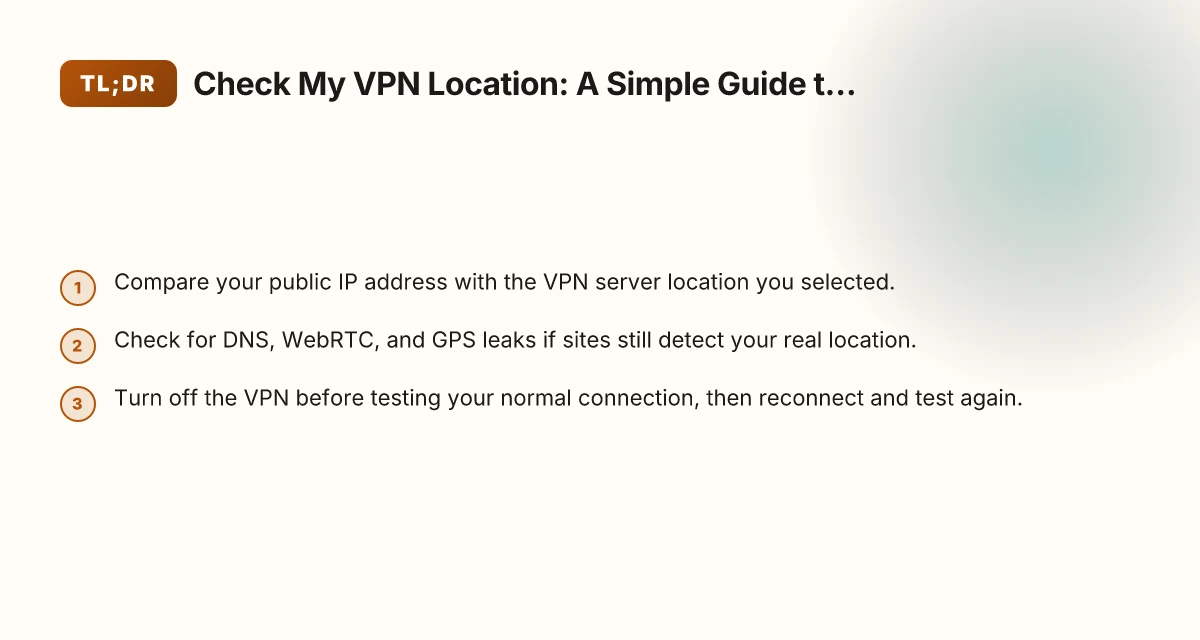
Troubleshooting a mismatched VPN location VPN to Change Location Free: What to Know Before You Connect
| Result | Likely explanation | Next step | Recheck |
|---|---|---|---|
| IP shows your real location | VPN disconnected or not covering traffic | Reconnect and confirm VPN status | Public IP check |
| IP shows the wrong VPN city | Geolocation data differs | Compare another IP-checking site | IP location |
| DNS shows your usual provider | DNS may be outside the VPN tunnel | Enable VPN DNS protection | DNS leak test |
| WebRTC reveals your real IP | Browser may be exposing IP details | Restrict WebRTC or use another browser | WebRTC leak test |
| App shows your physical location | GPS or device location is enabled | Deny the app location permission | App location result |
| Different sites show different locations | Location databases may disagree | Compare the reported IP and server | Multiple IP checks |
| Location changes after reconnecting | Server assignment may have changed | Select the intended server again | VPN app and IP check |
| Results remain unclear | Checks may measure different signals | Review IP, DNS, WebRTC, and GPS separately | All relevant checks |
Compiled November 2026; check the provider's site for current details.
What a VPN location check can and cannot tell you
A location check tells you what a particular service can infer from your public IP at that moment. It is useful for confirming that your IP changed and for spotting obvious routing problems. It does not prove complete anonymity, guarantee that every app uses the VPN, or confirm that a website cannot identify you in other ways.
Different testing sites may return different city names because they consult different databases. That variation is common. Focus first on whether the IP address is different from your baseline and whether the country aligns with the VPN server you selected. For stronger privacy checks, also review DNS, WebRTC, device location permissions, and the VPN’s traffic-routing settings.
Recommendation
To check your VPN location reliably, compare your normal IP with the IP shown after connecting, then confirm the result with a second lookup. If your usual IP appears, reconnect and review split tunneling and VPN coverage. If only the city is wrong, check another database before assuming there is a leak. For better privacy, test DNS and WebRTC, limit location permissions, and keep the VPN’s leak protection enabled. V2Ray Free: What It Is, How to Choose a Safe Option, and What to Expect