FortiClient VPN Connection Failed. Please Check Your Configuration: How to Fix It
Troubleshoot FortiClient VPN configuration errors with practical checks for settings, credentials, network access, and IT support.
If you see “FortiClient VPN connection failed. Please check your configuration,” FortiClient usually cannot establish a tunnel using the current connection profile. The most common causes are an incorrect server address or VPN type, invalid credentials, an unavailable VPN gateway, or a network blocking the connection. Check the profile details and your internet access first, then use the steps below to narrow down the problem.
Use these checks to narrow down a FortiClient VPN connection failure.
| Check | What to verify | What a problem may indicate | Next step |
|---|---|---|---|
| VPN profile | Gateway and connection details | Incorrect or outdated profile | Confirm settings with IT |
| Network access | Internet connection works | Local connectivity issue | Restore network access |
| Credentials | Username and password are current | Login failure | Check credentials or reset password |
| Multi-factor authentication | Required prompt is completed | Authentication is incomplete | Retry and approve the prompt |
| VPN availability | Other users can connect | Possible service outage | Check with IT |
| Error message | Exact wording and timing | Clue to failure point | Record it for support |
Compiled November 2026; check the provider's site for current details.
| VPN | Obfuscation | From / month | Plan | Free plan | Refund | Alipay | UnionPay | Crypto | Website opens in China | Trustpilot | |
|---|---|---|---|---|---|---|---|---|---|---|---|
 ZoogVPN | Turn on manually Shadow | $2.49/mo | 27 months: $59.99 | Yes | 7 days | ✓ | ✓ | ✓ | ✓ | Official site blocked; our special link opens (4.4 s) | 4.2/5 (195 reviews) |
 NordVPN | Turn on manually Obfuscated Servers / NordWhisper | $3.49/mo | 27 months: $94.23 | No | 30 days | ? | ✗ | ✓ | ✓ | ✗ Blocked | 4.2/5 (51,628 reviews) |
 ExpressVPN | ✓ On by default all servers | $3.00/mo | 28 months: $84 | No | 30 days | ✗ | ✗ | ✓ | ✗ | ✗ Blocked | 4.4/5 (29,706 reviews) |
 Surfshark | ✓ On by default Camouflage, with OpenVPN | See site | See site | No | 30 days | ✗ | ✗ | ✗ | ✓ | ✗ Blocked | 4.3/5 (31,823 reviews) |
 Proton VPN | Turn on manually Stealth, free plan too | $2.99/mo | 12 months: $35.88 | Yes | 30 days | ✗ | ✗ | ✗ | ✓ | ✗ Blocked | 2.1/5 (1,040 reviews) |
 Astrill VPN | Turn on manually StealthVPN / OpenWeb | $12.50/mo | 24 months: $300 | No | See site | ✗ | ✗ | ✗ | ✓ | ✗ Blocked | 1.3/5 (110 reviews) |
 Private Internet Access | Turn on manually Shadowsocks, OpenVPN only | $2.03/mo | 40 months: $81.2 | No | 30 days | ✗ | ✗ | ✗ | ✗ | ✗ Blocked | 4.2/5 (11,033 reviews) |
 CyberGhost | Turn on manually selected servers | $2.19/mo | 28 months: $61.32 | No | 45 days | ✗ | ✗ | ✗ | ✓ | ✗ Blocked | 4.0/5 (24,178 reviews) |
 PureVPN | Turn on manually switch to OpenVPN | $1.69/mo | 60 months: $101.55 | No | 31 days | ? | ? | ✗ | ✓ | ✗ Blocked | 4.4/5 (17,994 reviews) |
 AdGuard VPN | ✓ On by default TrustTunnel | $2.99/mo | 24 months: $71.76 | Yes | 30 days | ✓ | ✗ | ✓ | ✓ | Official site blocked; our special link opens (3.7 s) | 4.3/5 (290 reviews) |
 Mullvad | Turn on manually QUIC / Shadowsocks / LWO | $5.61/mo | €5/mo | No | 14 days | ✗ | ✗ | ✗ | ✓ | ✗ Blocked | 3.2/5 (192 reviews) |
 Windscribe | Turn on manually Stealth / WStunnel | $5.75/mo | 12 months: $69 | Yes | See site | ✗ | ✗ | ✗ | ✓ | ✗ Blocked | 4.7/5 (13,355 reviews) |
 StrongVPN | Turn on manually Scramble, OpenVPN TCP | See site | See site | No | 30 days | ✓ | ✗ | ✗ | ✗ | ✗ Blocked | 4.4/5 (2,695 reviews) |
 LightXtreme 闪连 | Not listed | $7.08/mo | 12 months: $84.99 | Yes | 30 days | ✓ | ✓ | ✓ | ✓ | ✓ Yes (3.5 s) | No page |
Prices checked 2026-11-10 on each vendor's pricing page (cheapest long plan, USD). Check the vendor's checkout for the final price.
Obfuscation checked 2026-11-14 on each vendor's site and help center: "on by default" = nothing to set; "turn on manually" = switch protocol or mode in settings; "not listed" = the vendor describes no obfuscation.
Payment methods checked 2026-11-10 on each vendor's payment pages: all 14 take cards and PayPal; ✗ = not listed, ? = the vendor's own pages disagree.
China access: whether the official website opens from mainland China networks (tests the website only, not the VPN connection). Last checked 2026-11-18 01:02 Beijing time.
Trustpilot score and review count checked 2026-11-10.
Check the VPN profile
Open FortiClient and review the VPN connection settings. Compare them with the details provided by your organization or VPN administrator. Do not guess at server names, ports, or other values.
Verify:
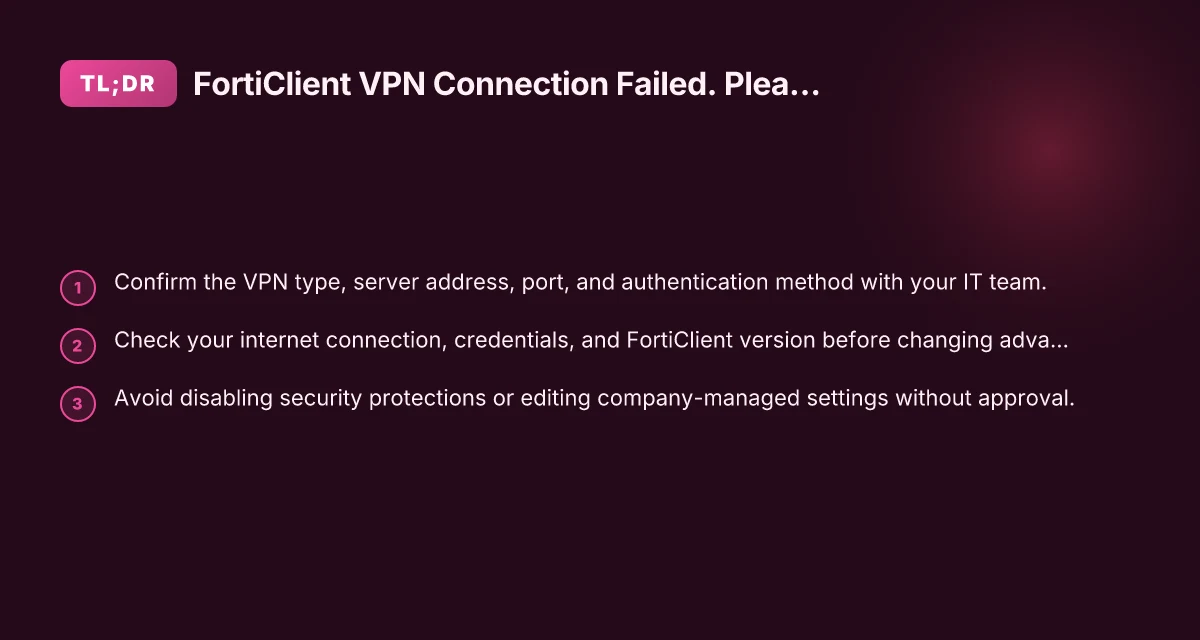
- VPN type: Confirm whether the connection should use SSL VPN or IPsec VPN. These protocols require different settings.
- Remote gateway: Check the hostname or IP address for spelling, punctuation, and any required domain name.
- Port: Make sure the configured port matches the value supplied by your organization. A non-default port may be required.
- Authentication: Confirm whether you should use a password, a certificate, multifactor authentication, or a combination.
- Additional settings: For IPsec, settings such as the pre-shared key, phase parameters, or remote ID must match the organization’s configuration. Do not change these without guidance.
A profile can look correct and still be outdated. If your organization recently changed its VPN service, ask IT to confirm that you have the current connection details.
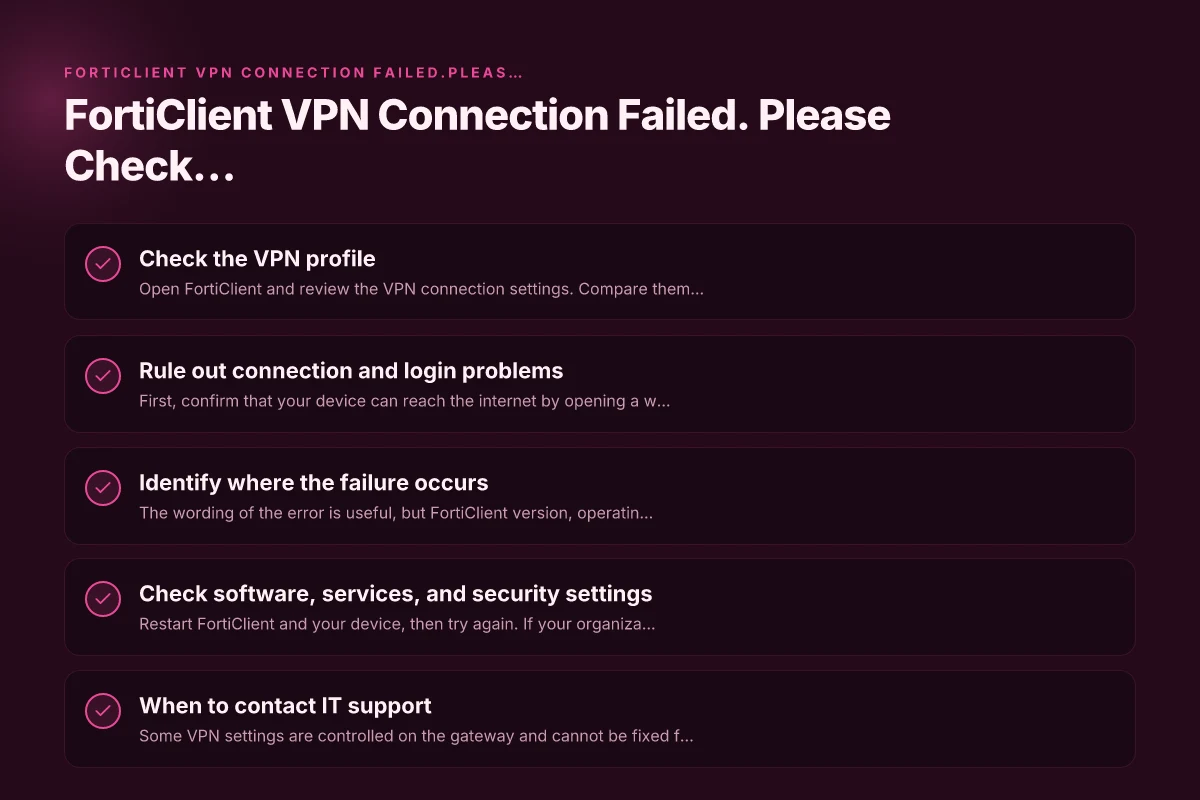
Rule out connection and login problems
First, confirm that your device can reach the internet by opening a website or using another online service. If your connection is unstable, reconnect to Wi-Fi or try a trusted alternative network. Connect VPN Without Download: Safe Browser and Built-In Options
Then check your sign-in details:
- Re-enter your username and password carefully.
- Check whether your password has expired or your account is locked.
- Complete any multifactor authentication prompt promptly.
- If your organization uses a certificate, verify that it is installed and still valid.
- Check your device’s date and time. Incorrect settings can interfere with certificates and secure connections.
If you are unsure whether the issue is your credentials or the VPN profile, avoid repeated login attempts. Multiple failed attempts may trigger an account lockout. Contact your help desk if you receive an authentication error or suspect your account needs attention.
Compare where the connection fails to choose the most relevant checks.
| Failure point | What you may see | Likely area to check | Useful next step |
|---|---|---|---|
| Before login | Client cannot start or load | App or device | Restart FortiClient |
| At login | Credentials are rejected | Account or authentication | Verify login details |
| During connection | Connection attempt times out | Network or gateway | Test another network |
| After connection | VPN drops shortly afterward | Network stability | Check for interruptions |
| On one device only | Other devices connect | Device configuration | Compare profile settings |
| Across several users | Multiple users cannot connect | VPN service or shared settings | Contact IT |
Compiled November 2026; check the provider's site for current details. Norton VPN APK for Firestick: What to Know Before You Install
Identify where the failure occurs
The wording of the error is useful, but FortiClient version, operating system, VPN type, and company settings can affect what you see. Note the exact message and when it appears: before sign-in, during multifactor authentication, or while the tunnel is connecting.
| What you notice | Possible cause | Useful next check |
|---|---|---|
| The gateway name cannot be resolved | Typo, outdated address, or DNS issue | Confirm the gateway address and test from another network |
| The connection times out | Gateway outage, blocked port, or network restriction | Ask whether the VPN service is available and whether your network permits it |
| Login is rejected | Incorrect credentials, expired password, or account restriction | Sign in with the approved method or contact IT |
| The connection starts but does not complete | Incorrect protocol settings, certificate issue, or gateway mismatch | Compare the profile with the current IT instructions |
| It works on one network but not another | Local firewall, router, or network policy | Ask IT whether the failing network is supported |
A quick test on another permitted network can help distinguish a local network problem from a FortiClient or account issue. Follow your organization’s policy, and do not use an untrusted network for sensitive work.
Check software, services, and security settings
Restart FortiClient and your device, then try again. If your organization manages FortiClient, check with IT before reinstalling it or changing its configuration. A managed installation may include required certificates, security policies, or profile settings.
You can also check the following: My IP ExpressVPN: How to Check Your IP Address and VPN Connection
- Updates: Use the version approved by your organization. A newer release may fix a compatibility issue, but installing an unapproved version can cause problems.
- Operating system: Install required system updates if your IT team recommends them.
- Firewall or endpoint protection: A firewall can affect VPN traffic, but do not turn off antivirus, endpoint protection, or other security controls as a troubleshooting shortcut.
- Conflicting VPN software: Another VPN client or network filter may interfere. Ask IT before removing software or changing network adapters.
- Captive portals: Public Wi-Fi may require you to sign in through a browser before a VPN can connect. Avoid transmitting sensitive information on networks you do not trust.
If FortiClient reports a specific certificate, gateway, or protocol error, share the exact wording with support. It can point to a cause more directly than the general configuration message.
Review these options before changing settings or contacting IT support.
| Option | Best when | What to do | Caution |
|---|---|---|---|
| Recheck the VPN profile | Settings may be wrong or stale | Confirm the gateway and profile with IT | Avoid guessing server details |
| Test internet access | The device may be offline | Open a trusted website | A working website does not confirm VPN access |
| Retry sign-in | Credentials or approval may have failed | Enter current credentials and complete MFA | Do not share passwords |
| Restart FortiClient | The client may be stuck | Close and reopen the app | Save other work first |
| Check security settings | A firewall or security tool may interfere | Review permitted VPN access | Do not disable protection without approval |
| Contact IT | Checks do not resolve the failure | Share the error and steps tried | Include device and connection details |
Compiled November 2026; check the provider's site for current details.
When to contact IT support
Some VPN settings are controlled on the gateway and cannot be fixed from your computer. Contact your organization’s help desk if the profile matches the official instructions but the connection still fails, or if you lack access to a required certificate or configuration file. Norton VPN App for Fire Stick: How to Use It and What to Know
Include these details in your request:
- The full error message and a screenshot, if permitted.
- Your operating system and FortiClient version.
- Whether you are using SSL VPN or IPsec, if known.
- The time the problem occurred and your network type.
- Whether the connection works from another approved network.
- Any recent password, device, or VPN changes.
Do not send your password, multifactor authentication code, or private key. Your support team may ask for FortiClient logs. Share them only through an approved channel, since logs can contain device or connection information.
Recommended next step
Start by confirming the VPN type, gateway, port, and login method against your organization’s current instructions. Verify your internet connection and account status, then restart FortiClient and try once more. If the settings are correct and the same error remains, contact IT with the exact message and the checks you have completed rather than changing security settings yourself.