NordVPN Windows VPN: Setup, Features, and How to Choose
Learn how to install and use NordVPN on Windows, what features to expect, and how to choose the right settings.
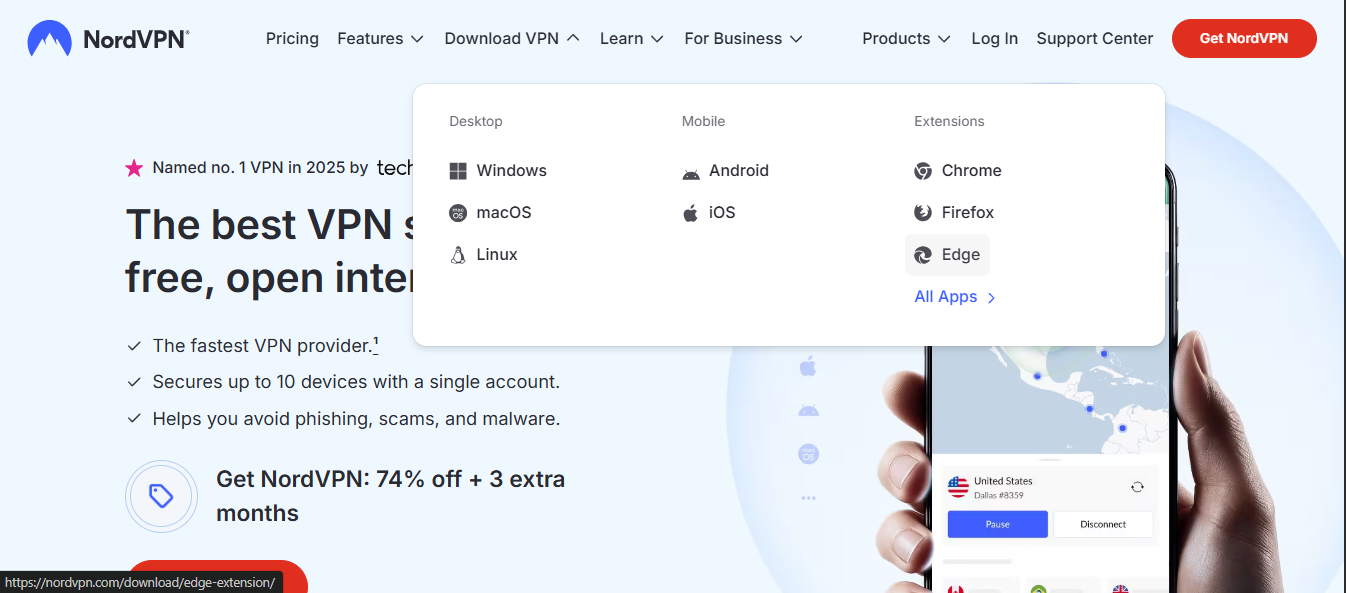
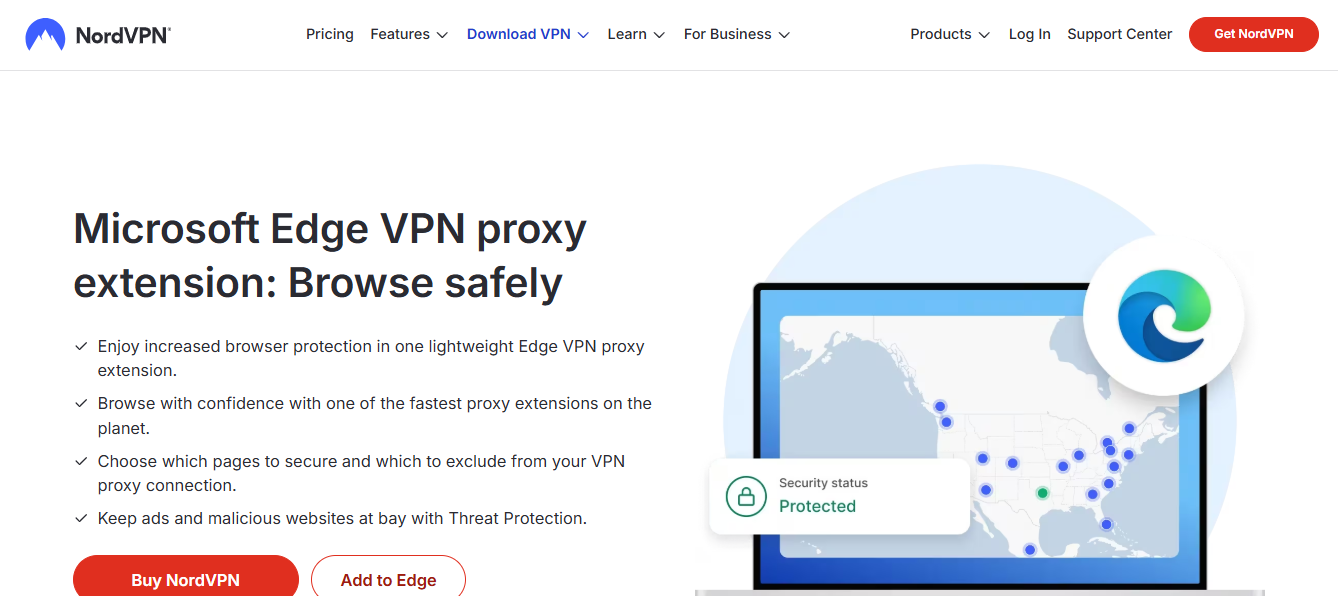
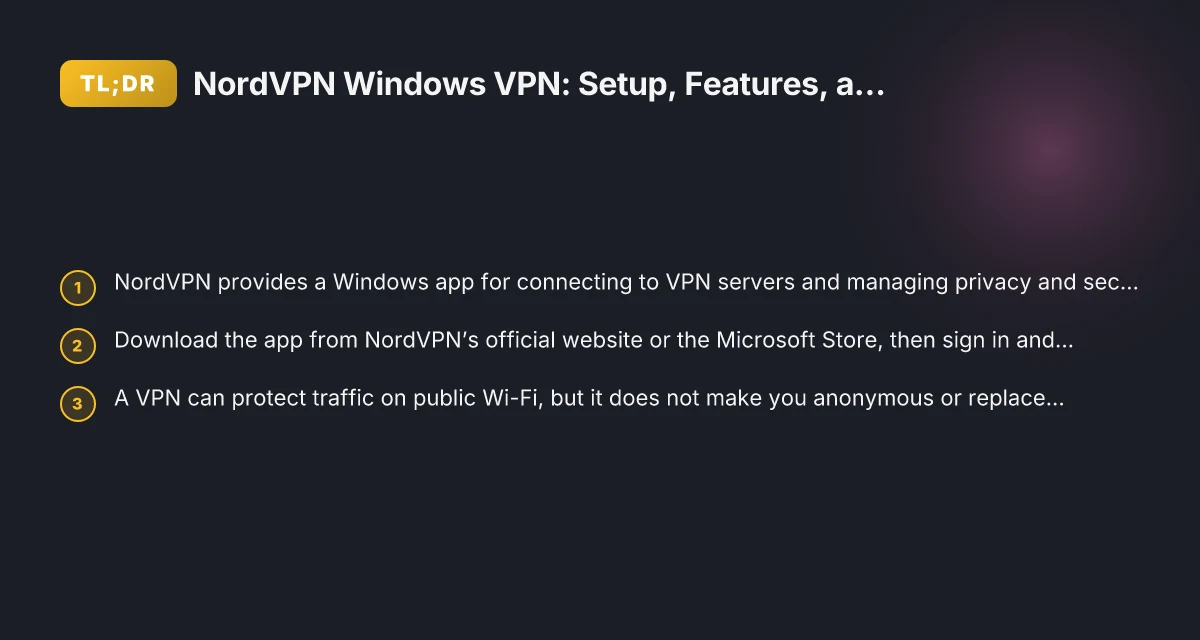
NordVPN for Windows is a VPN app that routes your internet traffic through an encrypted connection to a VPN server. To use it, install the official Windows app, sign in to your account, and choose a server or select Quick Connect. The app can also provide settings such as a kill switch and automatic connection, though available features may vary by app version, plan, and Windows configuration.
Choose the connection mode that fits your task
| Connection choice | Best for | Speed impact | Privacy benefit | Main trade-off |
|---|---|---|---|---|
| Standard VPN server | Everyday browsing | Usually moderate | Hides your IP from sites | Depends on server load |
| Nearby server | Lower latency | Often lower impact | Same VPN protection | Location choice is limited |
| Distant server | Accessing another region | Can be higher | Changes apparent location | Slower connections are possible |
| Specialty server | A specific privacy or routing need | Varies | Depends on server type | May not suit general use |
| Double VPN | Extra routing layers | Often higher | Routes traffic through two servers | More speed and latency cost |
| Split tunneling | Choose which apps use VPN | Can preserve direct speeds for excluded apps | Protection applies only to selected apps | Some traffic bypasses VPN |
| Auto-connect | Protection on chosen networks | No added impact when disconnected | Helps avoid unprotected connections | Settings need review |
| Disconnect | Local network access without VPN | No VPN speed impact | VPN protection is off | Your public IP is exposed |
Compiled November 2026; check the provider's site for current details.
| VPN | Obfuscation | From / month | Plan | Free plan | Refund | Alipay | UnionPay | Crypto | Website opens in China | Trustpilot | |
|---|---|---|---|---|---|---|---|---|---|---|---|
 NordVPN | Turn on manually Obfuscated Servers / NordWhisper | $3.49/mo | 27 months: $94.23 | No | 30 days | ? | ✗ | ✓ | ✓ | ✗ Blocked | 4.2/5 (51,628 reviews) |
 ZoogVPN | Turn on manually Shadow | $2.49/mo | 27 months: $59.99 | Yes | 7 days | ✓ | ✓ | ✓ | ✓ | Official site blocked; our special link opens (4.4 s) | 4.2/5 (195 reviews) |
 ExpressVPN | ✓ On by default all servers | $3.00/mo | 28 months: $84 | No | 30 days | ✗ | ✗ | ✓ | ✗ | ✗ Blocked | 4.4/5 (29,706 reviews) |
 Surfshark | ✓ On by default Camouflage, with OpenVPN | See site | See site | No | 30 days | ✗ | ✗ | ✗ | ✓ | ✗ Blocked | 4.3/5 (31,823 reviews) |
 Proton VPN | Turn on manually Stealth, free plan too | $2.99/mo | 12 months: $35.88 | Yes | 30 days | ✗ | ✗ | ✗ | ✓ | ✗ Blocked | 2.1/5 (1,040 reviews) |
 Astrill VPN | Turn on manually StealthVPN / OpenWeb | $12.50/mo | 24 months: $300 | No | See site | ✗ | ✗ | ✗ | ✓ | ✗ Blocked | 1.3/5 (110 reviews) |
 Private Internet Access | Turn on manually Shadowsocks, OpenVPN only | $2.03/mo | 40 months: $81.2 | No | 30 days | ✗ | ✗ | ✗ | ✗ | ✗ Blocked | 4.2/5 (11,033 reviews) |
 CyberGhost | Turn on manually selected servers | $2.19/mo | 28 months: $61.32 | No | 45 days | ✗ | ✗ | ✗ | ✓ | ✗ Blocked | 4.0/5 (24,178 reviews) |
 PureVPN | Turn on manually switch to OpenVPN | $1.69/mo | 60 months: $101.55 | No | 31 days | ? | ? | ✗ | ✓ | ✗ Blocked | 4.4/5 (17,994 reviews) |
 AdGuard VPN | ✓ On by default TrustTunnel | $2.99/mo | 24 months: $71.76 | Yes | 30 days | ✓ | ✗ | ✓ | ✓ | Official site blocked; our special link opens (3.7 s) | 4.3/5 (290 reviews) |
 Mullvad | Turn on manually QUIC / Shadowsocks / LWO | $5.61/mo | €5/mo | No | 14 days | ✗ | ✗ | ✗ | ✓ | ✗ Blocked | 3.2/5 (192 reviews) |
 Windscribe | Turn on manually Stealth / WStunnel | $5.75/mo | 12 months: $69 | Yes | See site | ✗ | ✗ | ✗ | ✓ | ✗ Blocked | 4.7/5 (13,355 reviews) |
 StrongVPN | Turn on manually Scramble, OpenVPN TCP | See site | See site | No | 30 days | ✓ | ✗ | ✗ | ✗ | ✗ Blocked | 4.4/5 (2,695 reviews) |
 LightXtreme 闪连 | Not listed | $7.08/mo | 12 months: $84.99 | Yes | 30 days | ✓ | ✓ | ✓ | ✓ | ✓ Yes (3.5 s) | No page |
Prices checked 2026-11-10 on each vendor's pricing page (cheapest long plan, USD). Check the vendor's checkout for the final price.
Obfuscation checked 2026-11-14 on each vendor's site and help center: "on by default" = nothing to set; "turn on manually" = switch protocol or mode in settings; "not listed" = the vendor describes no obfuscation.
Payment methods checked 2026-11-10 on each vendor's payment pages: all 14 take cards and PayPal; ✗ = not listed, ? = the vendor's own pages disagree.
China access: whether the official website opens from mainland China networks (tests the website only, not the VPN connection). Last checked 2026-11-18 01:02 Beijing time.
Trustpilot score and review count checked 2026-11-10.
What NordVPN does on Windows
When you connect to NordVPN, websites and online services generally see the VPN server’s IP address instead of your home network’s public IP address. Your internet traffic travels through an encrypted tunnel between your Windows device and the VPN server.
This can be useful when you connect through public Wi-Fi, want to reduce exposure of your IP address to websites, or need to connect through a server in another location. A VPN does not make all online activity private: the VPN provider can process connection data, websites can still identify you through accounts and cookies, and malware or unsafe downloads remain a risk.
NordVPN’s Windows app typically includes a server list, connection controls, and settings for managing how the VPN behaves. Check the current app and plan details for the features available to you.
How to install and connect
For a straightforward setup, use NordVPN’s official download page or its listing in the Microsoft Store. Avoid unofficial download sites, which may distribute altered or outdated installers. My VPN Location: How to Check and Fix It
- Download and install the Windows app.
- Open NordVPN and sign in with your account.
- Select Quick Connect to connect automatically, or choose a country or server from the app.
- Confirm that the app shows an active connection before using the internet.
If you use a VPN for a specific reason, such as connecting to a particular country, select a server that matches that need. For everyday browsing, the app’s automatic server selection is often the simplest place to start.
You may need to approve a Windows prompt when the app installs its network components or creates a VPN connection. Only approve prompts that appear during an installation you initiated from an official source.
Windows setup and troubleshooting checks
| Situation | What to check | Suggested action | What to expect |
|---|---|---|---|
| First-time setup | Official app source | Download and install NordVPN for Windows | App is ready to sign in |
| Cannot sign in | Account details and connection | Check credentials and internet access | Sign-in may resume |
| App will not connect | Server choice | Try another nearby server | A different route may work |
| Connection is slow | Server distance and load | Try a closer server | Speed may improve |
| VPN disconnects | App and network settings | Review auto-connect and connection settings | Reconnection behavior may change |
| One app cannot reach the internet | Split tunneling rules | Check whether the app is excluded | App traffic may be routed through VPN |
| Websites still identify your region | Browser location permissions | Review location access and site settings | Browser location may differ from IP |
| Problem continues | App version and support options | Update the app or contact support | Further diagnosis may be needed |
Compiled November 2026; check the provider's site for current details. VPN Free for Edge: The Best Options and How to Choose
Features and settings to consider
The best settings depend on how you use your PC. Before changing advanced options, connect normally and confirm that websites and apps work as expected.
- Kill switch: If enabled and supported, this setting is designed to block internet access if the VPN connection unexpectedly drops. Check how it behaves in the current app, since options and scope can differ.
- Automatic connection: You may be able to set the app to connect when Windows starts, when you join an unfamiliar network, or under other conditions.
- Protocol selection: The app may offer different VPN protocols. If you are unsure, start with the recommended default and switch only if you have a connection problem or a specific requirement.
- Server choice: Nearby servers often provide lower latency, while a server in another country may be useful for location-specific access.
- Split tunneling: If available, this lets you choose which apps use the VPN and which use your regular connection. Review the exclusions carefully so that sensitive apps do not bypass the VPN unintentionally.
A VPN can occasionally interfere with websites, video calls, games, or workplace services. If something stops working, try a different server, check the app’s settings, or disconnect briefly to identify whether the VPN is the cause.
Comparing common connection choices
| Option | Best suited to | What to keep in mind |
|---|---|---|
| Quick Connect | General browsing and simple setup | The app chooses a server based on its selection logic |
| Nearby server | Everyday use where speed matters | Performance still depends on your network and server load |
| Server in a chosen country | Location-specific access or testing | Services may restrict VPN connections or require an account in that region |
| Specialty server | A particular feature or use case | Availability and behavior depend on the current app and subscription |
No server choice guarantees a particular speed or access to a specific website. Performance can change with your Wi-Fi, internet provider, distance to the server, and congestion. Some streaming platforms, banks, and company networks may block VPN traffic or ask you to verify your identity.
Privacy and practical limits on Windows VPN IPsec: How It Works, Benefits, and When to Use It
| Feature or choice | What it can help with | What it does not guarantee | Useful check |
|---|---|---|---|
| VPN connection | Masks your public IP from sites | Anonymity or protection from every threat | Confirm the app shows connected |
| Encrypted tunnel | Protects traffic between device and VPN server | Safety after traffic leaves the VPN server | Use trusted sites and apps |
| Server location | Presents an IP associated with a chosen region | Access to every regional service | Check whether the service works there |
| Kill switch | Can block traffic if the VPN drops | Protection if it is disabled or misconfigured | Review its settings |
| Split tunneling | Lets selected apps bypass or use the VPN | VPN coverage for excluded traffic | Check each app’s routing rule |
| Auto-connect | Can start VPN on selected networks | A connection if the app or network fails | Test the chosen trigger |
| Browser permissions | Controls access to device location | Changes to your VPN-assigned IP | Review site and browser permissions |
| VPN use overall | Adds a privacy layer to network traffic | Protection from malware or phishing | Keep Windows and security tools updated |
Compiled November 2026; check the provider's site for current details.
Troubleshooting NordVPN on Windows
If the app will not connect, begin with the basics:
- Check that your internet connection works without the VPN.
- Close and reopen the app, then try another server.
- Restart Windows and install any available app updates.
- Temporarily test another protocol setting if the app provides one.
- Check whether security software or a firewall is blocking the VPN connection.
If the VPN connects but a website does not load, clear the browser’s cache or try another browser. You can also switch servers, since a particular site may block the address of the server you selected. Avoid disabling security protections as a permanent fix.
For persistent errors, note the Windows version, app version, server, and any error message before contacting NordVPN support. These details can help narrow down whether the issue involves the app, the network, or a particular service. TunnelBear Extension: What It Does and How to Use It
Privacy, safety, and practical limits
A VPN is one part of online security, not a complete privacy solution. Use strong, unique passwords and multifactor authentication, keep Windows and your browser updated, and be cautious with links and downloads. Review NordVPN’s current privacy policy and account terms if you want to understand how the service handles data.
Also check any workplace, school, or local rules that apply to VPN use. If you use a company-managed Windows device, ask your administrator before installing a personal VPN. Organizational security settings may prohibit it or require an approved connection.
Recommendation
For most Windows users, NordVPN is easiest to start with by installing the official app, signing in, and using Quick Connect. Turn on protective settings such as the kill switch if they suit your needs, and test them before relying on them. Choose a specific server only when you have a clear reason, and remember that a VPN improves connection privacy but cannot guarantee anonymity, speed, or access to every online service.