proton VPN extension for edge(2026)

Learn how to install and use Proton VPN’s Edge browser extension, what it protects, and when to use the full VPN app.
If you’re looking for a Proton VPN extension for Edge, you can install Proton VPN’s browser extension from the Microsoft Edge Add-ons store. It lets you connect Edge to a VPN server without routing all your device’s traffic through the desktop app. This makes it useful for browsing on public Wi-Fi, changing your browser’s apparent location, or keeping browser traffic separate from other apps. Before installing it, understand what it does, and what it does not protect.
Compare Proton VPN connection options in Edge
| Option | Where it runs | Setup | Server choice | Main consideration |
|---|---|---|---|---|
| Proton VPN Edge extension | Inside Edge | Install from Edge Add-ons | Choose in extension | Covers browser traffic |
| Proton VPN desktop app | On the device | Install the Windows app | Choose in app | Can cover traffic beyond Edge |
| Extension with app installed | Extension and app | Install both | Depends on connection | Check which connection is active |
| Free plan | Proton VPN service | Sign in with a free account | Free server options | Server choice may be limited |
| Paid plan | Proton VPN service | Sign in with a paid account | More server options | Requires a subscription |
| Edge InPrivate window | Inside Edge | Open an InPrivate window | Uses the active VPN connection | Does not replace a VPN |
Compiled November 2026; check the provider's site for current details.
| VPN | Obfuscation | From / month | Plan | Free plan | Refund | Alipay | UnionPay | Crypto | Website opens in China | Trustpilot | |
|---|---|---|---|---|---|---|---|---|---|---|---|
 Proton VPN | Turn on manually Stealth, free plan too | $2.99/mo | 12 months: $35.88 | Yes | 30 days | ✗ | ✗ | ✗ | ✓ | ✗ Blocked | 2.1/5 (1,040 reviews) |
 ZoogVPN | Turn on manually Shadow | $2.49/mo | 27 months: $59.99 | Yes | 7 days | ✓ | ✓ | ✓ | ✓ | Official site blocked; our special link opens (4.4 s) | 4.2/5 (195 reviews) |
 NordVPN | Turn on manually Obfuscated Servers / NordWhisper | $3.49/mo | 27 months: $94.23 | No | 30 days | ? | ✗ | ✓ | ✓ | ✗ Blocked | 4.2/5 (51,628 reviews) |
 ExpressVPN | ✓ On by default all servers | $3.00/mo | 28 months: $84 | No | 30 days | ✗ | ✗ | ✓ | ✗ | ✗ Blocked | 4.4/5 (29,706 reviews) |
 Surfshark | ✓ On by default Camouflage, with OpenVPN | See site | See site | No | 30 days | ✗ | ✗ | ✗ | ✓ | ✗ Blocked | 4.3/5 (31,823 reviews) |
 Astrill VPN | Turn on manually StealthVPN / OpenWeb | $12.50/mo | 24 months: $300 | No | See site | ✗ | ✗ | ✗ | ✓ | ✗ Blocked | 1.3/5 (110 reviews) |
 Private Internet Access | Turn on manually Shadowsocks, OpenVPN only | $2.03/mo | 40 months: $81.2 | No | 30 days | ✗ | ✗ | ✗ | ✗ | ✗ Blocked | 4.2/5 (11,033 reviews) |
 CyberGhost | Turn on manually selected servers | $2.19/mo | 28 months: $61.32 | No | 45 days | ✗ | ✗ | ✗ | ✓ | ✗ Blocked | 4.0/5 (24,178 reviews) |
 PureVPN | Turn on manually switch to OpenVPN | $1.69/mo | 60 months: $101.55 | No | 31 days | ? | ? | ✗ | ✓ | ✗ Blocked | 4.4/5 (17,994 reviews) |
 AdGuard VPN | ✓ On by default TrustTunnel | $2.99/mo | 24 months: $71.76 | Yes | 30 days | ✓ | ✗ | ✓ | ✓ | Official site blocked; our special link opens (3.7 s) | 4.3/5 (290 reviews) |
 Mullvad | Turn on manually QUIC / Shadowsocks / LWO | $5.61/mo | €5/mo | No | 14 days | ✗ | ✗ | ✗ | ✓ | ✗ Blocked | 3.2/5 (192 reviews) |
 Windscribe | Turn on manually Stealth / WStunnel | $5.75/mo | 12 months: $69 | Yes | See site | ✗ | ✗ | ✗ | ✓ | ✗ Blocked | 4.7/5 (13,355 reviews) |
 StrongVPN | Turn on manually Scramble, OpenVPN TCP | See site | See site | No | 30 days | ✓ | ✗ | ✗ | ✗ | ✗ Blocked | 4.4/5 (2,695 reviews) |
 LightXtreme 闪连 | Not listed | $7.08/mo | 12 months: $84.99 | Yes | 30 days | ✓ | ✓ | ✓ | ✓ | ✓ Yes (3.5 s) | No page |
Prices checked 2026-11-10 on each vendor's pricing page (cheapest long plan, USD). Check the vendor's checkout for the final price.
Obfuscation checked 2026-11-14 on each vendor's site and help center: "on by default" = nothing to set; "turn on manually" = switch protocol or mode in settings; "not listed" = the vendor describes no obfuscation.
Payment methods checked 2026-11-10 on each vendor's payment pages: all 14 take cards and PayPal; ✗ = not listed, ? = the vendor's own pages disagree.
China access: whether the official website opens from mainland China networks (tests the website only, not the VPN connection). Last checked 2026-11-18 01:02 Beijing time.
Trustpilot score and review count checked 2026-11-10.
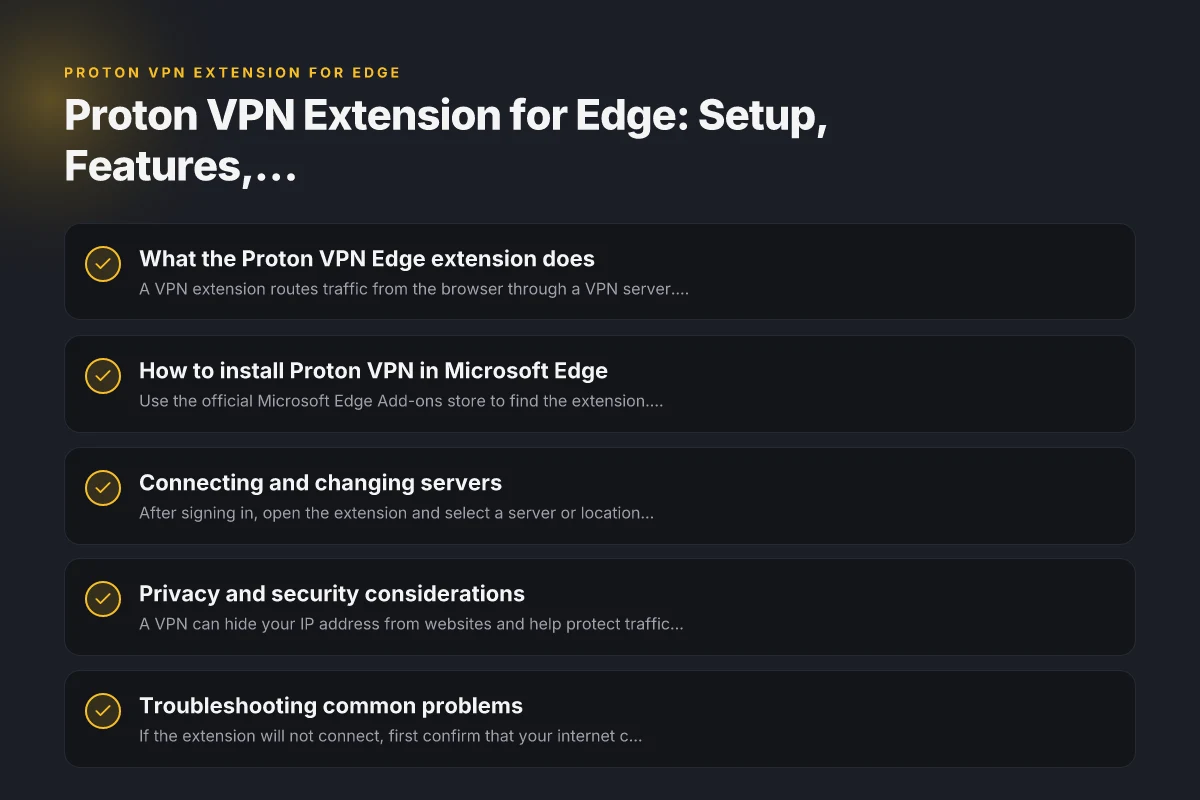
What the Proton VPN Edge extension does
A VPN extension routes traffic from the browser through a VPN server. Websites you visit see the server’s IP address rather than your regular public IP address, and your connection between Edge and the VPN server is encrypted.
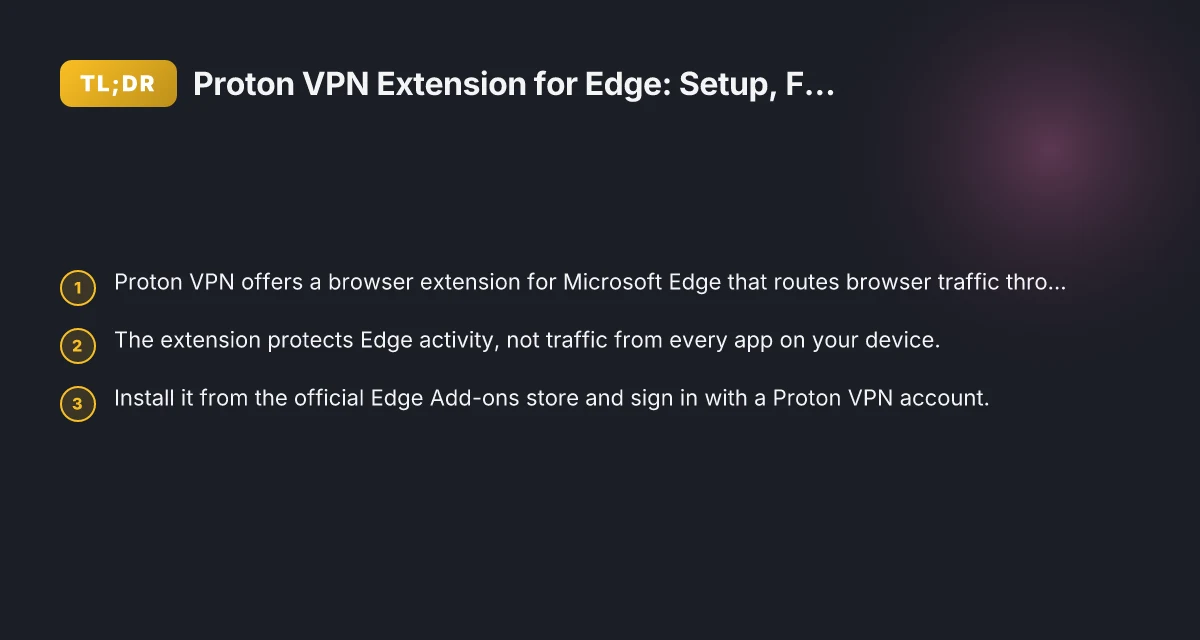
The extension is designed for browser-level protection. It does not automatically cover other software on your computer, such as email clients, games, or desktop messaging apps. For device-wide VPN protection, use the Proton VPN desktop app instead.
The extension can be a convenient choice when you want to protect Edge while leaving other internet connections unchanged. However, it is not a replacement for every feature available in the full VPN app. Features and server access may also depend on your Proton VPN plan.
How to install Proton VPN in Microsoft Edge
Use the official Microsoft Edge Add-ons store to find the extension. Avoid downloading browser extensions from unfamiliar websites, since unofficial files may be outdated or unsafe. how to fix virgin tv go app not working with VPN(2026)
- Open Microsoft Edge and go to the Edge Add-ons store.
- Search for “Proton VPN.”
- Open the listing published by Proton AG and check its details.
- Select Get and approve the browser’s request to add the extension.
- Open the extension from Edge’s toolbar. If it is hidden, use the extensions menu to pin it.
- Sign in with your Proton VPN account, then choose a server and connect.
If you do not have an account, create one through Proton VPN’s official website. Available servers and features can vary by plan, so check the current plan details before subscribing.
Check these items when setting up Proton VPN in Microsoft Edge
| Step or check | What to do | Expected result | If it does not work |
|---|---|---|---|
| Find the extension | Open Edge Add-ons | Proton VPN listing appears | Check the listing name |
| Install | Select the add-on option | Extension is added to Edge | Retry after loading the store page |
| Open the extension | Select its toolbar icon | Sign-in or connection controls appear | Pin the icon for easier access |
| Sign in | Enter your Proton account details | Account controls become available | Check credentials and account access |
| Choose a server | Select an available location | A server is selected | Try another available location |
| Connect | Use the extension’s connect control | Connection status changes | Reconnect or choose another server |
| Confirm protection | Check the extension status | Extension shows a connection | Check for conflicting VPNs |
| Change servers | Disconnect or select another location | New server is selected | Confirm the new connection status |
Compiled November 2026; check the provider's site for current details.
Connecting and changing servers
After signing in, open the extension and select a server or location offered for your account. Once connected, the extension should indicate that the VPN connection is active. To stop using the VPN, open the extension and disconnect. bsnl VPN .oVPN file(2026)
If a website still displays your previous location, try refreshing the page after connecting. You can also check your IP address using a reputable IP-checking website. Keep in mind that websites may use other signals, such as account details, browser settings, or location permissions, so a VPN does not guarantee that every service will treat you as being in a different place.
Extension or desktop app?
| Option | What it protects | Best suited to |
|---|---|---|
| Proton VPN Edge extension | Traffic handled by Edge | Browser-only protection or a quick location change |
| Proton VPN desktop app | Traffic across the device, subject to app and system settings | Protecting browsers and other internet-connected apps |
If you use both the extension and the desktop app, check how they are configured. Two VPN connections running at once can cause unexpected routing or connection problems.
Privacy and security considerations
A VPN can hide your IP address from websites and help protect traffic on networks you do not control. It does not make you anonymous, prevent every form of tracking, or guarantee access to a particular streaming service. Cookies, logged-in accounts, browser fingerprinting, and other tracking methods may still identify or recognize you.
For safer use: total VPN on fire stick(2026)
- Install the extension only from the official Edge Add-ons store.
- Keep Edge and the extension updated.
- Sign in only through the extension’s legitimate interface.
- Review the extension’s permissions and Proton VPN’s current privacy information.
- Use the desktop app if you want VPN protection for traffic outside Edge.
- Avoid treating a VPN as a substitute for strong passwords and multifactor authentication.
A VPN also cannot protect you from every harmful download or deceptive website. Continue to use reputable security software and take care when opening links or files.
Troubleshooting common problems
If the extension will not connect, first confirm that your internet connection is working and that you are signed in. Then try another available server, close and reopen Edge, or update the extension. If the problem continues, check Proton VPN’s official support resources for current service notices and troubleshooting guidance.
If the extension is missing from the toolbar, open Edge’s extensions menu and pin it. If a site behaves unexpectedly while connected, disconnect briefly to test whether the VPN is affecting the connection. Avoid entering sensitive information on a site unless you have confirmed that you are using the genuine service and a secure connection.
Troubleshoot common Proton VPN Edge extension issues axgate VPN client download(2026)
| Issue | First check | Try next | Keep in mind |
|---|---|---|---|
| Extension is missing | Check Edge Add-ons installation | Reinstall the extension | Confirm you are using Microsoft Edge |
| Sign-in fails | Verify account details | Sign out and sign in again | Check account access |
| Connection will not start | Check the selected server | Try another server | Other VPNs may conflict |
| Slow browsing | Try a different server | Reconnect the extension | Speed can vary by server and network |
| Site will not load | Test another site | Change server or reconnect | Some sites may restrict VPN traffic |
| Status is unclear | Open the extension panel | Check its connection indicator | Do not assume protection without confirmation |
| Extension stops responding | Reload the Edge page | Restart Edge and retry | Reinstall if the problem persists |
| Privacy concern | Review extension permissions | Use only the official listing | A browser extension covers browser traffic |
Compiled November 2026; check the provider's site for current details.
Recommendation
The Proton VPN extension for Edge is a practical option when you want VPN protection specifically for browser traffic. Install it from Microsoft’s official add-ons store, sign in, and connect to an available server. If you want to protect your whole computer, including apps outside Edge, choose the Proton VPN desktop app instead.