VPN free edge extension(2026)
Learn what a free VPN Edge extension can do, how to install one, and how to check its privacy, limits, and security.
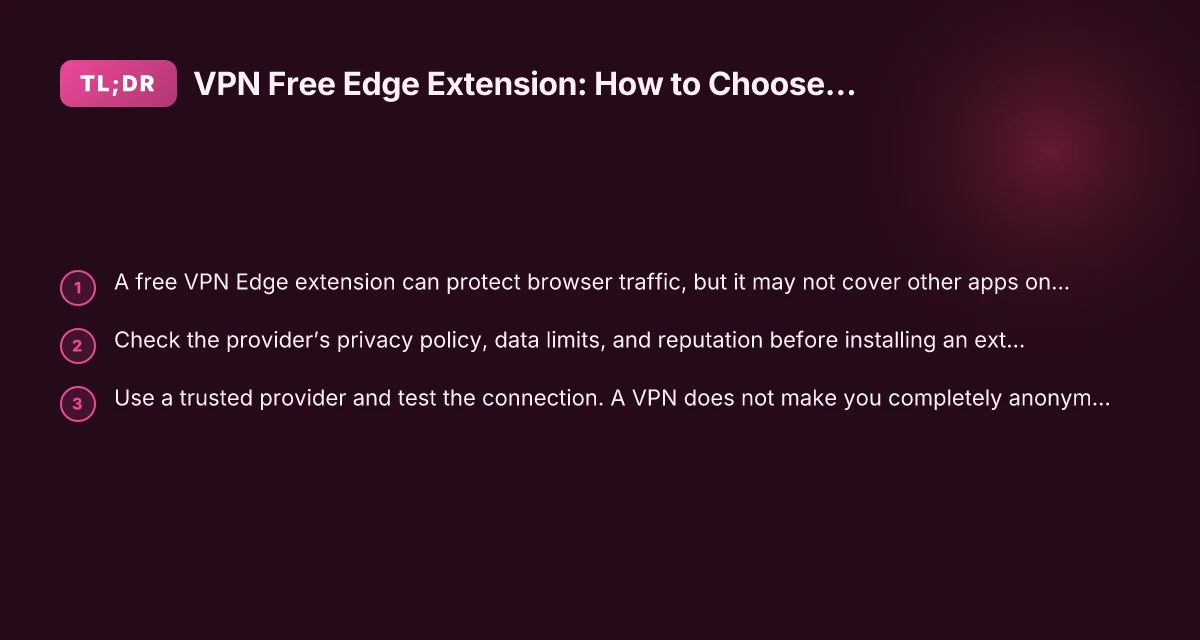
A VPN free Edge extension can route browser traffic through a VPN server without requiring a separate desktop app. To choose one safely, look for a reputable provider, clear privacy terms, and limits you can live with. Keep in mind that an extension may protect only Microsoft Edge traffic, not every app or connection on your device.
Compare free VPN Edge extension options before choosing one
| Option | Edge setup | Free-plan limits | Privacy checks | Best for |
|---|---|---|---|---|
| Browser extension | Add from Edge Add-ons or the provider’s site | May limit data, speed, or locations | Check what browser traffic it covers | Quick browser-only use |
| VPN app with Edge support | Install the app, then connect | May limit data, speed, or locations | Review the provider’s privacy policy | Coverage beyond the browser |
| Free plan from a paid VPN | Create an account and select the free tier | Features may be restricted | Confirm the free plan has a clear privacy policy | Trying a known provider |
| Standalone free extension | Install and use its toolbar controls | Limits vary by provider | Check ownership, permissions, and logging terms | Basic, occasional browsing |
| Paid plan with a free trial | Install the extension or app and activate the trial | Trial duration and renewal terms apply | Check cancellation and billing terms | Short-term access to more features |
| Proxy-style browser add-on | Install and choose an available location | May offer limited locations or performance | Verify whether it is a VPN or only a proxy | Changing browser routing |
| Unknown or unverified add-on | Avoid installing until verified | Limits may be unclear | Missing policy or unclear ownership is a warning sign | Not recommended |
Compiled November 2026; check the provider's site for current details.
| VPN | Obfuscation | From / month | Plan | Free plan | Refund | Alipay | UnionPay | Crypto | Website opens in China | Trustpilot | |
|---|---|---|---|---|---|---|---|---|---|---|---|
 ZoogVPN | Turn on manually Shadow | $2.49/mo | 27 months: $59.99 | Yes | 7 days | ✓ | ✓ | ✓ | ✓ | Official site blocked; our special link opens (4.4 s) | 4.2/5 (195 reviews) |
 NordVPN | Turn on manually Obfuscated Servers / NordWhisper | $3.49/mo | 27 months: $94.23 | No | 30 days | ? | ✗ | ✓ | ✓ | ✗ Blocked | 4.2/5 (51,628 reviews) |
 ExpressVPN | ✓ On by default all servers | $3.00/mo | 28 months: $84 | No | 30 days | ✗ | ✗ | ✓ | ✗ | ✗ Blocked | 4.4/5 (29,706 reviews) |
 Surfshark | ✓ On by default Camouflage, with OpenVPN | See site | See site | No | 30 days | ✗ | ✗ | ✗ | ✓ | ✗ Blocked | 4.3/5 (31,823 reviews) |
 Proton VPN | Turn on manually Stealth, free plan too | $2.99/mo | 12 months: $35.88 | Yes | 30 days | ✗ | ✗ | ✗ | ✓ | ✗ Blocked | 2.1/5 (1,040 reviews) |
 Astrill VPN | Turn on manually StealthVPN / OpenWeb | $12.50/mo | 24 months: $300 | No | See site | ✗ | ✗ | ✗ | ✓ | ✗ Blocked | 1.3/5 (110 reviews) |
 Private Internet Access | Turn on manually Shadowsocks, OpenVPN only | $2.03/mo | 40 months: $81.2 | No | 30 days | ✗ | ✗ | ✗ | ✗ | ✗ Blocked | 4.2/5 (11,033 reviews) |
 CyberGhost | Turn on manually selected servers | $2.19/mo | 28 months: $61.32 | No | 45 days | ✗ | ✗ | ✗ | ✓ | ✗ Blocked | 4.0/5 (24,178 reviews) |
 PureVPN | Turn on manually switch to OpenVPN | $1.69/mo | 60 months: $101.55 | No | 31 days | ? | ? | ✗ | ✓ | ✗ Blocked | 4.4/5 (17,994 reviews) |
 AdGuard VPN | ✓ On by default TrustTunnel | $2.99/mo | 24 months: $71.76 | Yes | 30 days | ✓ | ✗ | ✓ | ✓ | Official site blocked; our special link opens (3.7 s) | 4.3/5 (290 reviews) |
 Mullvad | Turn on manually QUIC / Shadowsocks / LWO | $5.61/mo | €5/mo | No | 14 days | ✗ | ✗ | ✗ | ✓ | ✗ Blocked | 3.2/5 (192 reviews) |
 Windscribe | Turn on manually Stealth / WStunnel | $5.75/mo | 12 months: $69 | Yes | See site | ✗ | ✗ | ✗ | ✓ | ✗ Blocked | 4.7/5 (13,355 reviews) |
 StrongVPN | Turn on manually Scramble, OpenVPN TCP | See site | See site | No | 30 days | ✓ | ✗ | ✗ | ✗ | ✗ Blocked | 4.4/5 (2,695 reviews) |
 LightXtreme 闪连 | Not listed | $7.08/mo | 12 months: $84.99 | Yes | 30 days | ✓ | ✓ | ✓ | ✓ | ✓ Yes (3.5 s) | No page |
Prices checked 2026-11-10 on each vendor's pricing page (cheapest long plan, USD). Check the vendor's checkout for the final price.
Obfuscation checked 2026-11-14 on each vendor's site and help center: "on by default" = nothing to set; "turn on manually" = switch protocol or mode in settings; "not listed" = the vendor describes no obfuscation.
Payment methods checked 2026-11-10 on each vendor's payment pages: all 14 take cards and PayPal; ✗ = not listed, ? = the vendor's own pages disagree.
China access: whether the official website opens from mainland China networks (tests the website only, not the VPN connection). Last checked 2026-11-18 01:02 Beijing time.
Trustpilot score and review count checked 2026-11-10.
What a free VPN Edge extension does
A VPN, or virtual private network, creates an encrypted connection between your device and a VPN server. A browser extension may offer a simple way to connect to that service while you use Edge.
However, not every extension works the same way. Some create a VPN connection for browser traffic, while others function as encrypted proxies. The product description and privacy policy should explain what is protected and how the connection works.
A browser extension may help when you want to:
- Add protection to browser traffic on public Wi-Fi.
- Change the apparent location of your browser connection.
- Use a quick on-and-off control without managing a full-device VPN app.
It does not guarantee anonymity, prevent every form of tracking, or make unsafe downloads and websites safe. Websites may still identify you through account logins, cookies, browser fingerprinting, or information you choose to share. forticlient VPN installer(2026)
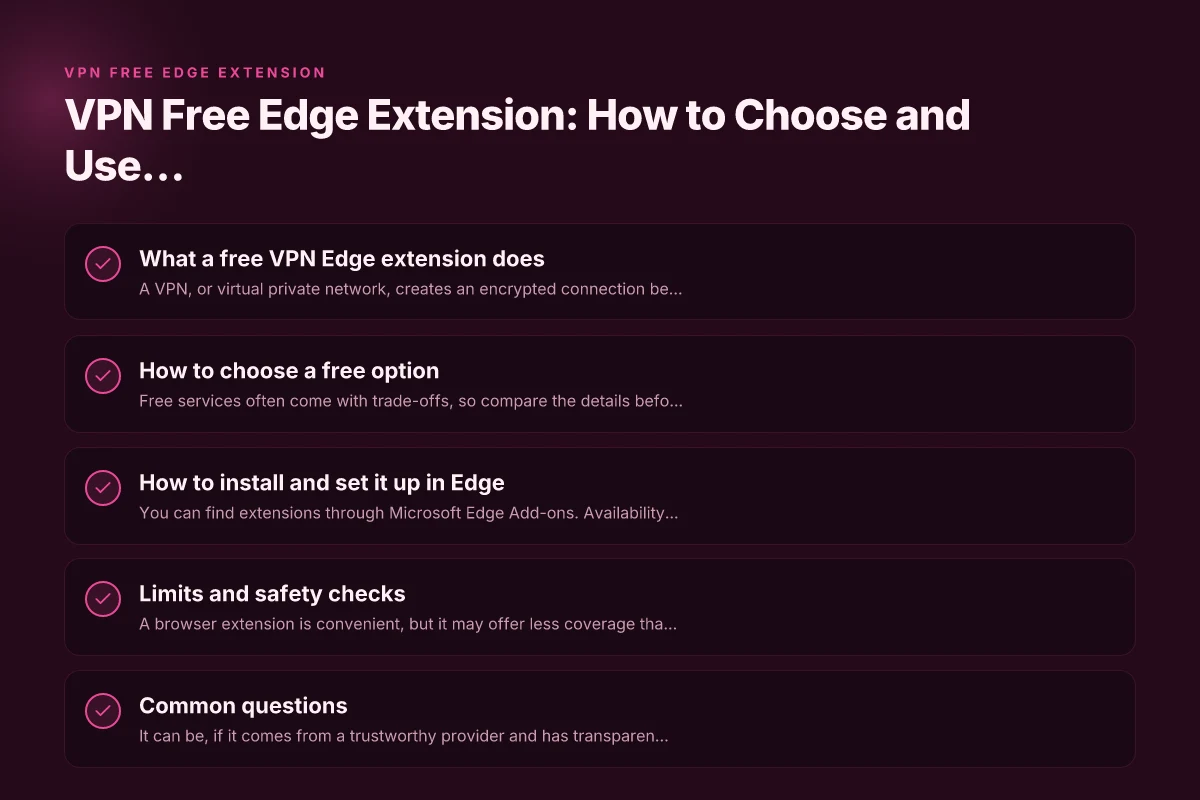
How to choose a free option
Free services often come with trade-offs, so compare the details before installing. A familiar brand name alone is not enough: check the publisher, terms, and current user feedback in Microsoft Edge Add-ons.
| Feature | What to check | Why it matters |
|---|---|---|
| Privacy policy | What data is collected, stored, or shared | A VPN provider may see connection information |
| Data allowance | Monthly cap or unlimited use | Limits can affect streaming and downloads |
| Server locations | Available countries and regions | Free plans may offer fewer choices |
| Speed and reliability | Current reviews and plan details | Congestion may slow browsing |
| Coverage | Browser-only or device-wide | An extension may not protect other apps |
| Business model | How the free service is funded | Understand whether paid upgrades or ads are involved |
Look for a clear explanation of logging and data retention. Be cautious if the policy is vague, the publisher is difficult to identify, or the extension asks for permissions unrelated to its purpose.
Also distinguish a genuinely free plan from a free trial. A trial may require payment details and convert to a paid subscription unless you cancel. Read the billing terms before signing up.
Check these points before installing a free VPN extension in Edge cisco anyconnect VPN client(2026)
| Check | What to look for | Good sign | Warning sign | Why it matters |
|---|---|---|---|---|
| Source | Edge Add-ons or provider’s official site | Verifiable publisher | Unrelated download page | Reduces risk of a fake extension |
| Publisher | Company identity and contact details | Consistent, identifiable provider | Hidden or changing identity | Helps assess accountability |
| Permissions | Requested browser access | Permissions match stated features | Broad access without explanation | Limits unnecessary access to browsing data |
| Privacy policy | Data collection, use, and sharing | Clear terms and retention details | Vague or missing policy | Shows how information may be handled |
| Logging claims | What activity is recorded | Specific, understandable explanation | Unsupported “no logs” claim | Helps judge privacy promises |
| Free-plan terms | Data, speed, locations, and features | Limits stated clearly | Limits or conditions are unclear | Prevents surprises during use |
| Security features | Connection protection and leak safeguards | Features are described plainly | Security claims lack details | Helps set realistic expectations |
| Reviews and updates | Recent feedback and extension updates | Ongoing maintenance and credible reviews | Long gaps or repeated complaints | Offers clues about reliability |
| Renewal terms | Trial end date and charges, if applicable | Cancellation terms are easy to find | Billing terms are hard to locate | Avoids unwanted charges |
Compiled November 2026; check the provider's site for current details.
How to install and set it up in Edge
You can find extensions through Microsoft Edge Add-ons. Availability and instructions may vary by provider, but the usual steps are:
- Open Microsoft Edge and visit the Edge Add-ons store.
- Search for the provider or VPN extension you want.
- Check the publisher name, permissions, privacy information, and recent reviews.
- Select the option to get or install the extension, then confirm the requested permissions.
- Open the extension, sign in or create an account if required, and choose a server.
- Connect and confirm that the extension indicates an active connection.
Avoid installing a similarly named extension from an unfamiliar publisher. If a provider directs you to download an extension elsewhere, verify that the link is on its official website and that the publisher matches.
After installation, review Edge’s extension permissions and remove anything you no longer use. Keep both Edge and the extension updated, since updates can address security and compatibility issues. urban VPN proxy edge(2026)
Limits and safety checks
A browser extension is convenient, but it may offer less coverage than a full VPN app. If it protects only Edge, other browsers, games, messaging apps, and background services may still connect through your regular internet connection.
Before relying on an extension, check these points:
- Test its coverage: Review the provider’s documentation to see whether protection applies only to Edge.
- Check for connection leaks: Use a reputable IP-checking site while connected, then compare the result with your normal connection. A result that still shows your regular IP may mean the extension is not working as expected.
- Watch for interruptions: If the VPN disconnects, your browser may return to its usual connection. See whether the service offers a connection lock or automatic reconnection.
- Use HTTPS: A VPN adds a layer of protection, but HTTPS is still important for securing connections to websites.
- Treat claims carefully: Promises of total anonymity, guaranteed security, or unrestricted access deserve extra scrutiny.
Free plans can also have slower speeds, fewer servers, data caps, or limits on streaming and peer-to-peer traffic. These restrictions are not automatically a sign of poor quality, but they should be clearly explained.
Common questions
Is a free VPN extension for Edge safe?
It can be, if it comes from a trustworthy provider and has transparent privacy terms. A VPN routes traffic through a provider’s infrastructure, so the provider’s policies and security practices matter. Research the company rather than choosing an extension based only on its rating or download count. urban VPN proxy extension(2026)
Does it protect all internet traffic?
Not necessarily. Many browser extensions affect only browser traffic. To protect other apps on your computer, look for a full-device VPN app and confirm which connections it covers.
Can I use one for streaming?
Some free plans may work with streaming services, but access, speed, and availability can change. Streaming platforms may block VPN connections, and free plans often have server or data limits. Check the provider’s current terms rather than assuming a particular service will work.
Will it stop ads and trackers?
A VPN’s primary role is to route and protect network traffic. Some providers include optional tracker or ad blocking, but an extension should not be treated as a complete privacy tool. Browser privacy settings and careful account and cookie management still matter.
Use this setup checklist to install and use a VPN extension in Edge get VPN ipsec tunnel summary(2026)
| Step | Action | What to check | If it does not work |
|---|---|---|---|
| 1. Verify | Confirm the provider and its policy | Publisher and privacy terms are clear | Do not install if key details are missing |
| 2. Install | Open the Edge Add-ons listing or official provider page | The listing matches the provider | Avoid third-party download mirrors |
| 3. Review | Read the permission request | Access fits the extension’s purpose | Cancel if permissions seem excessive |
| 4. Sign in | Create an account only if the service requires it | Free-plan terms and data requests | Recheck the provider’s terms before sharing details |
| 5. Connect | Select an available location and connect | The extension shows an active connection | Follow the provider’s troubleshooting guidance |
| 6. Test | Check a trusted IP or connection test page | The reported location reflects the connection | Disconnect and review settings if results differ |
| 7. Browse | Use the extension for supported browser traffic | Whether other apps are covered | Use a VPN app if you need device-wide coverage |
| 8. Disconnect | Turn off the connection when no longer needed | Edge shows the disconnected state | Restart Edge or consult provider support |
| 9. Recheck | Review permissions, updates, and plan limits periodically | Changes to policy or extension behavior | Remove it if the provider or terms become unclear |
Compiled November 2026; check the provider's site for current details.
Recommendation
For occasional browser protection, a free VPN Edge extension from a well-established provider may be a practical starting point. Verify its publisher, privacy policy, data limits, and coverage before installing it, then test that it connects as expected. If you need protection for every app, frequent streaming, or consistently high speeds, compare full-device VPN plans instead.